What is the quick answer?
Tired of the content treadmill? Discover the 10 best content repurposing tools to turn one video into a week of content. AI clippers, editors & automation.
Key takeaways
- 1. Satura AI
- Why Satura fits creators who want fewer moving parts
- Where it beats a stacked workflow
- 2. OpusClip
- Best when your raw material is already doing the hard work
- 3. Munch
Overview
Stop treating every platform like it needs a fresh idea. The creators who publish consistently usually work from one strong source asset, then reshape it for each channel. That is how they keep output high without turning content into a full-time production problem.
Repurposing works best when the workflow starts with the asset you already have. A podcast needs different tooling than a long YouTube video. A webinar archive creates different bottlenecks than a written newsletter. An all-in-one setup can save real time, but it also means accepting trade-offs in editing depth, publishing control, or analytics. I have found that the right stack depends less on feature count and more on the first file on your desk.
That is the lens for this guide. Instead of ranking tools by generic capabilities, it matches them to the job you need done right now. "I have a podcast." "I need clips from long-form video." "I want one system with fewer tabs and handoffs." If that last one sounds familiar, this breakdown of the 1-dashboard rule for faster YouTube automation will feel relevant.
Some tools are built for clip extraction. Some are better once transcript editing is the core workflow. Others are useful because they remove publishing busywork, even if you still need another app for polish or reporting. If you want the broader strategy behind turning one piece into many, these MicroPoster content growth strategies are a useful companion read.
1. Satura AI
If your starting point is, "I want one place to edit, clip, package, and learn what worked," Satura AI fits that job better than the specialist tools on this list.
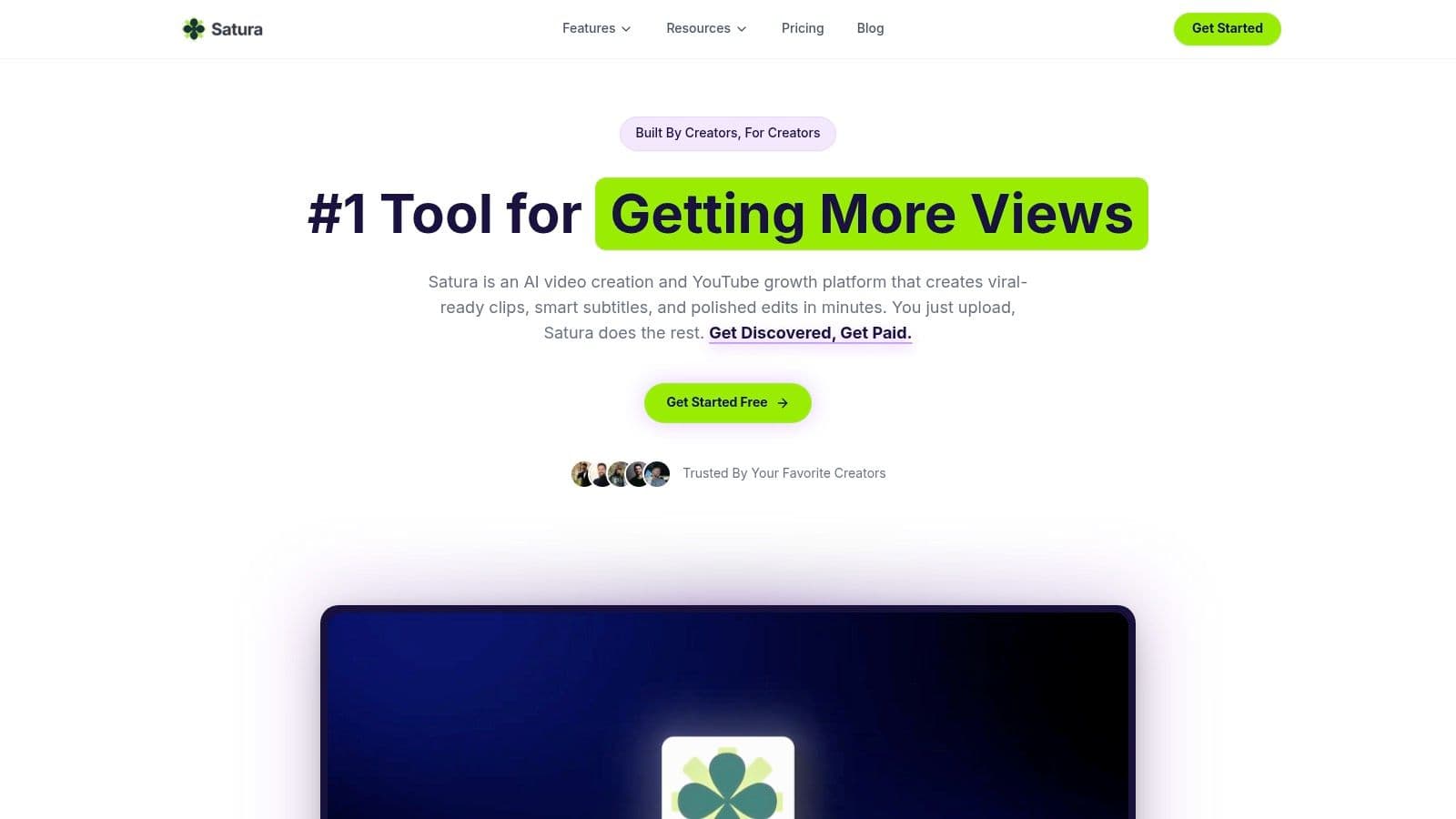
A lot of repurposing tools are good at one step. They pull clips from a long video, transcribe a podcast, or add captions. Satura is built for creators who are tired of stitching those steps together by hand. You can work in the browser, turn raw footage or links into short clips, add subtitles, clean audio, generate voiceovers, make thumbnails, and export assets without jumping across a stack of separate apps.
That matters because tool sprawl slows production more than creators admit. Every extra handoff creates delay, increases review time, and gives you one more subscription to manage.
Why Satura fits creators who want fewer moving parts
Its key differentiator is the browser-based workflow. You can edit, clip, subtitle, and package in one place, which cuts out the usual setup friction. For YouTube creators, Shorts publishers, TikTok teams, Reels-heavy brands, and faceless channel operators, that saves real time every week.
The feature set is broad in a useful way, not a checkbox way. Satura includes AutoClip, smart cutting, subtitles, transcription, motion control, speech enhancement, AI voiceovers, background and caption removal, and thumbnail support. If your starting point is rough footage, a talking-head recording, or an existing upload, it handles the job of turning one asset into several publishable versions quickly.
If short-form is part of your output, this YouTube Shorts editing guide is a practical companion to a Satura-based workflow.
A useful companion read is Satura’s take on the 1-dashboard rule for faster YouTube automation. It gets at the same problem many creators hit after adding too many point solutions.
Practical rule: If your repurposing workflow needs more than one editor, one clipper, and one analytics dashboard, it is probably slower than it looks.
Where it beats a stacked workflow
Satura stands out most after the content is made.
Plenty of repurposing tools can generate a decent first draft. Fewer help you diagnose why a clip missed. Satura adds feedback tools like Trustscore, Growth Coach, and Virality Lab to surface likely issues with hooks, retention, shareability, and posting consistency in plain language. That makes it more useful for creators who care about performance, not just output volume.
There are trade-offs. Pricing is credit-based and tied to export minutes, with a free way to start, but the public pricing detail is not as clear as some buyers will want. Heavy users who budget tightly may prefer flatter pricing or more plan transparency before committing. And if your workflow depends on large, high-resolution timelines or offline editing, a desktop NLE may still make more sense for the heaviest production work.
For creators whose job-to-be-done is "replace five tools with one working system," Satura is a strong fit.
- Best for: YouTubers, short-form creators, streamers, faceless channel operators, and solo creators who want one system
- What works: Browser editing, clip generation, packaging, subtitles, audio cleanup, and post-publish diagnostics
- What doesn’t: Less ideal for offline edit pipelines or buyers who want simple flat-rate pricing
2. OpusClip
OpusClip is the tool to reach for when your starting point is clear: you already have a long video, and the job is to turn it into a steady stream of Shorts, Reels, and clips without spending hours in the timeline.
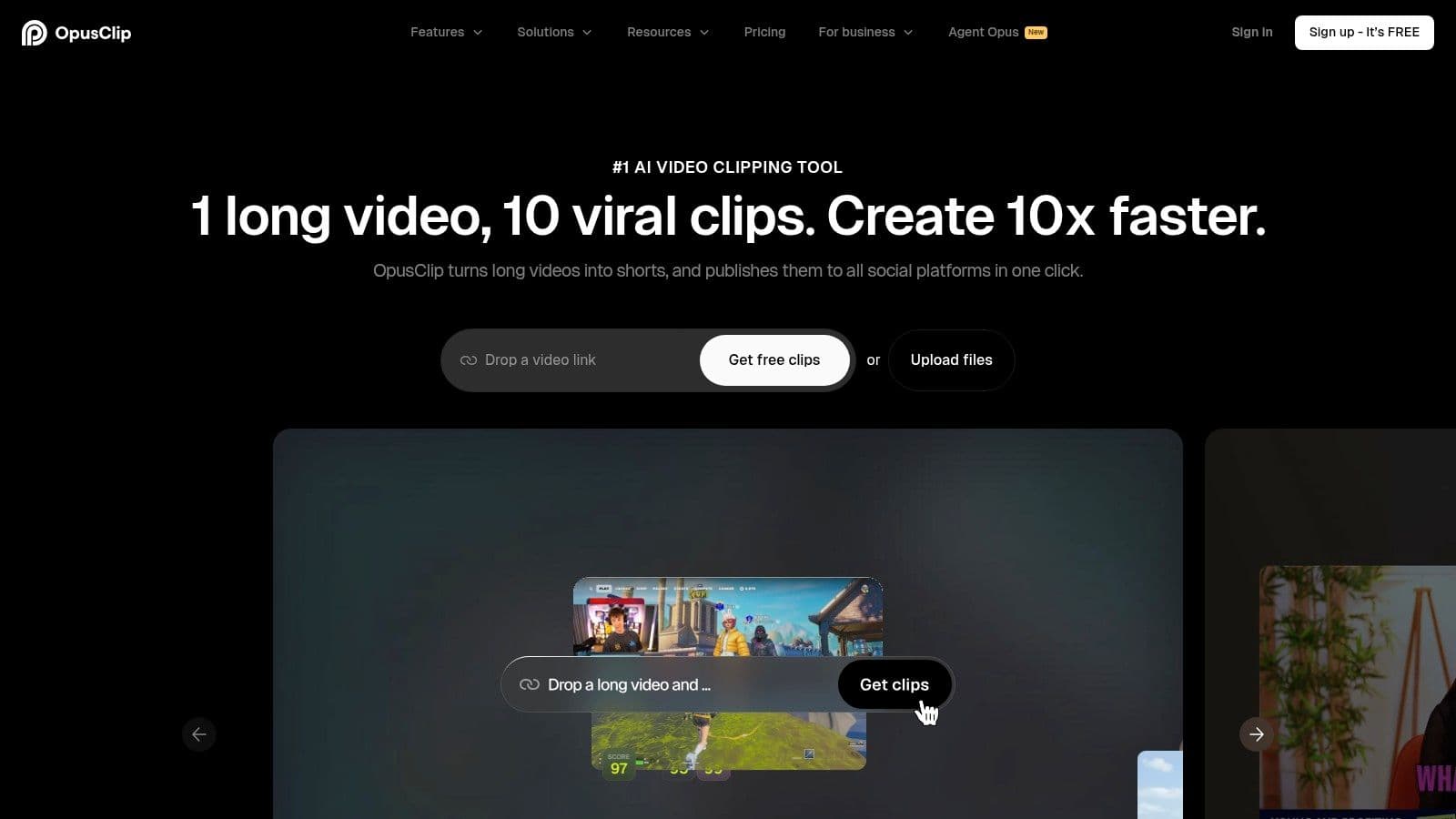
That workflow fits podcasts, interviews, webinars, livestreams, and talking-head YouTube content especially well. OpusClip scans the source, pulls likely highlight moments, reframes for vertical, adds captions, and gives you draft clips fast enough to review in batches instead of cutting each one by hand.
Best when your raw material is already doing the hard work
The main advantage is speed at the clipping stage. Long-form creators usually have more usable moments than they publish, but finding them manually is slow and repetitive. OpusClip cuts that search time down. You upload once, review suggested segments, reject the weak picks, and polish the clips that deserve to go live.
Its inputs are practical too. You can work from local files, YouTube links, cloud storage, and other common sources, which matters if your footage lives in different places. The built-in posting and scheduling tools also help teams or solo creators who want clipping and distribution in the same workflow.
If short-form is a serious channel for you, this guide to what YouTubers use to edit videos helps clarify where a clipping tool fits versus a full editor. For creators focused specifically on vertical output, this YouTube Shorts editing guide also fits naturally alongside an OpusClip setup.
There are real limits.
OpusClip performs best with spoken content that has clear beats, clean audio, and obvious quote-worthy moments. It is less reliable with footage that depends on visual storytelling, fast scene changes, layered context, or subtle setup that only makes sense inside the full video. In those cases, the AI can still save time, but you should expect to step in and make editorial calls.
The same trade-off applies at the strategy level. OpusClip is built to create short video assets from long video. It does not do much to help you turn that source into emails, blog posts, carousels, or a broader multi-format content system. If your job-to-be-done is "I have a long video and need clips by this afternoon," it is a strong fit. If your job is "turn one recording into my whole weekly content package," you will probably need another tool beside it.
Good clipping AI saves selection time. It still needs someone who knows which moments are actually worth publishing.
- Best for: Creators with podcasts, webinars, interviews, streams, or YouTube videos who need short-form output fast
- What works: Fast clip discovery, auto-reframing, captions, batch review, and built-in scheduling
- What doesn’t: Less useful for visually complex footage, full editing workflows, or non-video repurposing like blogs and emails
3. Munch
Munch is for the creator whose bottleneck starts after the recording is done.
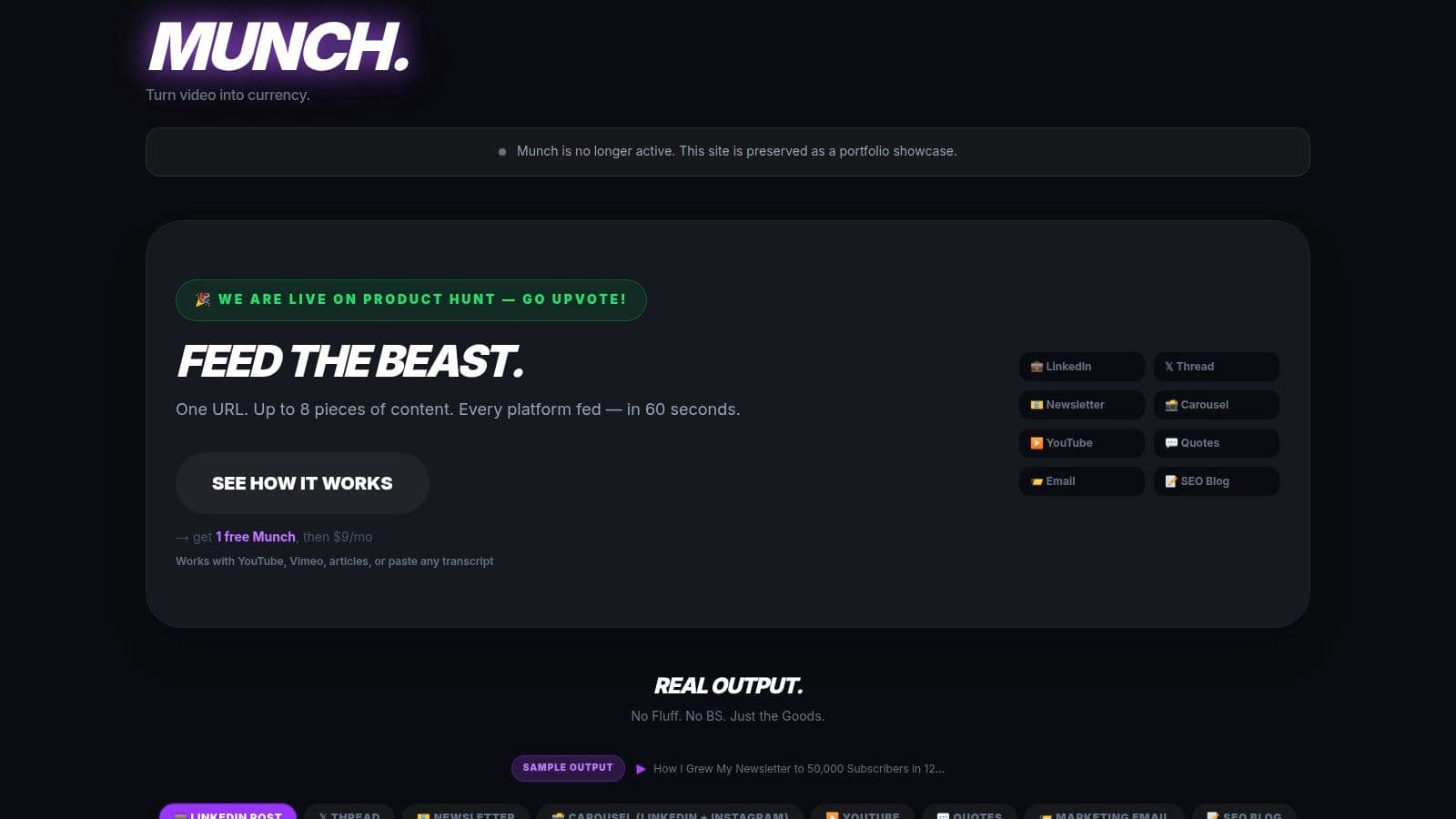
If your workflow looks like, "I have a webinar, podcast episode, interview, or YouTube video, and now I need the posts, email copy, captions, and promo text," Munch makes sense fast. You can start from a YouTube link, Vimeo link, article URL, or transcript and turn that source into platform-specific written assets such as LinkedIn posts, X threads, carousel copy, newsletter sections, descriptions, quotes, and email drafts.
Best when one recording needs a distribution package
A lot of repurposing tools start with clips. Munch starts closer to the distribution layer. That difference matters.
For educators, consultants, podcasters, and B2B creators, the time drain often is not editing the main asset. It is producing all the supporting copy that gets the asset seen. Munch helps with that job well. It gives you first drafts across channels, which is often enough to remove the blank-page problem and keep a publishing schedule moving.
That does not make it a full replacement for your editor.
Munch is stronger as a copy-generation tool than a frame-level video tool. If you still need to shape the source video itself, a dedicated editor will do more. If you're still deciding what YouTubers use to edit videos, treat Munch as the repurposing layer after the edit, not the editor itself.
The trade-off is straightforward:
I use tools like this when the starting point is clear and the output list is repetitive. One episode becomes launch copy, follow-up email text, quote posts, and newsletter blurbs. In that workflow, speed beats originality on draft one. The job is to get to a solid draft quickly, then tighten the language so it still sounds like you.
If your job-to-be-done is "I have the content, but I need words for every channel by today," Munch is a practical fit. If your job is "find the best 30 seconds and make it pop on TikTok," look elsewhere.
- Best use case: One core video or transcript needs social posts, email copy, descriptions, and campaign support
- What it does well: Generates written derivatives quickly from links, transcripts, and existing content
- Where it falls short: Limited value for creators who need precise edit control or who care mostly about short-form clip selection
- What to check before buying: Higher-tier plans may gate longer-form outputs or heavier usage
4. Descript
Descript is the pick for creators whose workflow starts with spoken content and ends with multiple usable assets.
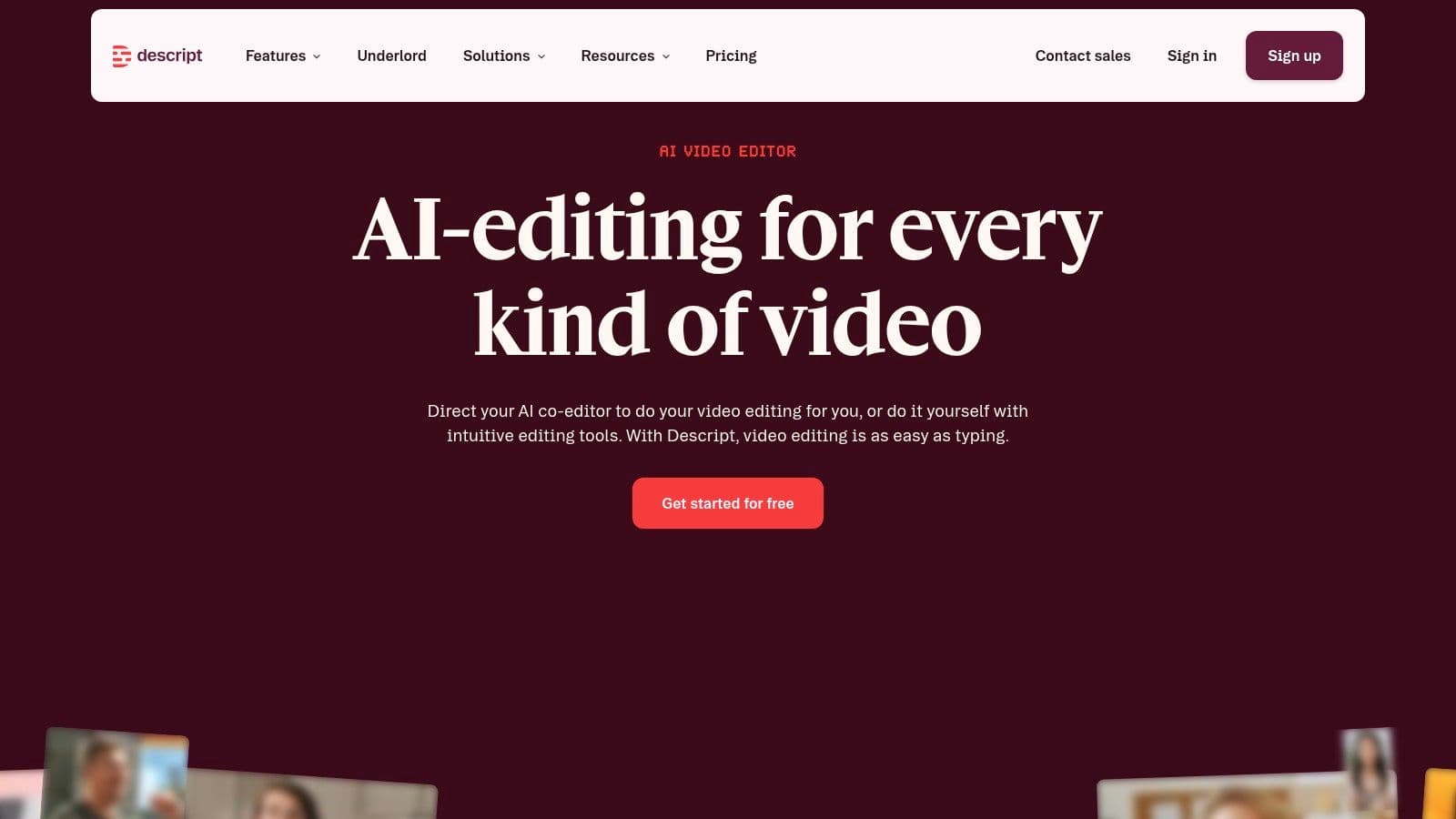
If your job-to-be-done is “I have a podcast, interview, webinar, or talking-head video, and I need to turn it into clips, captions, and cleaned-up edits fast,” Descript earns its spot. The transcript is the editing interface. Cut a sentence from the text, and that section disappears from the audio or video. For spoken-word creators, that usually means less timeline wrestling and faster first-pass edits.
Best for podcast, interview, and talking-head workflows
Descript works well in the middle of the repurposing stack. It handles transcription, filler-word cleanup, screen recording, multitrack editing, basic clip extraction, and collaboration in one place. That matters if the source material is already good enough and the primary job is shaping it into publishable versions without opening three separate tools.
It is also a practical option for creators comparing what YouTubers use to edit videos and realizing they do not need a full traditional NLE for every project. If the content is mostly dialogue, tutorials, interviews, or commentary, text-based editing is often the faster path.
One detail I like in this workflow is subtitle handling. If you need a faster caption pass before exporting social cuts, tools for automatic subtitle generation can tighten that part of the process.
Private playbook: Descript is strongest when the words carry the value. If the edit depends on pacing B-roll, motion design, heavy color work, or precise visual beats, I move the project into Premiere, Final Cut, or Resolve.
The trade-off is clear. Descript saves time on speech-heavy content, but it is not the best choice for creators who edit by visual rhythm first. You also need to watch usage limits and credits if your team is processing a lot of long recordings every month.
For the right starting point, though, it is a strong fit. If you have a podcast episode or long interview and need clean edits, clips, transcripts, captions, and reusable text from the same source file, Descript handles that workflow better than tools built only for short-form clipping.
5. Kapwing
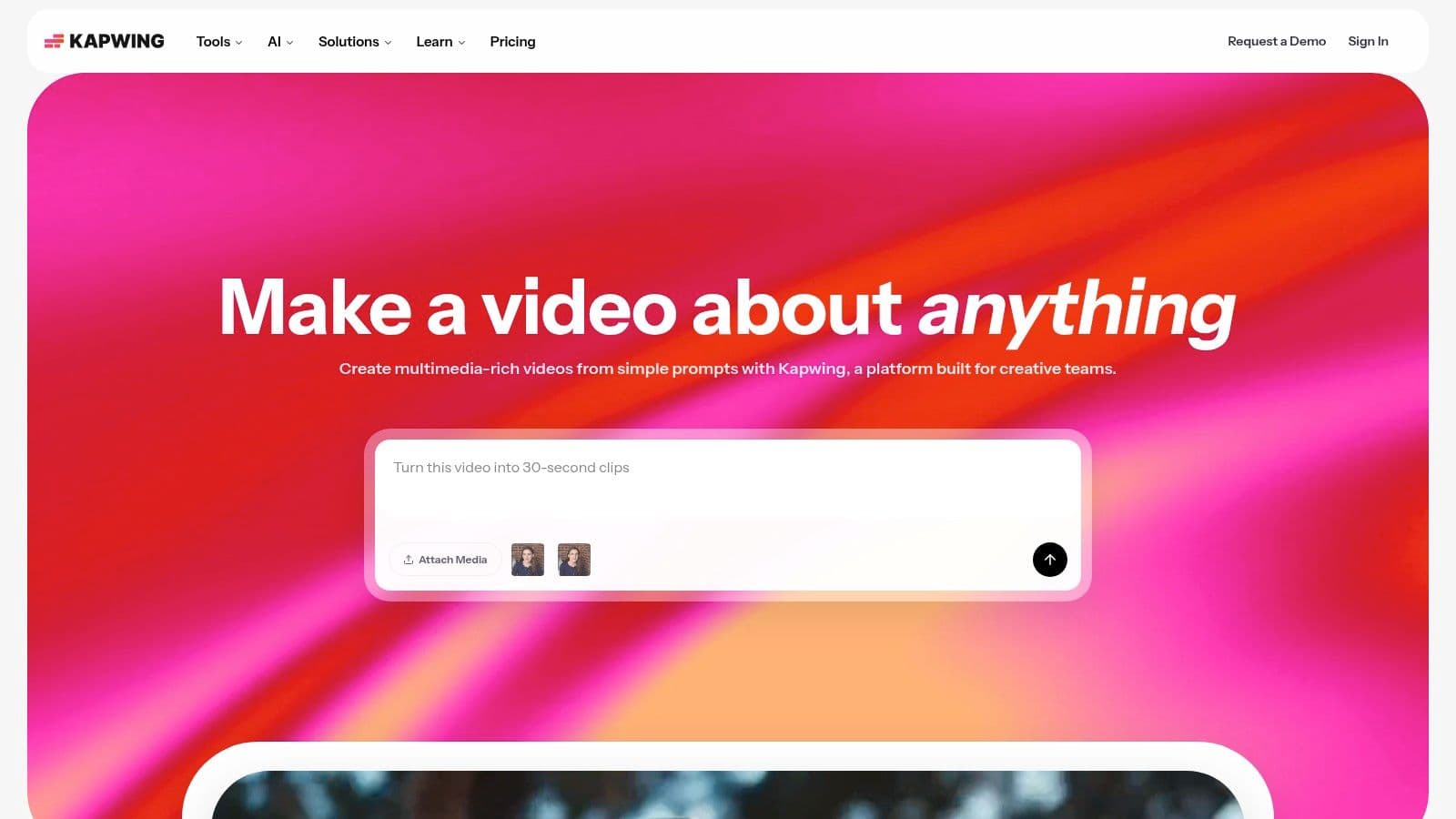
Kapwing is for the creator or social team whose job starts after the content already exists. You have the raw video, podcast clip, webinar segment, or customer recording. The task is turning it into platform-ready versions fast, without dragging every edit through a full post-production stack.
What are the common questions?
What is the short answer for 10 Best Content Repurposing Tools for Creators in 2026?
Tired of the content treadmill? Discover the 10 best content repurposing tools to turn one video into a week of content. AI clippers, editors & automation.
What should creators do first?
One-person teams: Strong fit when the same person is editing, packaging, and publishing.
Who is this guide for?
This guide is for YouTube creators, faceless channel operators, agencies, and teams using AI tools to improve video production and growth.
Action checklist
Apply this to your channel today.
- 1One-person teams: Strong fit when the same person is editing, packaging, and publishing.
- 2Simple weekly production: Better for repeatable content than one-off campaign work.
- 3Fast cleanup: Cuts dead air and improves pacing with minimal manual work.
- 4Multi-format output: Reframes one source for vertical, square, and horizontal delivery.
- 5Posting workflow: Social Hub helps reduce handoff steps after editing.
Sources & methodology
- Satura editorial guide based on the source video, topic cluster, and article sections.
- Source video reviewed for this article: https://www.outrank.so/