What is the quick answer?
Find the best video editing software for Chromebook in 2026. Explore top browser, Android, and Linux apps to create stunning videos easily.
Key takeaways
- The Chromebook Creator's Dilemma
- What actually changes on ChromeOS
- The Three Paths to Editing on a Chromebook
- Browser-first usually wins on speed
- Android apps are the practical middle ground
- Linux apps give you more control, with more friction
Overview
You bought a Chromebook because it’s light, quick to open, easy to carry, and usually great at everything that lives in a browser. Then you try to edit a real video on it and hit the wall fast. Premiere Pro won’t run. Final Cut isn’t even in the conversation. DaVinci Resolve is out. Suddenly your “simple” editing job turns into tabs, failed installs, and a growing suspicion that your laptop hates creators.
The good news is the problem usually isn’t your Chromebook. It’s the old idea that video editing has to happen like it’s still a desktop-only world. ChromeOS pushes you toward a different setup, and if you lean into that instead of fighting it, editing can get a lot less painful. The fastest path isn’t trying to force a heavyweight desktop workflow onto a machine built for cloud-first work. It’s building a system that matches the device.
That’s the key question behind video editing software for chromebook. Not “which app has the longest feature list?” but “which setup lets you cut, subtitle, export, and publish without wasting your afternoon?”
The Chromebook Creator's Dilemma
A lot of creators have the same first reaction. They open a new Chromebook, shoot a test video, search for the editing app they already know, and realize it’s not happening. That frustration is fair. ChromeOS doesn’t play nicely with the classic desktop editing stack, so if you’re coming from Windows or Mac, the whole thing feels like a downgrade.
What usually makes it worse is the way people approach the problem. They keep searching for “Premiere alternative” when the better move is to rethink the workflow itself. If your process depends on giant local project files, heavy renders, and a bunch of installs, a Chromebook will feel cramped fast. If your process is built for speed, cloud storage, simple imports, and quick publishing, the same machine can feel surprisingly capable.
That’s why the smartest Chromebook creators stop treating editing as one app and start treating it as a production system. If that idea clicks, this piece on building a video production system that ships consistently is worth reading after this one.
What actually changes on ChromeOS
You’re usually choosing between three approaches:
Each path works. Each one also has a trap.
Browser tools are the easiest to live with. Android apps can feel more “real” if you like a traditional timeline. Linux gives you control, but it asks for patience and setup tolerance. The mistake is assuming one of these is universally best. The right answer depends on whether you care most about speed, offline access, or advanced control.
Most Chromebook editing pain comes from using the wrong workflow for the hardware, not from the hardware being useless.
If your goal is to publish YouTube videos, Shorts, tutorials, product demos, or client clips without fighting your machine every time, you can do that on a Chromebook. You just have to stop trying to make it behave like a MacBook.
- Browser editors that do the heavy lifting online
- Android editing apps that run locally through the Play Store
- Linux tools for people willing to tinker
The Three Paths to Editing on a Chromebook
You open your Chromebook to cut a video before dinner. Thirty minutes later, you are still deciding whether to use a browser editor, an Android app, or some Linux setup a Reddit thread swore was "totally usable." That decision matters more than the app logo.
There are three real paths on ChromeOS, but the smart move is to choose a system, not just software. The best path is the one that matches how you shoot, where your footage lives, and how often you need to publish.
| Path | Best for | Main upside | Main downside |
|---|---|---|---|
| Browser-based editors | Fast publishing and low-friction workflows | Light on local hardware, easy access across devices | Internet quality affects the experience |
| Android apps | Offline editing and a more app-like timeline | Better local control, familiar mobile editing feel | Performance drops faster on weaker Chromebooks |
| Linux apps | Tinkerers who want desktop-style control | More flexibility, stronger file-level access | Setup takes time, and maintenance is real |
Browser-first usually wins on speed
For a lot of Chromebook creators, browser editing is the default because it keeps the whole workflow simple. Footage comes in from Google Drive or cloud storage, edits happen in a tab, and exports are easy to hand off or publish. If your priority is getting videos out consistently, this path usually creates the fewest bottlenecks.
It also fits the way Chromebooks are used. Short startup time, low local storage, and browser-centered work all point in the same direction. A good AI video editor built for Chromebook-friendly workflows can save more time over a month than a "more advanced" tool that constantly fights the device.
Android apps are the practical middle ground
Android editors make sense if you want to work offline, prefer tapping into a native-feeling app, or just hate doing creative work in a crowded browser. In the right setup, they are the most balanced option.
The catch is performance. Once rendering, previews, and effects rely more on the Chromebook itself, hardware limits show up fast. Simple trims, captions, vertical clips, and short YouTube segments usually go fine. Multi-layer edits, long timelines, and heavy effects are where cheaper models start to feel slow.
Linux apps give you more control, with more friction
Linux is the path for people who are willing to trade convenience for control. You can get closer to a traditional desktop editing environment, manage files more directly, and work fully offline.
You also have to earn it.
Linux on ChromeOS means setup, file permissions, storage planning, and the occasional weird issue that has nothing to do with editing skill. For some creators, that trade is worth it. For anyone trying to post on a schedule without babysitting the machine, it usually is not.
Practical rule: Pick the path that makes your repeat workflow faster, importing, editing, exporting, and publishing. Extra features do not help if the system slows you down every week.
Browser-Based Editors The Cloud-Powered Champions
Browser editors are often the best answer to the Chromebook problem because they stop asking the machine to do a desktop job. They use the Chromebook for what it is good at: opening fast, staying simple, and living in the browser.
Why cloud editing fits ChromeOS better
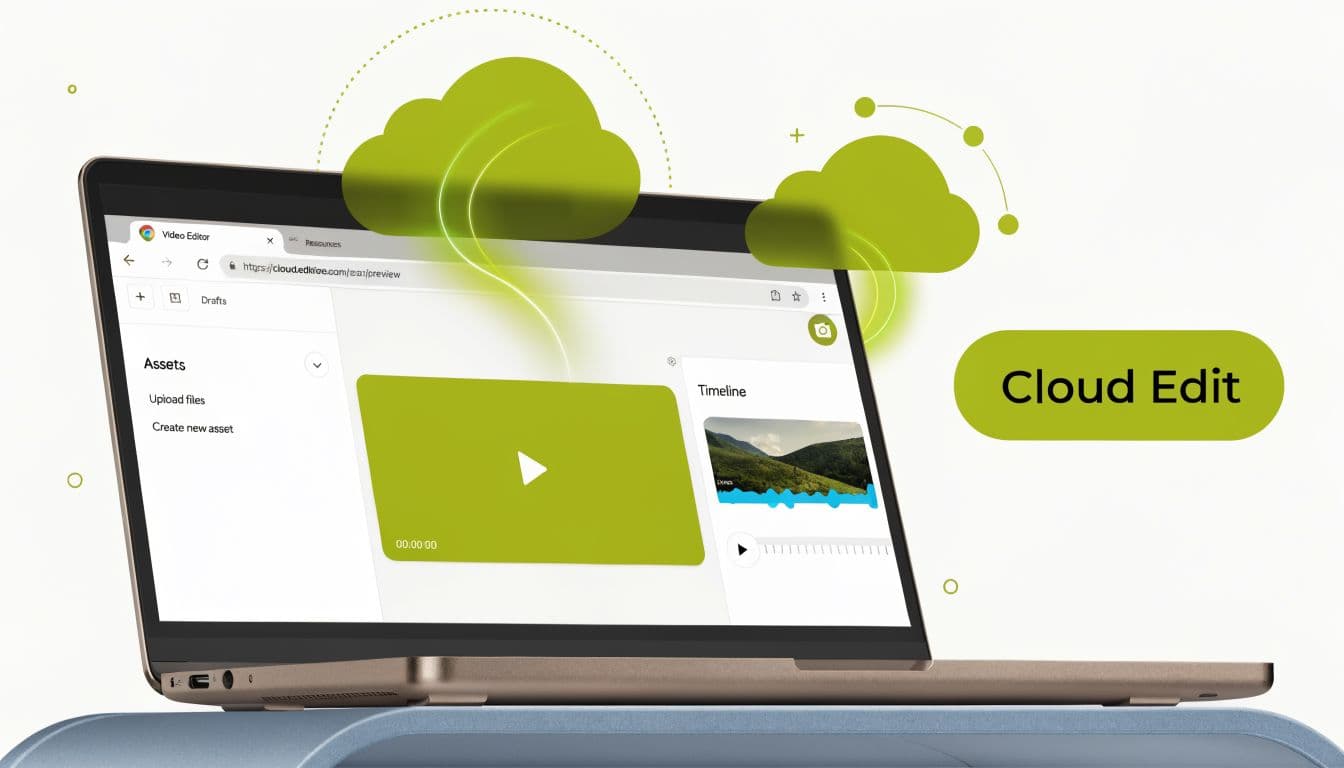
Chromebooks usually have limited local storage and modest processing power. Browser editors avoid turning that into a constant bottleneck by shifting more of the workload online. That means less device strain, less install friction, and fewer moments where your fan sounds stressed over a simple cut.
A good browser editor also fixes a bunch of annoying side problems at once:
If your Chromebook is mainly for writing scripts, reviewing footage, trimming clips, adding captions, and pushing content out, this is the lane that makes life easier.
- Storage pressure drops because you aren’t hoarding giant local project folders
- Setup is easier because you can start editing without a long install process
- Sync is cleaner because cloud storage and browser access play nicely together
- Publishing gets faster because export and handoff often happen in the same environment
The tools that usually make the shortlist
Clipchamp is one of the easiest browser-based options to recommend to casual creators. It has a clean interface, a free tier, and good fit for straightforward social content. It also integrates well with Google Drive, which matters more on a Chromebook than most reviews admit.
WeVideo is strong when collaboration matters or when you want a built-in asset library. It offers access to over 1 million royalty-free video, image, and music assets included with the editor, according to WeVideo’s Chromebook page. That’s useful if you’re producing explainers, classroom content, or quick social edits and don’t want to hunt for outside media every time.
Adobe Express and Kapwing are strong for template-led work. They’re often better for rapid social publishing than for deep timeline control.
What browser editors do well, and what they don’t
They’re excellent for:
They’re less ideal when you need:
A lot of creators don’t need the “full cinema workstation” they think they need. They need a system that helps them cut, package, and distribute more often. If that’s your situation, this guide on turning free AI video generators into a distribution system connects well with the browser-first approach.
Here’s a look at the cloud-first editing style in action:
Browser editors win on Chromebooks when your bottleneck is workflow speed, not missing one obscure pro feature.
- Short-form content
- Fast social repurposing
- Basic to intermediate YouTube edits
- Caption-heavy workflows
- Creators who move between devices
- Very granular audio mixing
- Deep color work
- Offline reliability
- A classic desktop editing feel
Android and Linux Apps The Offline Powerhouses
You feel the difference fast with offline editing. The Wi-Fi drops, the browser tabs stop fighting for memory, and your footage is still there waiting for you. That matters on a Chromebook, especially if you edit in bursts on the couch, in a coffee shop, or while traveling.
Android and Linux apps are the path for creators who care more about control and reliability than cloud convenience. They can also punish weak hardware. That trade-off is the whole story here.
What are the common questions?
What is the quick answer for Unlock Creativity: Video Editing Software for Chromebook?
Find the best video editing software for Chromebook in 2026. Explore top browser, Android, and Linux apps to create stunning videos easily.
What should creators do first?
Tools built for quick output
Who is this for?
This article is for YouTube creators, faceless channel operators, agencies, and teams improving video production, editing, analytics, and growth workflows.
Action checklist
Apply this to your channel today.
- 1Tools built for quick output
- 2Pretending local storage doesn’t matter
- 3Keeping dozens of tabs open during edits
- 4Choosing software based on hype instead of workflow
- 5Expecting a budget Chromebook to enjoy giant layered projects