What is the quick answer?
How to join mp4 files - Learn how to join MP4 files quickly with browser-based editors, online tools, VLC, or FFmpeg. Merge videos seamlessly, retaining
Key takeaways
- So You Have a Pile of Clips Now What
- The decision is really about trade-offs
- The Easiest Way Merging Videos in Your Browser
- Why timeline joining wins for most creators
- A clean browser workflow that works
- Free Mergers for Simple One-Off Jobs
Overview
You open a project folder to “quickly” stitch together a video and find chaos instead. Camera clips split across multiple files. A vertical phone shot somebody AirDropped to you. A screen recording with different dimensions. Maybe a clean intro take, three retakes, and one clip you forgot to trim.
That's usually the moment people search how to join mp4 files and land on a list of tools with no real advice. The problem isn't just joining files. It's choosing the right workflow for the footage you have, and deciding what you care about most: speed, quality, convenience, or flexibility.
A lot of guides also skip the biggest trade-off. Some methods concatenate clips without re-encoding, which can preserve quality and move fast when the files match. Others place clips on a timeline and export a new file, which is more forgiving but usually means recompression. If you're also clipping long videos for shorts, this guide on taking clips from YouTube videos fits neatly into the same workflow, and if you want another practical walkthrough on how to join MP4 files together, that's a useful companion read.
So You Have a Pile of Clips Now What
Most creators don't have one clean set of matching files. They have a mess. One camera rolls over into a new file mid-recording. A collaborator sends B-roll from a phone. Then you remember the podcast cutaway was exported separately.
That mess matters because joining MP4s is not one thing. It's three different jobs that people keep lumping together:
The last one is where many guides get fuzzy. Some tools explicitly focus on no reencoding and no quality loss, while others just say “merge videos” without telling you whether the export recompresses everything, which changes both quality and turnaround time for repurposed content, as noted by MP4Joiner's explanation of no reencoding workflows.
- Simple stitching: You just want clip A followed by clip B.
- Creative assembly: You want trims, transitions, titles, music, or captions.
- Lossless concatenation: You want to combine matching files without re-encoding.
The decision is really about trade-offs
If your clips came from the same camera with the same settings, a lossless method can be brilliant. It's fast, clean, and doesn't touch the original image data.
If your clips came from different devices, lossless joining usually stops being the easy option. A timeline editor becomes more practical because it can absorb mismatched footage, normalize it on export, and give you room to fix rough edges.
Practical rule: If you need even one creative change beyond simple stitching, use a timeline editor first and treat “join” as part of editing, not a separate task.
That's how most real creator workflows work anyway. Nobody joins clips in a vacuum. They join, trim, subtitle, resize, and export for a platform.
The Easiest Way Merging Videos in Your Browser
For most creators, the easiest answer is also the most reliable one. Put your clips on a timeline in a browser editor, line them up in order, trim what you don't need, then export one finished file.
Why timeline joining wins for most creators
Guidance from creator editing workflows shows that dragging multiple assets onto a timeline side by side automatically combines them into one longer video, which is why this method tends to have the highest success rate for everyday work in browser editors and NLEs, as described in TechSmith's merge videos guide.
This is the route I'd use if the files came from mixed sources, if I needed to cut awkward starts and stops, or if I wanted the option to add captions and music without bouncing between apps. A browser editor is more forgiving than a strict concatenation tool.
If you want a lightweight setup that keeps everything online, a free browser video editor makes that workflow simple. Satura AI is one option in that category. It gives you a browser-based editing workspace where joining clips is just the first move, not the whole job.
A clean browser workflow that works
Use this sequence:
Don't start dragging half your files around while the rest are still processing. It slows down decision-making and makes it easier to miss a shot.
Don't obsess over precision yet. Just build the spine of the video.
Cut countdowns, shaky camera starts, and the little pause before someone speaks. Those tiny trims do more for pacing than people expect.
People frequently leave accidental gaps. If there's a blank space on the timeline, your final export will include it.
Because you're already in an editor, you can also fix aspect ratio, text, audio, or transitions before exporting.
Here's a key advantage. Timeline-based joining doesn't force you to solve technical compatibility upfront in the same way command-line methods do. The editor usually handles normalization on export, which is why this workflow is so much easier for mixed creator footage.
You're not just merging files. You're building the final sequence in the same place you'll polish it.
- Upload every clip first
- Drop clips onto the timeline in rough order
- Trim dead space immediately
- Check seams between clips
- Export once you're happy with the sequence
Free Mergers for Simple One-Off Jobs
Sometimes you really do just need a fast patch. Two clips. One output. No polish. No captions. No timeline finesse. In such instances, free mergers can be a lifesaver, as long as you understand their shortcomings.
When online mergers are fine
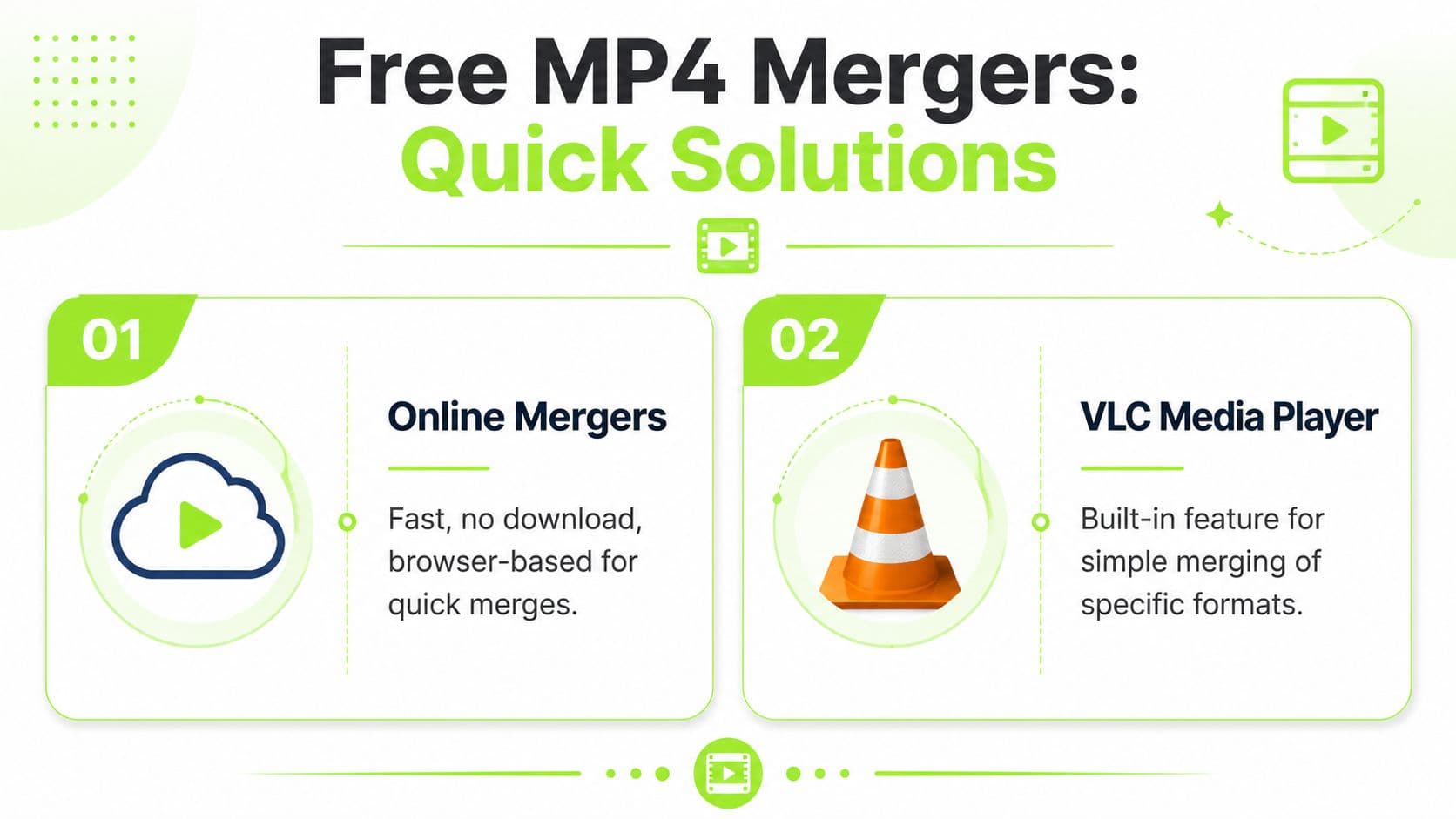
Online MP4 mergers are handy for quick, disposable jobs. You upload clips, arrange them, let the site process them, then download the result.
That's useful when:
Adobe Express is a good example of the convenience ceiling here. Its browser joiner allows free merges, but it also states uploads are capped at 1 GB and individual clips at 1 hour in its online workflow, which shows both the accessibility and the limits of these tools in practice, according to Adobe Express's MP4 merge page.
- You're on a borrowed computer: No install, no setup, no admin permissions.
- The footage isn't sensitive: You don't mind uploading it to a web service.
- The edit is tiny: Just a basic append, maybe with a quick trim.
Where the free route starts to hurt
Those tools get annoying fast when the project is even slightly real.
A quick comparison helps:
| Method | Good for | Pain point |
|---|---|---|
| Online merger | Fast one-off browser job | Upload and download time, size limits, limited control |
| VLC trick | Techy workaround on a desktop | Awkward workflow, not ideal for daily creator use |
| Timeline editor | Real editing and joining together | Usually requires export and re-encode |
VLC deserves a mention because a lot of people already have it installed. It can sometimes handle simple combine-style jobs, but I wouldn't build a repeatable creator workflow around it. It feels like a workaround because it is one.
Use free mergers when the job is disposable. Don't use them when the footage matters, when the files are large, or when you know you'll need revisions.
Free is great when the task is small. Free gets expensive when it costs you time twice.
If you're still figuring out your editing stack in general, this roundup of free video editors for beginners is a good place to compare simple entry points before you commit to a workflow.
The Power User Method Joining MP4s with FFmpeg
If you care most about speed and preserving original quality, this is the method to learn. It's not the friendliest. It is, however, extremely useful when your clips are already compatible.

When lossless joining makes sense
A strong example of this approach is the open-source mp4-merge project, which is built to losslessly join multiple .mp4 files shot with same camera and settings and preserve tracks and metadata. Its documented workflow is simple, including commands like mp4_merge IN_FILE1.mp4 IN_FILE2.mp4 IN_FILE3.mp4 ... with optional output naming via --out, and the project notes that it merges raw track data and rewrites the stbl box so the file descriptor matches the added media, as shown in the mp4-merge GitHub documentation.
That's the ideal use case for command-line joining too. Think camera files split automatically during a long recording. Same camera. Same settings. Same everything.
If you're checking source specs before export decisions, a YouTube bitrate calculator can also help you think more clearly about output quality once your final file is assembled.
The command line workflow
With FFmpeg, the common concat workflow looks like this:
A typical command looks like this:
ffmpeg -f concat -safe 0 -i files.txt -c copy output.mp4
And your files.txt file would look like:
file 'clip1.mp4' file 'clip2.mp4' file 'clip3.mp4'
This works well when the clips are effectively identical at the stream level. If they aren't, FFmpeg may fail, produce glitches, or force you into a more involved transcode workflow.
That's why I think of FFmpeg as a scalpel. It's perfect for a narrow, technical job. It's not where I'd send most creators who just want to assemble content and move on.
This walkthrough is useful if you want to see the process in action:
- Create a text file listing your clips in order
- Run FFmpeg against that list
- Use stream copy if the files match
What are the common questions?
What is the short answer for Merge MP4 Videos: How To Join MP4 Files Without Quality Loss?
How to join mp4 files - Learn how to join MP4 files quickly with browser-based editors, online tools, VLC, or FFmpeg. Merge videos seamlessly, retaining
What should creators do first?
Listen to the audio: A seam that looks fine can still pop, drift, or jump.
Who is this guide for?
This guide is for YouTube creators, faceless channel operators, agencies, and teams using AI tools to improve video production and growth.
Action checklist
Apply this to your channel today.
- 1Listen to the audio: A seam that looks fine can still pop, drift, or jump.
- 2The merge fails instantly
- 3The joined file plays, but looks glitchy at the seam
- 4Audio drifts or loses sync
- 5The export “works” but quality looks softer