
What is the quick answer?
Discover the 10 best free AI tools for content creation. Our 2026 guide covers video, audio, scripting, and growth to speed up your creator workflow.
Key takeaways
- 1. Satura AI
- Why Satura AI leads the stack
- 2. ChatGPT
- Where ChatGPT fits
- 3. Google Gemini
- 4. CapCut
Overview
Free AI tools are still often discussed as if they're toys. That's outdated. AI moved into real content operations a while ago. Over 80% of marketers now use AI for content creation, and non-AI blog creation has dropped from 65% to 5% according to Typeface's content marketing statistics. That shift matters because it changes the question from “Which free tool is fun to try?” to “Which free tool can stay in my workflow?”
That's how I'd approach free AI tools for content creation in 2026. Don't build a random pile of apps. Build a creator stack. One tool for ideation, one for production, one for packaging, one for repurposing, and one for growth feedback. If a platform covers several of those jobs well, it earns a permanent spot. If it only looks good in a demo, it gets cut fast.
A lot of creators also underestimate how broad the free tier market has become. Google's free AI ecosystem alone now includes Gemini with limited Deep Research, and Google Cloud says free users can get up to 10 Deep Research reports per month while NotebookLM's free plan supports 100 notebooks, 50 sources per notebook, and up to 500,000 words per source, as covered in DataCamp's review of free AI tools. That's not “free trial” territory anymore. That's usable infrastructure.
If you're also comparing your wider setup, this guide to content creator software is a useful companion read.
1. Satura AI
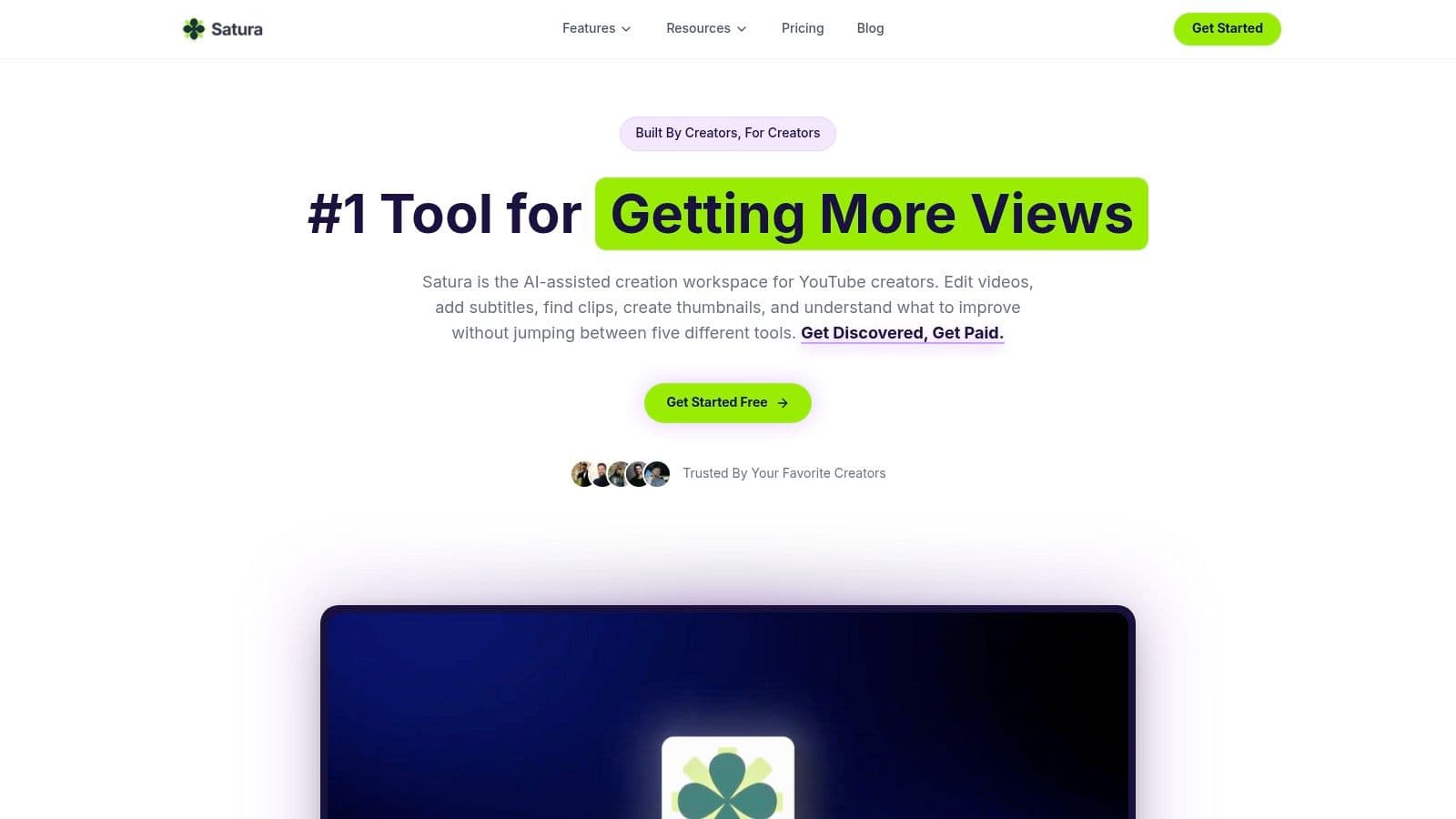
Satura AI is the one I'd put at the center of a creator stack if the goal is simple. Make more videos, waste less time, and stop bouncing between five tabs to finish one short.
What makes it different is coverage. It isn't just a browser editor, and it isn't just an AI gimmick layer on top of editing. Satura combines a free pro video editor, clipping tools, subtitles, transcription, speech enhancement, background and caption removal, AI voiceovers, AI thumbnails, and growth analysis in one workspace. For YouTube creators, repurposers, and faceless channel operators, that matters more than another standalone script generator.
Why Satura AI leads the stack
The production side is strong enough on its own. AutoClip and Clip Finder handle the part most creators hate. Finding the exact moments worth posting. Quick subtitles and polished exports cut a lot of repetitive timeline work. If your weekly output includes Shorts, Reels, and YouTube videos, that time savings compounds fast.
Then there's the growth layer. Trustscore, Growth Coach, and Virality Lab push Satura beyond editing. Most tools help you make content. Very few help you diagnose why the content isn't landing. Satura tries to translate weak hooks, retention issues, packaging problems, and idea risk into plain-English feedback you can act on.
Practical rule: If your stack can't help with both production and decision-making, you'll still end up guessing.
I also like that it's built in the browser, with no download friction and no watermark on the editor. That makes it easier to test, especially for solo creators who don't want to commit to a heavyweight desktop setup before they've validated a workflow.
If you're building a faceless workflow specifically, Satura's own walkthrough on how to build a faceless YouTube automation channel with free AI tools is worth reading.
What works
What doesn't
- All-in-one workflow: Editing, clipping, subtitles, thumbnails, and growth feedback live in one place.
- Built for output volume: It's well suited to short-form creators who need repeatable production, not one-off experiments.
- Useful growth tooling: Trustscore and coaching features give direction, not just raw metrics.
- Credits matter: Heavy users will need to watch export minutes and advanced feature usage.
- Desktop power users may still split workflows: If you do very complex timeline work, a niche desktop editor can still win on edge cases.
2. ChatGPT
ChatGPT earns its place in a creator stack for one reason. Speed. If I need 20 hook angles, five title directions, a tighter intro, and three thumbnail text options in the next 10 minutes, it still does that faster than almost anything else.
That makes it strongest in the ideation and packaging parts of the workflow, not the final decision layer. I use it to create options, pressure-test framing, and get past blank-page drag. Then I cut hard. The raw output is often usable, but its primary value is volume and iteration.
Where ChatGPT fits
ChatGPT is the tool I reach for when the idea exists but the shape is weak. Give it a topic, target viewer, format, and desired payoff, and it can turn a vague concept into a workable outline fast. For creators publishing at volume, that matters more than perfect first-pass writing.
It also helps with asset feedback. Drop in a screenshot, rough thumbnail, draft script, or notes doc and ask for sharper framing. That loop is useful, especially if you are batching Shorts and need quick packaging passes before editing. If that is your workflow, this guide to editing YouTube Shorts efficiently pairs well with a ChatGPT-first scripting process.
I would not treat it as a research engine for factual, citation-heavy content. It is better at pattern generation than source judgment. In a practical stack, that means using ChatGPT to produce options, then using a more workflow-driven tool such as Satura AI to judge which idea is worth producing and how to package it for clicks and retention.
ChatGPT works best when the audience is already clear and the bottleneck is output speed.
For script drafting, prompt quality still decides whether the result sounds publishable or generic. This video scripts template is a good shortcut if you want more structure than a one-line prompt.
Best for
Weak spot
- Fast ideation: Hooks, outlines, angle generation, and rewrites
- Packaging work: Titles, descriptions, thumbnail copy, and CTA variations
- Iteration: Feedback on rough drafts, screenshots, and creative assets
- Free limits can break momentum: Fine for short bursts, less reliable for long drafting sessions
3. Google Gemini
Google Gemini earns its place in a creator stack for one reason. It handles messy source material well.
If your workflow starts with Docs, Drive notes, meeting transcripts, research dumps, or a rough YouTube outline, Gemini is often faster than starting over in a blank chat tool. It fits naturally inside Google's ecosystem, which matters more than flashy demos if your real bottleneck is turning scattered inputs into something usable.
That makes Gemini a practical ideation and pre-production tool. I would use it to summarize sources, pull themes from long notes, organize raw research, and turn a pile of references into a workable brief. For creators repurposing videos into clips, emails, or blog drafts, that cleanup step saves real time before editing even starts. If short-form is part of that workflow, this guide to editing YouTube Shorts efficiently is a useful next step once the raw material is organized.
Gemini is less convincing for final packaging. Hooks, titles, thumbnail copy, and sharper opinionated scripting usually need more edge than it tends to give by default. That is the trade-off. Gemini is strong upstream. It helps you sort, condense, and structure. Other tools often do better once the job becomes persuasion.
That distinction matters if you are building a stack instead of collecting random tools. ChatGPT is usually quicker for idea variation. Gemini is better when you already have material and need order. Satura AI makes more sense when you want that work tied directly to publishing decisions, packaging, and growth instead of stopping at summaries.
Analysts at Grand View Research describe a market where text generation still holds a large share while video creation keeps expanding. Gemini fits the text, research, and synthesis side of that workflow well.
Best for
Less ideal for
- Research-heavy workflows: Summaries, briefs, transcript cleanup, and source organization
- Google-native creation: Docs, Drive, Gmail, and YouTube-adjacent work
- Pre-production: Turning messy inputs into a draftable structure
- Final packaging: Titles, hooks, and thumbnail copy usually need a stronger creative punch
- All-in-one execution: It helps with input and organization, but it does not replace a full creator system
4. CapCut
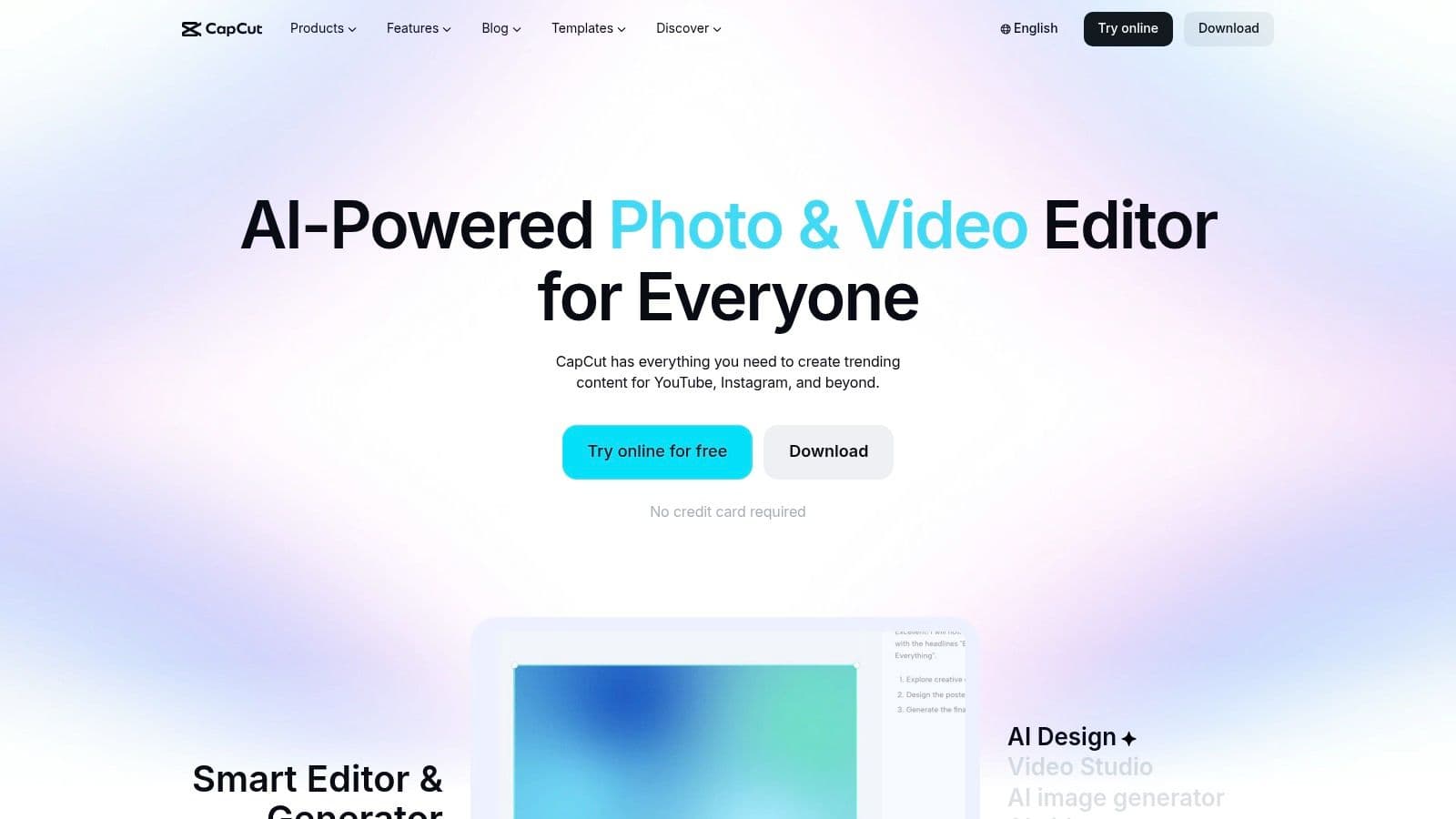
CapCut is still one of the most practical free AI tools for content creation if your output is social-first video. Shorts, Reels, TikToks, quick YouTube edits. It's fast, familiar, and built around the way social creators cut content.
Its advantage isn't that it does one magical thing. It's that it combines enough useful AI helpers in one editor to remove a lot of repetitive work. Auto-captions, transcription, silence detection, text-to-speech, voice cleanup, background removal, and templates are all the kind of features that save time every single week.
What CapCut gets right
CapCut works best when speed matters more than precision. If you're making daily short-form content, that's a fair trade. You can rough-cut, subtitle, format, and export quickly without fighting the interface.
I wouldn't call it the cleanest long-term system for advanced creators, though. Credit systems and feature access can get confusing, and some advanced AI features sit behind limits. That's where people outgrow it. It's excellent for getting content out the door. Less excellent when you want one platform to also handle analytics, idea validation, or strategic growth feedback.
If your focus is Shorts specifically, this guide to YouTube Shorts editing pairs well with CapCut-style workflows.
CapCut is great for editing velocity. It's not where I'd look for strategic insight.
Best for
Main drawback
- Short-form editing: Fast social-native timelines and templates.
- Beginner-friendly production: Easy to learn without giving up too much utility.
- Cross-platform use: Browser, desktop, and mobile all help.
- Limits show up over time: Heavy users eventually feel the caps, credits, or feature gating.
5. Descript
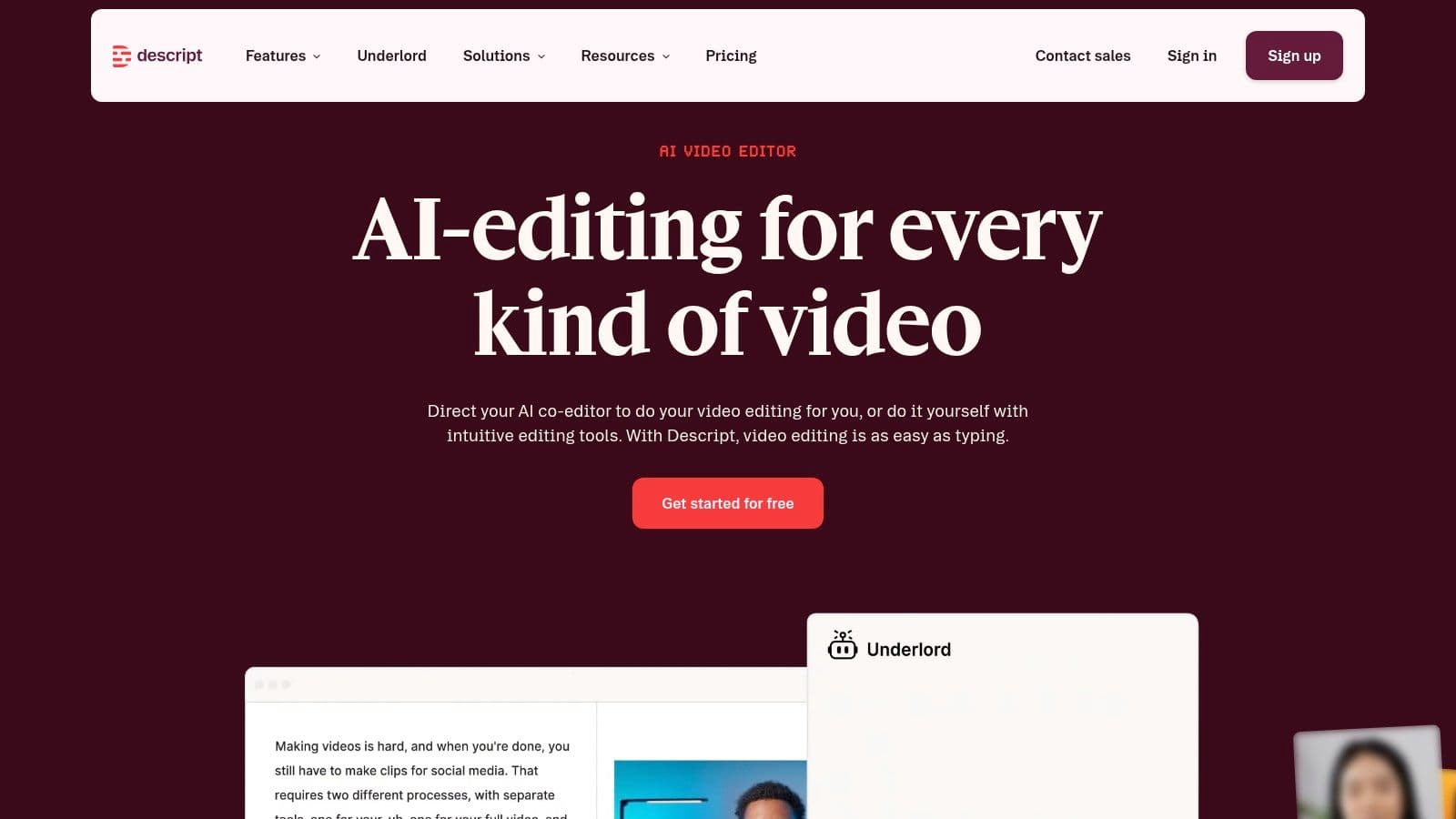
Descript is the tool I'd reach for first if the workflow starts with spoken content. Podcasts, interviews, talking-head videos, webinars, livestreams. Its text-based editing model still feels more natural than a timeline for that kind of cleanup.
You delete filler by deleting text. You tighten a segment by editing a transcript. That's the pitch, and for many creators it's not hype. It really does speed up the boring middle of content production.
Who should pick Descript first
Descript is strongest when the edit is mostly about clarity. Cleaning up speech, cutting repetition, generating captions, pulling clips, improving audio, and repurposing long-form content into smaller pieces. If your content is built around voice, it saves a lot of friction.
I'm less convinced by it as a full replacement for a traditional video editor in visually dense projects. Once motion design, layered edits, or highly stylized sequencing matter a lot, a standard timeline editor still feels better.
What Descript does especially well is support the repurposing trend. Tool coverage increasingly focuses on converting existing assets into publishable formats, and that aligns with how a lot of real creators work now. Start with one long recording. Turn it into many outputs.
Best for
Less ideal for
- Text-first editing: Great for spoken-word creators.
- Podcast and interview workflows: Cleanup, captions, audiograms, and short clips.
- Repurposing: Strong when one source file feeds multiple pieces of content.
- Complex visual editing: Better for dialogue-led content than highly cinematic work.
6. ElevenLabs
ElevenLabs solves one very specific problem better than most tools. Bad voiceovers kill otherwise solid videos. If you create faceless content, explainer videos, dubbed clips, or fast-turnaround social content, voice quality matters more than many creators admit.
Its voices sound natural enough to be usable, and the platform has expanded beyond simple text-to-speech into dubbing, custom voices, sound effects, and workflow automation.
Where it fits best
I'd use ElevenLabs when recording yourself is the bottleneck. Maybe the room sounds bad. Maybe you need multiple language versions. Maybe you need consistent narration at scale. That's where it earns its keep.
The downside is predictable. Free usage is capped, and the most powerful voice features sit deeper in the paid setup. So I don't think of it as a full-time free production backbone. I think of it as a specialist. A good one.
For creators trying to improve narration quality fast, this guide on how to voice over a video is a useful companion.
Best for
Main drawback
- AI voiceovers: Especially for faceless or explainer content.
- Dubbing workflows: Helpful for multilingual distribution.
- Audio polish: Strong when voice quality affects retention.
- Free caps arrive quickly: Fine for testing and light use, less so for high-volume channels.
What are the common questions?
What is the short answer for 10 Free AI Tools for Content Creation in 2026?
Discover the 10 best free AI tools for content creation. Our 2026 guide covers video, audio, scripting, and growth to speed up your creator workflow.
What should creators do first?
Free outputs are constrained: Watermarks and auto-selection limits matter.
Who is this guide for?
This guide is for YouTube creators, faceless channel operators, agencies, and teams using AI tools to improve video production and growth.
Action checklist
Apply this to your channel today.
- 1Free outputs are constrained: Watermarks and auto-selection limits matter.
- 2Experimental visuals: Text-to-video, image-to-video, stylized motion.
- 3Creative testing: Useful for concepting and references.
- 4Browser-based experimentation: Fast to try without major setup.
- 5Not ideal for scale on free: Watermarks and one-time credits limit regular use.