Faceless YouTube voiceover guide

Free AI voiceover tools for faceless YouTube channels.

The right free tool is the one that fits your script, editing workflow, and publishing rights. Compare the real tradeoffs before you generate a full narration track.

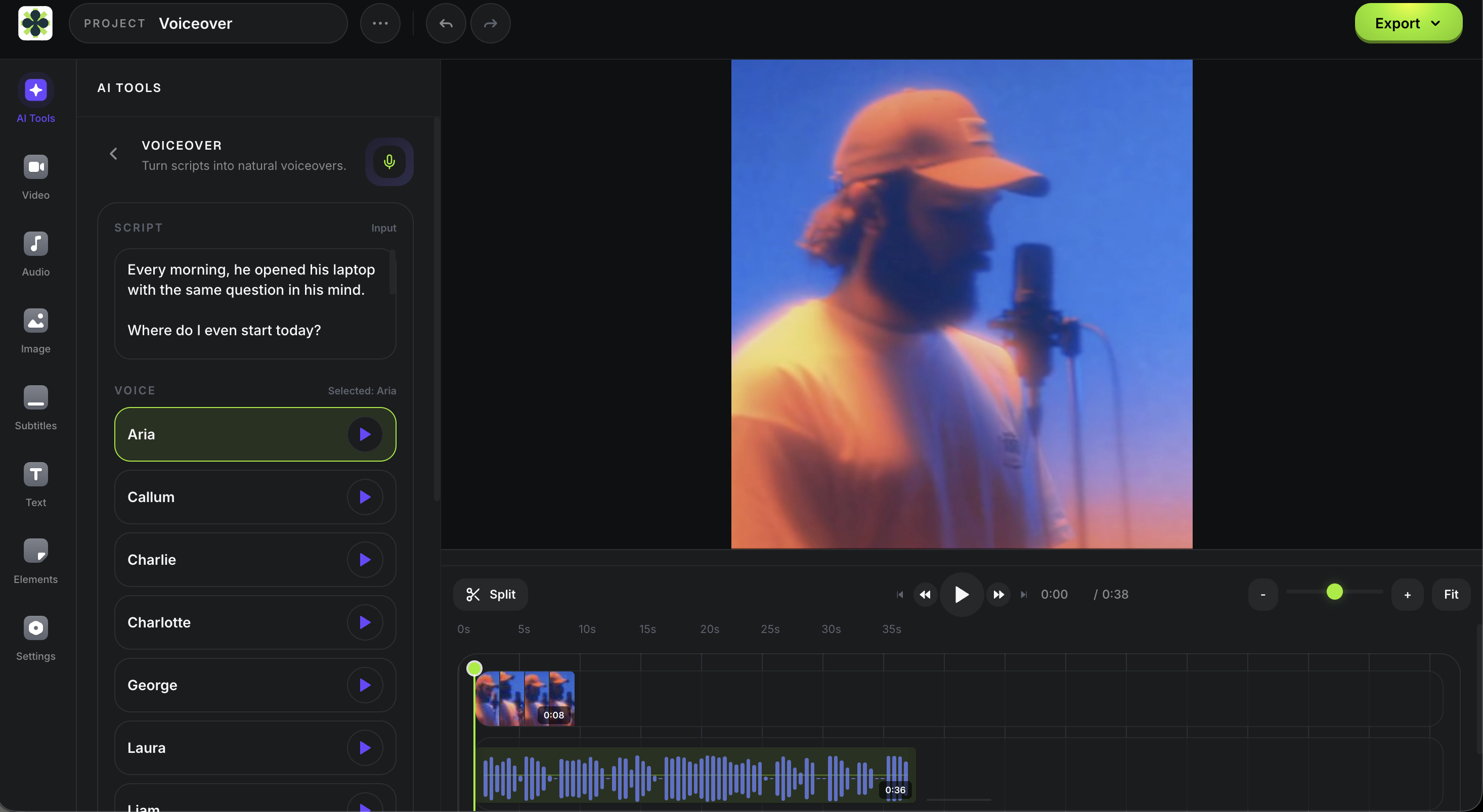
Satura Voiceover Studio with narration on the video timeline

Side-by-side fit

Choose for the workflow, then verify the rights.

These are not a ranked list. Free allowances and licensing terms change, so the source links are part of the decision, not fine print to ignore.

Satura Voiceover Studio

A connected browser workflow for creators who want narration, video editing, captions, and export in one place.

Free-plan signal

Free to start. Generate narration from text, place it on the timeline, then finish the video in the same workspace.

Publishing check

Voiceovers generated through Satura can be used for commercial projects. Review the current account terms before a large production run.

Open Voiceover Studio

CapCut Text to Speech

A useful option when you want text-to-speech and a social-video editor in the same product.

Free-plan signal

CapCut describes its online text-to-speech generator as free and supports audio export formats such as AAC, FLAC, MP3, and WAV.

Publishing check

CapCut says generated TTS audio can be used for commercial projects, but terms and feature availability can change by region and account.

Read CapCut's TTS details

Clipchamp AI voiceover

A practical choice when your editing already happens in Clipchamp and you want text-to-speech as a timeline track.

Free-plan signal

Microsoft says text-to-speech is free for Clipchamp video-editor users, with language, voice, pitch, and pace controls.

Publishing check

Confirm the rights for your plan and account before monetizing a video. The free feature claim does not replace a license check.

Read Clipchamp's voiceover guide

ElevenLabs

A strong fit for experimenting with a large voice library or testing a more specialized audio workflow before editing elsewhere.

Free-plan signal

ElevenLabs lists a free tier with 10,000 credits per month and text-to-speech access.

Publishing check

Its documentation says free-tier output is for personal, non-commercial use. Commercial rights require a paid plan, so do not treat the free tier as monetization-ready.

Read ElevenLabs' free-tier terms

Four checks before you commit to a tool

A creator should be able to rule out a bad fit in one short test, before building a full faceless-video workflow around it.

Run one hard-script test

Use 20 to 40 seconds containing names, numbers, an abbreviation, a question, and one emotional turn. A polished demo sentence does not reveal pronunciation or pacing problems.

Check the exact license before export

Free access, free trials, and commercial-use rights are different. Check the terms for your account, chosen voice, and region before you publish a monetized upload.

Count handoffs, not just voices

A faceless video still needs visuals, timing, music, captions, a thumbnail, and export. Prefer the workflow that leaves the fewest fragile export-import steps.

Keep your work recognizably original

Use the voiceover to carry your own research, structure, commentary, and editing decisions. A voice generator cannot make repetitive, low-value videos distinctive on its own.

Practical workflow

Build the video around a stable narration track.

AI narration can speed up production, but it should not replace the work that gives a channel a reason to exist: research, an opinion, clear structure, and useful visual editing.

Read YouTube's monetization policy
  1. 1

    Write an original script with sources, a point of view, and clear visual beats.

  2. 2

    Generate a short test, then correct names, pacing, and pauses before recording the full script.

  3. 3

    Place the narration on the timeline before choosing B-roll, so every visual supports a spoken beat.

  4. 4

    Add captions after the narration is stable, then check that the first 15 seconds work with sound off.

  5. 5

    Keep the selected tool's license record with the project before publishing or sending work to a client.

Keep the narration, edit, captions, and export connected.

Satura gives faceless creators one browser workflow for an original script, AI narration, visual assembly, subtitles, and final export.

30+ AI voices
Narration from text
Timeline placement
Caption workflow
Visual editing
Browser export

FAQ

Short answers for creators comparing free AI narration workflows.

What is the best free AI voiceover tool for faceless YouTube?

There is no universal best option. Choose an integrated creator workflow when you need narration, editing, captions, and export together; choose a specialized audio tool when voice selection or audio experimentation is the main job. Test the exact script you plan to publish before committing.

Can I use a free AI voiceover for a monetized YouTube video?

Only if the tool's current terms allow commercial use for your specific plan, account, and voice. Free access does not automatically include commercial rights. For example, ElevenLabs documents its free tier as non-commercial, while CapCut states that its text-to-speech audio can be used commercially subject to its terms.

Will an AI voiceover make a YouTube video eligible for monetization?

No. The voiceover tool does not determine monetization eligibility. YouTube's monetization policies emphasize original, authentic value and warn against repetitive or mass-produced AI content that lacks a creator's own insight or perspective.

What should I test in an AI voiceover before publishing?

Test pronunciation of names and numbers, pauses after punctuation, pacing against your B-roll, clarity with captions on screen, and the commercial-use terms for the exact account and voice you used.

Can I make and edit a faceless YouTube voiceover in Satura?

Yes. Satura's Voiceover Studio turns text into narration, places the audio on a browser timeline, and connects to captions, visuals, and video export. It is free to start.

Make the narration part of the finished video.

Generate your script-based voiceover, place it on the timeline, then finish the visuals and captions without creating another export-import loop.

Try Voiceover Studio