Green or blue key color
Choose the screen color that matches the recorded background before reviewing the edge against the replacement layer.
Key a green or blue background in Satura's browser timeline, tune the edge, reduce color spill, and inspect the composite before export.
Sign-in is required. A free account includes one low- or medium-quality export per day, up to 10 per month. This page does not clear rights, create a replacement background, or predict a video result.
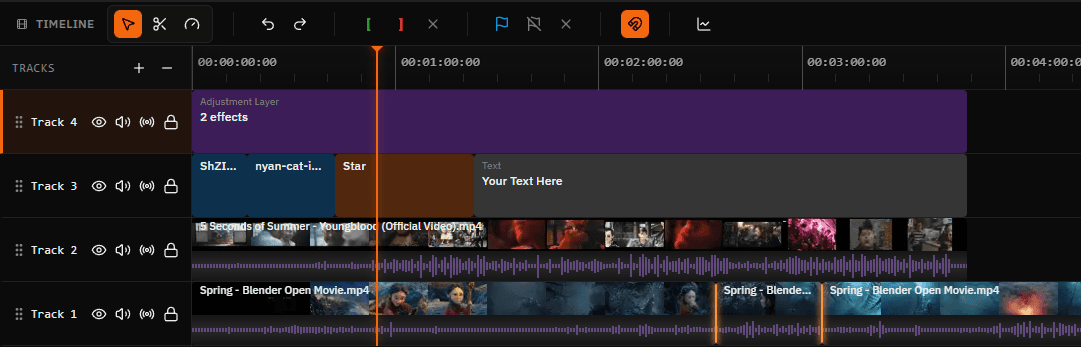
Built-in keying controls
Chroma key is a compositing control, not an approval. Keep the foreground, replacement, captions, and other layers visible while deciding whether the visual is ready for the next production step.
Choose the screen color that matches the recorded background before reviewing the edge against the replacement layer.
Adjust how closely the effect matches the selected color and how gradually the keyed edge transitions to transparency.
Reduce excess green or blue color contamination before deciding whether the foreground and replacement belong together.
Editing workflow
Use the controls to make the work visible and reviewable. Do not treat a keyed clip as evidence that a background, claim, source, likeness, or final upload is ready.
Sign in, create a project, and place the foreground clip and intended replacement on separate timeline layers.
Select green or blue as the key color, then start from the current tolerance, edge-softness, and spill-suppression controls.
Review the result in context with the edit, including edges, foreground detail, text, captions, and the replacement layer.
A free account includes one low- or medium-quality export per day, up to 10 per month. Paid plans add high and ultra quality plus more export capacity.
Choose the correct workflow
Use Chroma Key when the footage contains an intentional green or blue background that should become transparent in the timeline. The editor exposes the color and edge controls; review the composite before export.
Use Background Remover for Satura's separate selected-video, signed-in, active-paid-plan, credit-based workflow. Review the current quote and result before compositing or export.
If a TV unexpectedly shows a green picture, follow the separate TV troubleshooting guide instead of treating the display fault as an editing effect.
Continue the production review
Use the signed-in browser timeline with the current free export allowance and all available timeline controls.
Record the viewer need, visual evidence, and edit decision for important beats before the timeline gets busy.
Review a caption draft for wording, timing, viewer context, and the next handoff before export or publishing.
Plan the final file's resolution, frame rate, audio, duration, and export size before upload.
Questions
Satura's browser timeline includes a Chroma Key effect for green or blue backgrounds. The effect exposes key-color selection, tolerance, edge softness, and spill suppression so you can review a composite before exporting.
Sign-in is required. A free account includes one low- or medium-quality export per day, up to 10 per month. Paid plans add high and ultra quality plus more export capacity. Review the current editor and export settings before relying on a specific output.
No. Chroma key works from a selected green or blue key color. It does not decide whether a source is suitable, clear rights, create a replacement, or guarantee a clean edge. For a selected-video background-removal workflow, use the separate Background Remover and review its paid credit estimate and output.
No. A TV that unexpectedly displays green is a display or signal troubleshooting problem. Intentional chroma keying uses a controlled green or blue background as part of an editing workflow.
No. The effect helps construct and review a visual composite. It does not predict quality, viewer response, recommendations, reach, views, retention, revenue, monetization, or publishing outcomes.
Source-backed capability
Satura's Free Video Editor documents the browser timeline, WebGPU visual effects, keying, and the current account/export allowance. Confirm the live editor controls and export settings for the project in front of you.
Check YouTube's current upload encoding guidance