Multi-track editing
Arrange video, audio, images, text, shapes, and overlays with precise timing controls.
Satura YouTube video editor
Cut long-form videos and Shorts, add captions, voiceovers, B-roll, and effects, then finish the thumbnail and growth checks without stitching together five tools.
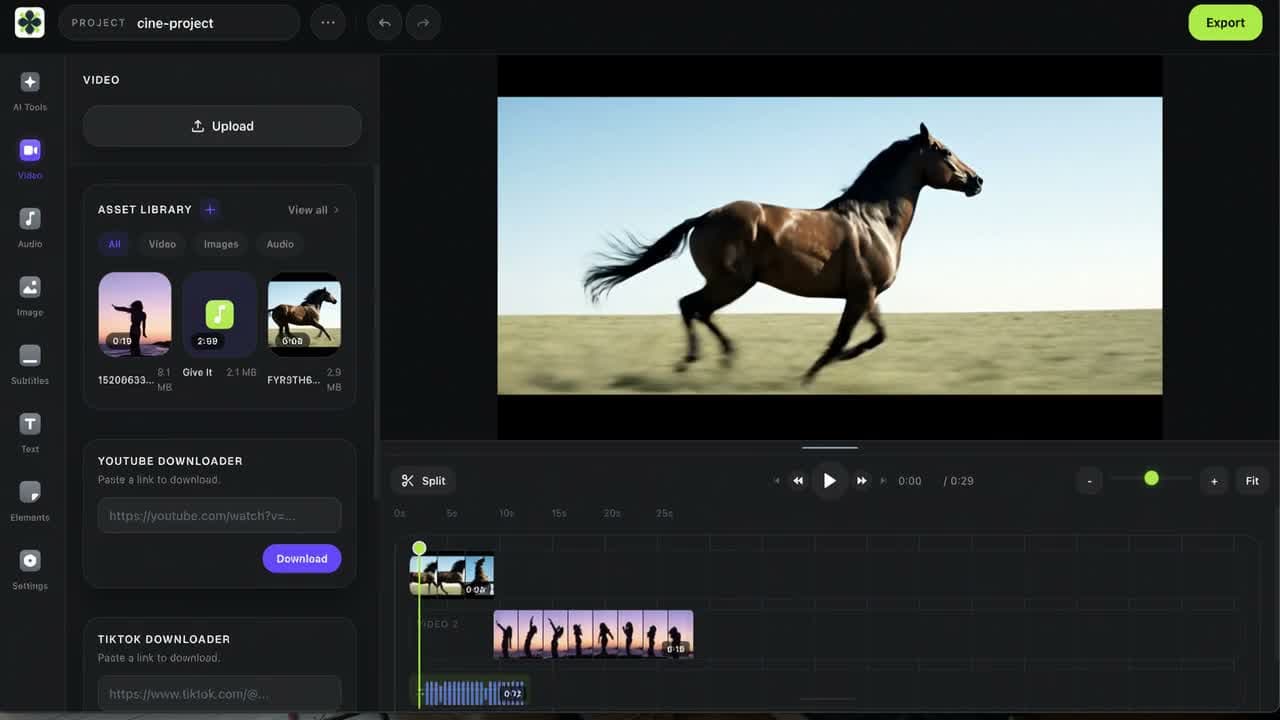
One production workspace
Satura connects the timeline to the creator tasks around it: captions, voiceover, generated media, thumbnails, retention review, and channel decisions.
Arrange video, audio, images, text, shapes, and overlays with precise timing controls.
Transcribe speech, edit subtitle timing, and style readable captions for long-form or vertical video.
Generate narration from a script and mix it with music, dialogue, and sound on the timeline.
Generate B-roll and images, remove backgrounds, or use prompt-based edits without leaving the project.
Edit and export online without installing a separate desktop application.
Connect the edit to thumbnail, retention, channel, and upload decisions instead of stopping at export.
YouTube editing workflow
Upload video, audio, and images, or generate new clips and supporting visuals inside Satura.
Trim takes, split scenes, reorder clips, layer B-roll, and control the pace of long-form videos or Shorts.
Generate subtitles, correct the transcript, style the text, and place AI voiceovers alongside your source audio.
Check hooks, pacing, and retention risks, then tighten weak moments before you publish the video.
Export the finished video, then create or analyze the thumbnail and prepare the upload metadata in the same platform.
Before the timeline becomes the only production record, use the YouTube edit plan template to carry the viewer promise, original evidence, and key cut decisions into the edit.
For a short creator clip that needs a fixed 2x enhancement before final editing, use the Topaz Starlight Video Upscaler to review the current credit estimate and completed MP4. It requires sign-in, an active paid Satura plan, and credits; inspect the output before relying on it in a project.
Before or after upload
Use Satura before upload when you need to assemble footage, mix tracks, add captions or narration, create visuals, and finish the upload package. It is the production editor.
Use YouTube Studio when an existing upload needs a supported post-publish change. YouTube's official documentation explains how its editor can trim the beginning, middle, or end while preserving the video URL, view count, and comments.
Read YouTube's Studio trimming guideAssemble interviews, tutorials, explainers, commentary, and documentary-style projects with layered video and audio.
Reframe ideas for 9:16, tighten the opening, add readable captions, and export a vertical cut for Shorts.
Combine scripts, voiceovers, generated visuals, source clips, captions, and music in a single production workflow.
Turn one source video into alternate cuts, highlights, Shorts, and supporting assets without rebuilding every project.
Related creator tools
Use Satura's general-purpose browser timeline.
Transform and generate clips with text prompts.
Use the dedicated vertical-video workflow.
Create and improve the packaging for your upload.
Generate and style captions for creator videos.
Review caption wording, timing, viewer context, and the next handoff before exporting or publishing.
Open the wider collection of planning and growth tools.
YouTube editor FAQ
A YouTube video editor is software for preparing videos before they are uploaded. It should let you cut footage, arrange video and audio, add text or captions, create supporting visuals, and export a finished file in the format your channel needs.
Yes. Satura runs in the browser and provides a multi-track timeline for video, audio, images, text, captions, effects, and export. You can use it for long-form videos, tutorials, faceless content, or Shorts.
Satura is free to start. You can open the browser editor and test the core editing workflow before deciding whether paid AI generation or higher-usage features fit your production needs.
No. Satura's free browser editor provides clean exports without adding a Satura watermark. Some AI generation and processing features use separate plan or credit limits.
Yes. Use a landscape project for long-form YouTube videos or a vertical 9:16 project for Shorts. You can also create alternate edits from the same source footage.
Satura is for assembling and finishing a video before upload with a multi-track timeline, captions, voiceovers, generated media, and packaging tools. YouTube Studio's documented editor is useful for post-upload changes such as trimming sections while keeping the existing video's URL, views, and comments.
Yes. Generate captions from speech, edit the text and timing, style the subtitles, create narration from a script, and mix the voiceover with the rest of the project.
No. Satura is an online YouTube video editor, so you can open the workspace in a supported browser, edit your project, and export without installing a desktop application.
Bring in footage, finish the story, and export a clean video without installing another editor.