What is the quick answer?
Confused about where your money is? Learn how to check YouTube payment status in Studio and AdSense, understand schedules, and fix common payout holds.
Key takeaways
- The YouTube Money Trail From Views to Your Bank Account
- The three places that matter
- What a creator payment includes before it reaches AdSense
- How to Check Estimated Earnings in YouTube Studio
- What YouTube Studio is actually showing you
- What to watch without obsessing
Overview
You open YouTube Studio, see revenue moving around, then hop into AdSense and suddenly nothing seems to match. One screen says estimated earnings. Another talks about finalized earnings. Then you find help articles about YouTube Premium billing and wonder if you're even looking in the right place.
That confusion is normal. Most creators don't need a better list of menu clicks. They need a clear picture of how the money travels from views to a payout. Once you understand that trail, it gets much easier to check YouTube payment status without spiraling every month.
The YouTube Money Trail From Views to Your Bank Account
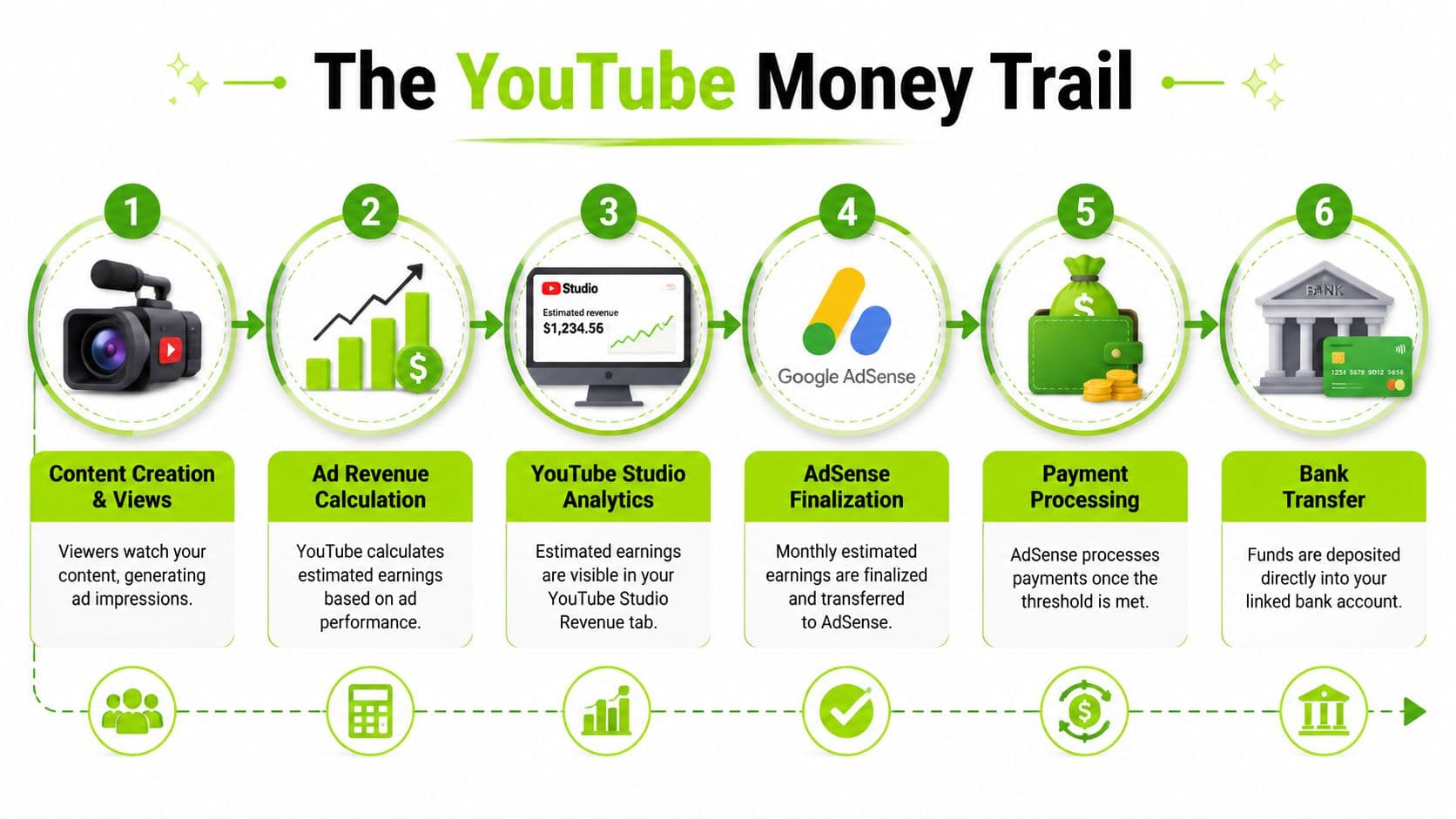
You upload a video, the views start climbing, and a few days later you open Studio expecting a clear answer to one simple question. Did I get paid yet? That's where many creators get tripped up. YouTube money does not move through one screen. It moves through a chain.
The cleanest way to check YouTube payment is to follow that chain from earnings estimate to finalized balance to bank deposit. Once you see the handoff points, the whole process gets less mysterious, and a lot less stressful.
The three places that matter
| Place | What it does | What it does not do |
|---|---|---|
| YouTube Studio | Shows performance and estimated revenue | It does not tell you whether cash has been sent to your bank |
| AdSense for YouTube | Tracks finalized earnings, payout setup, holds, and payment activity | It does not replace Studio for content analytics |
| Your bank | Receives the transfer once payment is issued | It does not explain why payment was delayed |
Creators usually panic at the wrong stage.
They see one number in Studio, a different number in AdSense, and no deposit in the bank yet. That does not automatically mean money disappeared. It usually means the revenue is still being processed, finalized, or held up by a setup issue. In practice, the confusion comes from checking the right money in the wrong place.
Another common mix-up is the phrase "YouTube payment" itself. Some help pages and search results point to consumer billing, like YouTube Premium charges or subscription receipts. Creators are looking for something different: earnings, payout status, holds, and verification steps tied to AdSense for YouTube.
If you pay for YouTube Premium as a viewer, that billing flow lives in a separate system from creator payouts. Same company, different dashboard, different timeline.
What a creator payment includes before it reaches AdSense
A creator payout can include several revenue streams grouped together over time, not just ad revenue from long-form videos. Depending on the channel, the total may include memberships, Shopping, Super Chat, Super Stickers, Super Thanks, and YouTube Premium revenue alongside ads.
That matters because the money trail is rarely a straight line from one viral video to one clean deposit. It is a combined earnings flow that gets processed, finalized, and then paid out through AdSense for YouTube.
If you want the ad side to make more sense before you start checking payout screens, this guide to CPM meaning on YouTube helps explain why revenue can rise or fall even when views look steady.
How to Check Estimated Earnings in YouTube Studio
YouTube Studio is the first stop when you want to check YouTube payment progress, but it's the part most creators over-trust. Studio is excellent for tracking momentum. It is not your payout confirmation screen.
The platform behind all this is massive. Business of Apps reports YouTube generated $36.1 billion in revenue in 2024, while YouTube ad revenue reached $10.26 billion in Q3 2025 alone, and YouTube Premium grew to 125 million subscribers by 2026. That scale is useful context because it explains why the reporting system is layered. YouTube handles huge volumes of ad and subscription activity, so estimates come first and settlement comes later.
What YouTube Studio is actually showing you
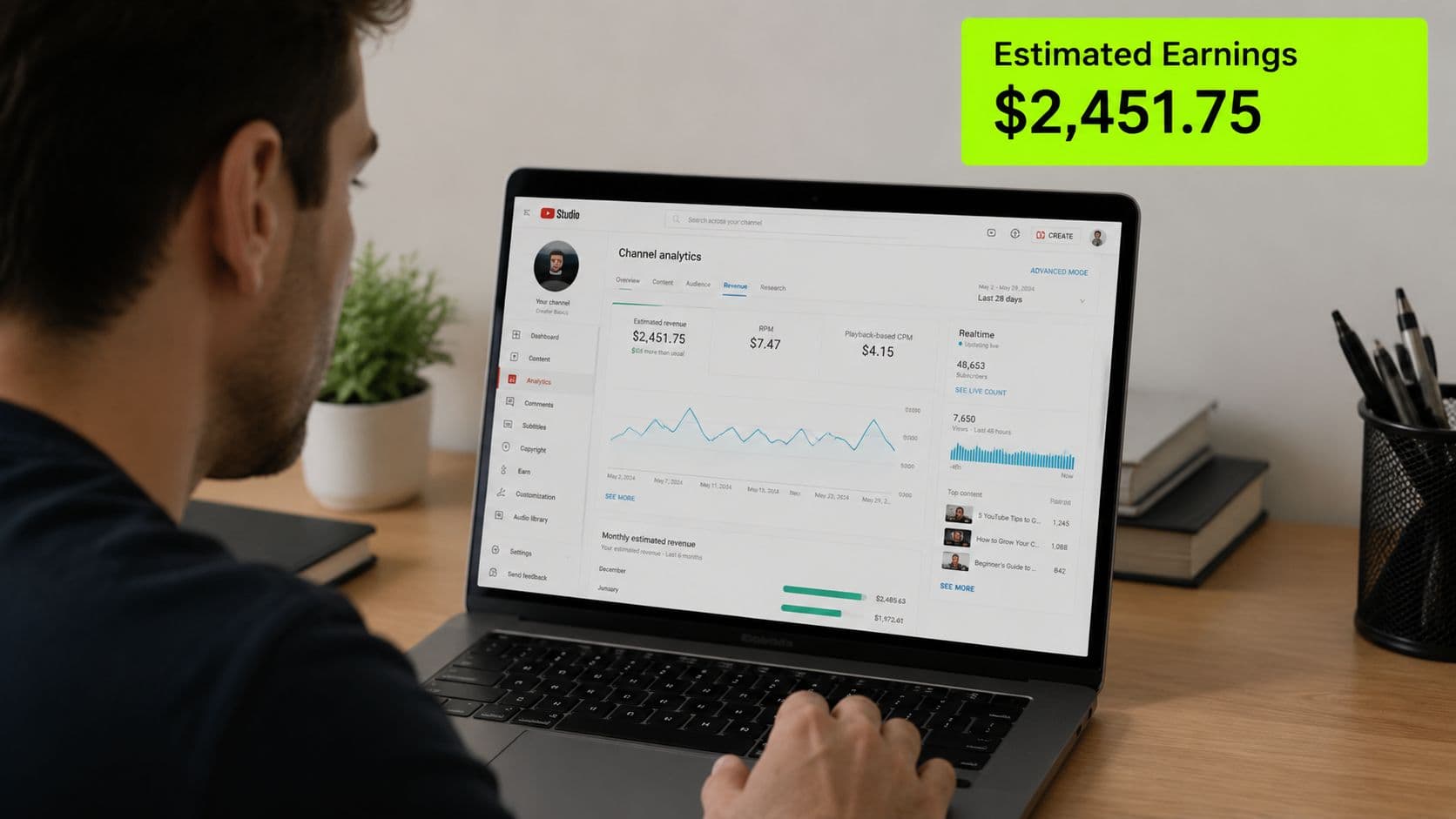
Open YouTube Studio > Analytics > Revenue. That's your working dashboard for estimated earnings.
The word to respect here is estimated. These numbers are useful for tracking trends, comparing videos, and spotting strong monetization days, but they aren't your final payable amount.
A few metrics matter more than the rest:
If RPM and CPM still feel slippery, a good shortcut is to use a YouTube RPM calculator alongside your analytics so you can sanity-check expectations by video type and audience mix.
- Estimated revenue. This is your running preview of what your content appears to be earning.
- RPM. This tells you how much revenue you're keeping per thousand views after YouTube's share and across monetized activity.
- CPM. This is tied more closely to what advertisers pay, not what lands in your pocket.
What to watch without obsessing
The right way to use Studio is like a forecast, not a payroll app.
Look for patterns such as:
What doesn't work is refreshing the Revenue tab every hour and treating every fluctuation like a payout issue. Estimated earnings can move because the system is still processing activity.
This walkthrough is handy if you want a visual reference while checking your dashboard:
Practical rule: Use YouTube Studio to answer, “How much am I probably earning?” Use AdSense to answer, “Has Google actually processed my payment?”
- Video-by-video monetization strength. Some uploads pull better ad demand, better watch time, or stronger audience value.
- Seasonal movement. Revenue often moves differently from views.
- Format differences. Long-form, Shorts, live streams, and member-driven channels won't all behave the same way.
Verifying Finalized Payments in Your AdSense Account
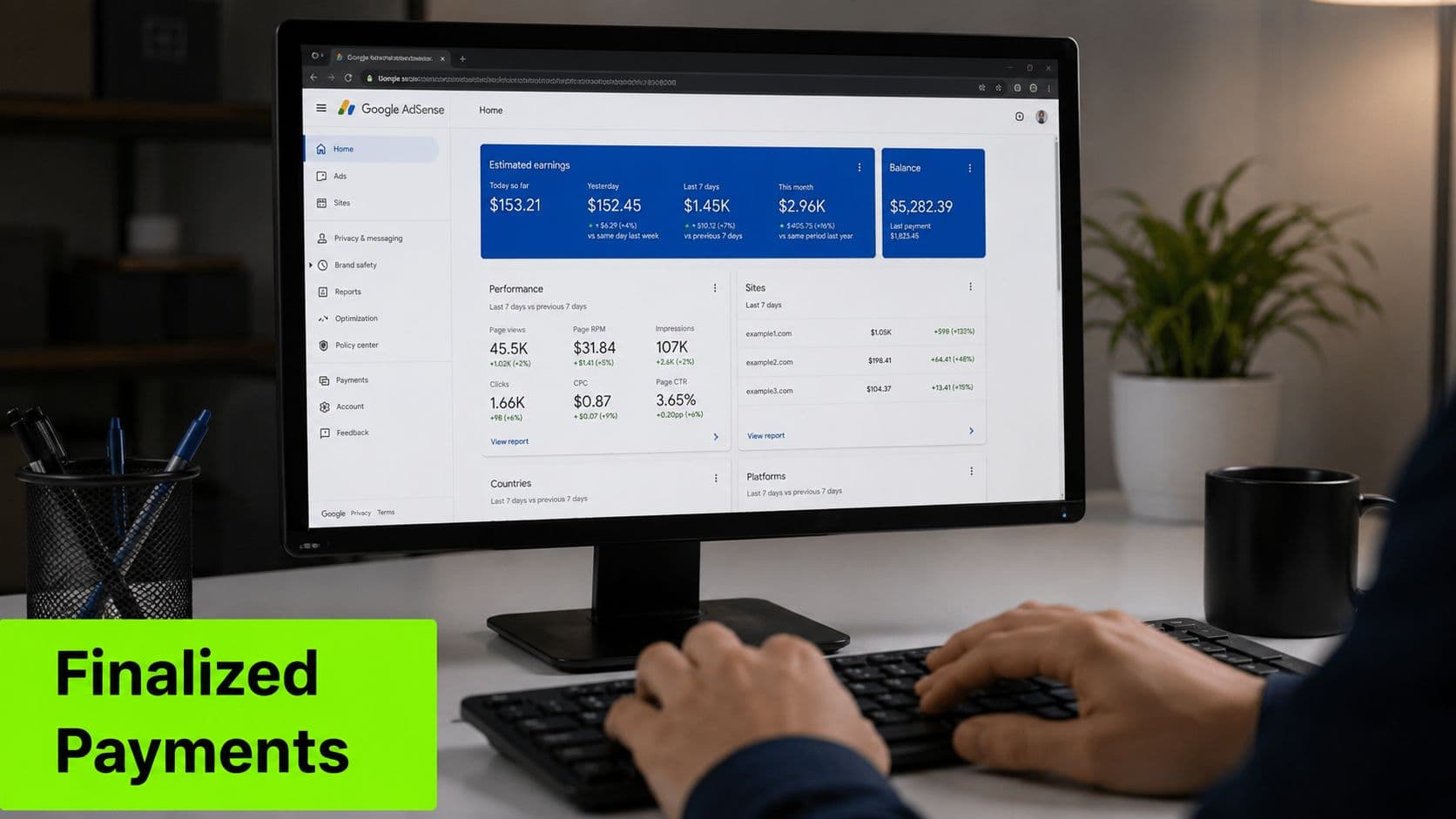
When creators say they want to check YouTube payment, this is usually where they should be looking. AdSense for YouTube is the financial backend. Studio gives you the scoreboard. AdSense gives you the paperwork.
Why AdSense is the source of truth
A lot of panic starts when creators compare a Studio number to an AdSense number and expect a perfect match. That's not how the system works.
Google explains that finalized earnings for the previous month appear in AdSense between the 7th and 12th, while the actual disbursement happens later, between the 21st and 26th, after threshold and hold checks clear, according to Google's AdSense for YouTube payment timing guidance.
That means two different moments matter:
Those are not the same event, and treating them like the same thing is one of the most common mistakes new creators make.
- Finalized earnings. The prior month's earnings are settled and posted into AdSense.
- Paid earnings. The money is issued for payout.
What to check inside Payments
Inside AdSense for YouTube, go straight to the Payments area. That's where the useful clues live.
Check these in order:
A simple mental model helps. Studio shows what your channel earned in principle. AdSense shows what Google recognizes for payout operations.
For creators running multiple channels or thinking about business separation, this overview of YouTube LLC AdSense protection for multi-channel setups is worth reading before your revenue stack gets messy.
If you want certainty, stop asking “What does Studio say?” and start asking “What does Payments in AdSense say?”
- Current balance. This tells you what's sitting in the account.
- Recent transactions. Look for finalized earnings entries and any payment activity.
- Payment method status. Make sure your bank setup is complete and valid.
- Profile and tax details. If something is incomplete, payouts can stall unnoticed.
- Alerts or holds. AdSense usually tells you what still needs attention.
Decoding YouTubes Payment Schedule and Thresholds
You open AdSense on the 15th, see a balance, and still have no deposit. That gap is where most payout anxiety starts.
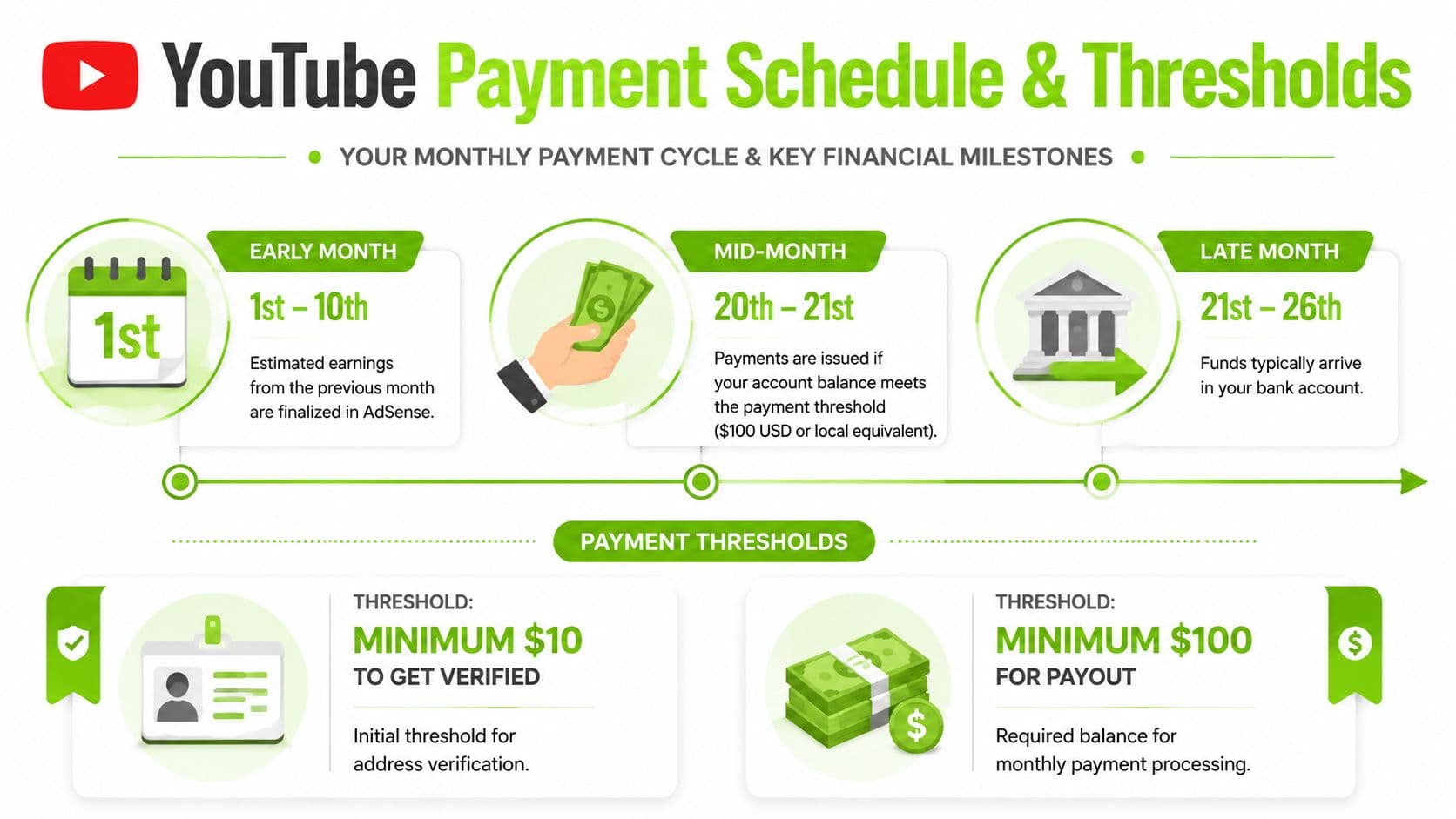
The payment cycle is predictable once you separate processing from payout. Your earnings for the previous month usually finalize in AdSense between the 7th and 12th. If your account is eligible and clear of holds, payment is then issued later in the month, usually between the 21st and 26th.
Here's the rhythm creators should expect:
| Time in the month | What usually happens |
|---|---|
| Start of month | The previous month closes and revenue is still being processed |
| 7th to 12th | Finalized earnings appear in AdSense |
| 21st to 26th | Payment is issued if your account qualifies for payout |
Timing matters. Checking on the 3rd and panicking wastes energy. Checking after the 26th and seeing no movement usually means you should look for a threshold issue or a hold.
The thresholds people confuse
Creators often say “I hit the threshold” without realizing there are two separate checkpoints in the money trail.
One checkpoint is about setup. The other is about getting paid.
Some creators mix up early account milestones with payout eligibility. Seeing bank-related options in AdSense does not mean money is on the way yet. It only means the account is far enough along to show more payment setup.
Google's general YouTube billing help adds to the confusion because it covers customer billing topics like receipts, payment methods, and renewal dates, not creator earnings flow. You can review that distinction in Google's YouTube billing help information.
The practical version is simple. A small earnings milestone may affect what setup options you can see in AdSense. A separate payout threshold determines whether Google sends money out during the monthly payment window. If you have not crossed that payout threshold for your country, your balance keeps rolling forward.
This is why a creator can “have money in AdSense” and still receive nothing that month.
For newer channels, this often shows up during the first few months of monetization. Revenue starts trickling in, the account looks active, but the payout line has not been crossed yet. If you are still working toward monetization through short-form content, review these YouTube Shorts monetization requirements so you know what has to happen before payment timing even matters.
The safest way to read the schedule is this: first your earnings finalize, then your account must meet the payout requirements, then payment gets issued in the monthly window. Missing any one of those steps delays the cash, even when Studio makes it look like you already earned it.
What are the common questions?
What is the short answer for How to Check YouTube Payment: A Creator's Guide?
Confused about where your money is? Learn how to check YouTube payment status in Studio and AdSense, understand schedules, and fix common payout holds.
What should creators do first?
Check AdSense before payday week. Don't wait until you expected money in your bank. Look at payment settings, profile info, and alerts earlier in the month.
Who is this guide for?
This guide is for YouTube creators, faceless channel operators, agencies, and teams using AI tools to improve video production and growth.
Action checklist
Apply this to your channel today.
- 1Check AdSense before payday week. Don't wait until you expected money in your bank. Look at payment settings, profile info, and alerts earlier in the month.
- 2Keep Studio and AdSense in separate mental boxes. Studio is performance. AdSense is payout administration. Mixing them creates false alarms.
- 3Complete setup as soon as options appear. Tax info, identity steps, address details, and bank setup should be handled early, not after a hold appears.
- 4Read the Payments page like an accountant. Balance, transactions, and notices tell a clearer story than a revenue graph.
- 5Expect a process, not an instant transfer. The emotional mistake is assuming earnings and payout happen at the same time.
Sources & methodology
- Satura editorial guide based on the source video, topic cluster, and article sections.
- Source video reviewed for this article: https://www.outrank.so/