What is the quick answer?
Find the best online video editor no watermark in 2026. Step-by-step workflow, export tips, and creator-tested picks for clean, watermark-free videos.
Key takeaways
- The Watermark Trap Most Creators Walk Into
- Three ways the promise gets bent
- The Upload-to-Export Workflow That Actually Works
- First 3 Minutes of Any Edit, The Decisions That Matter
- Export Settings That Decide Whether Your Video Is Usable
- Resolution beats wording
Overview
You finish a clean 60-second cut, hit export, and then the browser hands you a logo in the corner or a file that tops out at a resolution you can't publish. That's the annoying part about an online video editor no watermark search, the promise sounds simple, but the workflow usually isn't. The question isn't whether a tool says “no watermark,” it's whether the export is usable when you need to post fast, keep quality high, and avoid hidden restrictions.
The Watermark Trap Most Creators Walk Into
You've got the hook, the pacing feels tight, and the cut finally lands. Then export time shows you the truth: either a watermark appears, or the "free" version caps the file at a quality that looks fine in the editor and rough everywhere else.
That's why the phrase online video editor no watermark can be misleading. In browser tools, “no watermark” can mean very different things, depending on the plan, the assets you used, and the resolution tier you chose. Clipchamp's free export policy is a good example, it removes watermarking, but the free export ceiling is 480p in the policy cited in the brief, which is a very different outcome from “publish-ready” quality for most short-form creators, even if the file is technically clean.
Three ways the promise gets bent
First, some editors only stay clean if you use free assets. Canva documents that free users can export without a watermark if they stay within free elements, images, footage, and music, while Canva Pro keeps exports clean even when paid elements are involved. Second, some tools separate branding removal from resolution, so the file is watermark-free but still not suitable for final delivery. Third, some tools advertise browser editing while shifting the cost into quality limits, feature locks, or plan-based asset rules.
Practical rule: don't ask, “Does it say no watermark?” Ask, “What happens when I export my exact edit, with my exact assets, at my target resolution?”
A lot of creators only discover the trap after they've already built the timeline. The smarter move is to check the export policy first, then decide whether the browser editor is fit for the platform you're posting to. If you want a broader creator-side view of what editors tend to work for YouTube workflows, this guide on what YouTubers use to edit videos is a useful companion.
The Upload-to-Export Workflow That Actually Works
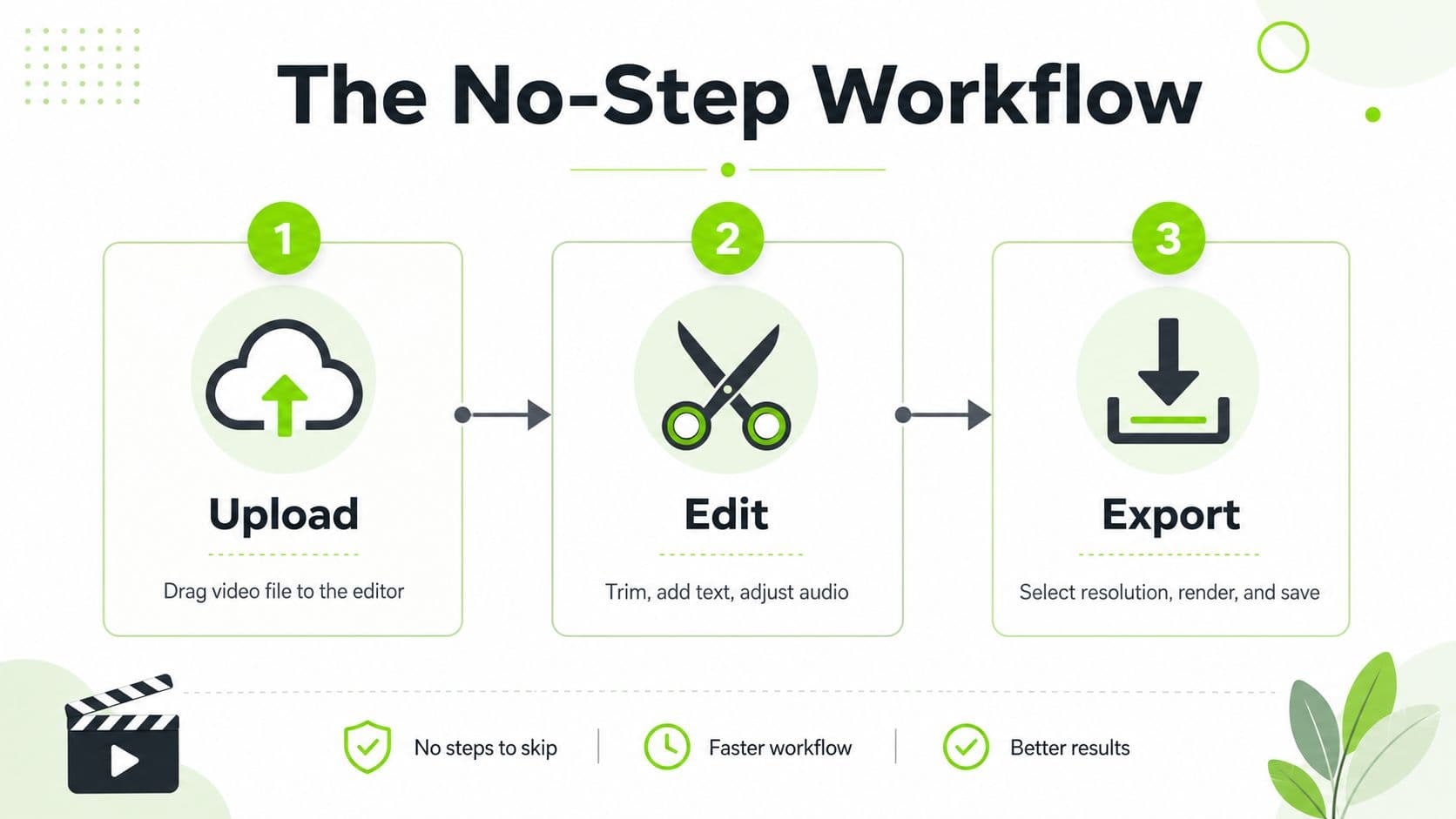
The fastest browser edits usually follow the same rhythm, get the footage in, shape the cut, then export without second-guessing every setting. Media.io makes that workflow obvious by letting users upload from storage, import via URL, or record screen and webcam directly in the editor, and it also notes a default 16:9 aspect ratio with watermark-free export after previewing the finished video. That's the kind of concrete workflow detail creators should look for instead of generic “easy editing” language.
In Satura, the workflow is framed around the same practical idea, raw footage goes in, the clip gets shaped in-browser, and the export stays clean. The important part isn't the label on the toolbar, it's whether you can move from source to publishable file without leaving the browser or bouncing between tools.
First 3 Minutes of Any Edit, The Decisions That Matter
| Decision | Question to Ask | Default for Short-Form |
|---|---|---|
| Source | Is this local footage, a URL import, or a screen recording? | Use the fastest path that preserves quality |
| Aspect ratio | Is this meant for vertical or landscape delivery? | Match the destination platform before cutting |
| First cut | What gets trimmed out immediately? | Remove dead air and awkward lead-ins |
| Audio | Does the clip need speech cleanup or leveling? | Fix messy audio early |
| Export tier | Does the free plan change quality or branding? | Verify the final resolution before batch work |
The routine matters because browser editors punish indecision. If you start with the wrong ratio, you end up rebuilding the frame logic later. If you wait to think about export tier until the end, you can discover too late that the final file is clean but unusable.
For creators who want a more software-like walkthrough, the Premiere Pro tutorial from Satura is a good contrast point, because it makes the browser-based tradeoff clearer. The core habit stays the same either way, lock the destination first, then edit to match it.
Export Settings That Decide Whether Your Video Is Usable
The export dialog is where marketing claims get tested. A tool can promise “no watermark” all day, but if the output resolution, aspect ratio, or asset policy does not fit your platform, the file still fails the job.
Resolution beats wording
Clipchamp's policy is the clearest example in the brief. Free users can export without a watermark, but the free export level is 480p on the policy page cited here, which means the file may be clean and still not be the right final deliverable. Its broader documentation also shows how the free tier and quality tier can diverge, while other tools like VEED push watermark-free output behind an upgrade for 1080p to 4K quality. The point is simple, no watermark is only one checkbox, and it does not tell you whether the file is usable.
Platform shape matters too
Short-form platforms are unforgiving about framing, so aspect ratio matters as much as branding. If you are posting vertical clips, the export has to match the destination or you lose screen space before the video even loads. A useful external reference for that planning stage is TikTok video dimensions for developers, especially if you are moving between Reels, Shorts, and TikTok without rebuilding the cut each time.
Export clean files, but never assume clean means ready.
Asset restriction is the other thing to watch. Canva's rules make this visible, free users stay watermark-free only when they stick to free elements, images, footage, and music, while Pro changes the outcome when paid assets enter the timeline. That is why a tiny test export helps before a batch session. A test clip shows whether captions, stock footage, or overlays trigger a plan lock, and that is a cheaper mistake than rebuilding twenty clips after the fact.
For a creator-oriented comparison of timeline tools and export habits, the Premiere Pro workflow guide from Satura is worth a look alongside browser editors. Different tools, same principle, the export policy has to match the job.
Comparing the Editors That Export Clean
The crowded part of the market is not the editing canvas anymore, it is the export promise. Independent 2026 review coverage describes ScreenPal as a free video editor with no watermark added, while also discussing Canva, Adobe Express, and Clipchamp in terms of whether free exports stay clean or pick up restrictions. That tells you the category has matured, but the better choice still comes down to workflow fit, export policy, and where hidden limits show up in the final file.
Satura fits the integrated creator workflow, especially if you want editing, clipping, and growth tooling in one browser workspace. If you want a practical shortlist of creator-facing options that map to real publishing needs, the best YouTube video editor guide from Satura is a useful companion. Canva fits creators who already live inside its design ecosystem and want their thumbnails, graphics, and quick cuts to share a common look. Clipchamp suits users who want a browser editor that feels familiar inside the Microsoft stack, though the quality ceiling still matters. VEED remains the obvious name when subtitles and transcript-heavy editing are the priority. For privacy-sensitive work, the local-processing group, including wide.video, edit.video, and online-video-cutter, is the category to check first.
Working rule: pick the editor that matches your workflow, not the one with the loudest landing page.
A useful comparison point from the 2026 review coverage is that some tools now emphasize local editing, no server uploads, and no signups, which matters if you are handling client footage or unreleased content. wide.video, for example, advertises HD or 4K editing locally with AI captions, background removal, and smooth motion, while edit.video and online-video-cutter position themselves around browser editing with no watermark. That privacy angle matters more than most roundup posts admit, because the export may be clean while the asset path still creates a risk.
Later, when the edit is already shaped, the question becomes whether the editor can keep pace with your output cadence. Creator partnerships and browser-native production models matter here, and it is one reason teams keep an eye on creator partnerships with Filmora when they are benchmarking how creator tools get marketed and packaged.
The comparison is not really about who trims fastest. It is about who gets you from source footage to a file you will post, with the fewest surprises on the last screen.
Quick Fixes When a Watermark Sneaks In Anyway
Sometimes the watermark sneaks in because you used the wrong asset. Sometimes it appears because the plan tier changed the export. Either way, the fix depends on where the branding sits in the frame.
Cropping works, but only in narrow cases
If the watermark sits in a corner or a letterboxed band, cropping can save the file fast. It's the least elegant move, but it's often the fastest when a deadline is breathing down your neck. Cropping falls apart when the watermark sits near the subject, because you end up losing the frame's useful information just to hide branding.
Overlays are better when the edit already looks finished
A blurred panel, a branded lower-third, or a motion graphic can cover a watermark and make the video look intentional. That only works if the rest of the cut already feels polished. If the edit is rough, the overlay just turns a technical problem into a design problem.
The privacy-first option is to switch to a local-processing editor like wide.video or edit.video, both of which emphasize browser-based or local workflows without the upload baggage that can slow down urgent jobs. That matters when the footage is sensitive, because the problem isn't just branding, it's where the files go before they come back.
A practical rescue path on a deadline is to take the watermarked export, bring it back into a browser editor, trim it harder, and re-render a cleaner version. For creators who rely on downloaded source material or imported clips, a resource like compare yt-dlp options can help you think through capture paths before you even hit the editor.
If the watermark is center-frame and the clip matters, re-editing is usually faster than trying to hide it.
The best fix is still prevention. But when the export has already gone sideways, the right move is to choose the least destructive workaround and keep the post on schedule.
What are the common questions?
What is the short answer for Online Video Editor No Watermark: The 2026 Creator Playbook?
Find the best online video editor no watermark in 2026. Step-by-step workflow, export tips, and creator-tested picks for clean, watermark-free videos.
What should creators do first?
Free versus paid signals
Who is this guide for?
This guide is for YouTube creators, faceless channel operators, agencies, and teams using AI tools to improve video production and growth.
Action checklist
Apply this to your channel today.
- 1Free versus paid signals
- 2Building a No-Watermark Workflow That Scales With You
- 3Stay free if your clips are short, your output is steady but modest, and you don't need team collaboration.
- 4Upgrade if you need higher-resolution publishing, batch production, or shared workflows.
- 5Switch tools if the editor keeps adding friction even when the watermark is gone.