What is the quick answer?
Learn how a version control system tracks every change, prevents lost work, and powers smoother collaboration for creators, developers, and small teams.
Key takeaways
- Architecture
- Git and Mercurial are distributed, meaning the full project history lives on every collaborator's machine.
- SVN is centralized, relying on a single, authoritative server as the source of truth.
- Learning Curve
- Mercurial usually feels friendlier and more intuitive for beginners.
- Git throws more concepts at you upfront, but the community support and available tooling are massive.
Overview
Sick of juggling files named final_v2_REAL.mp4? You're not alone. Think of a Version Control System (VCS) as your project's personal historian—a super-smart organizer that stops that kind of chaos in its tracks. It diligently records every meaningful change, lets you travel back in time to undo mistakes, and keeps collaborators from accidentally stomping on each other's work.
What a Version Control System Actually Does
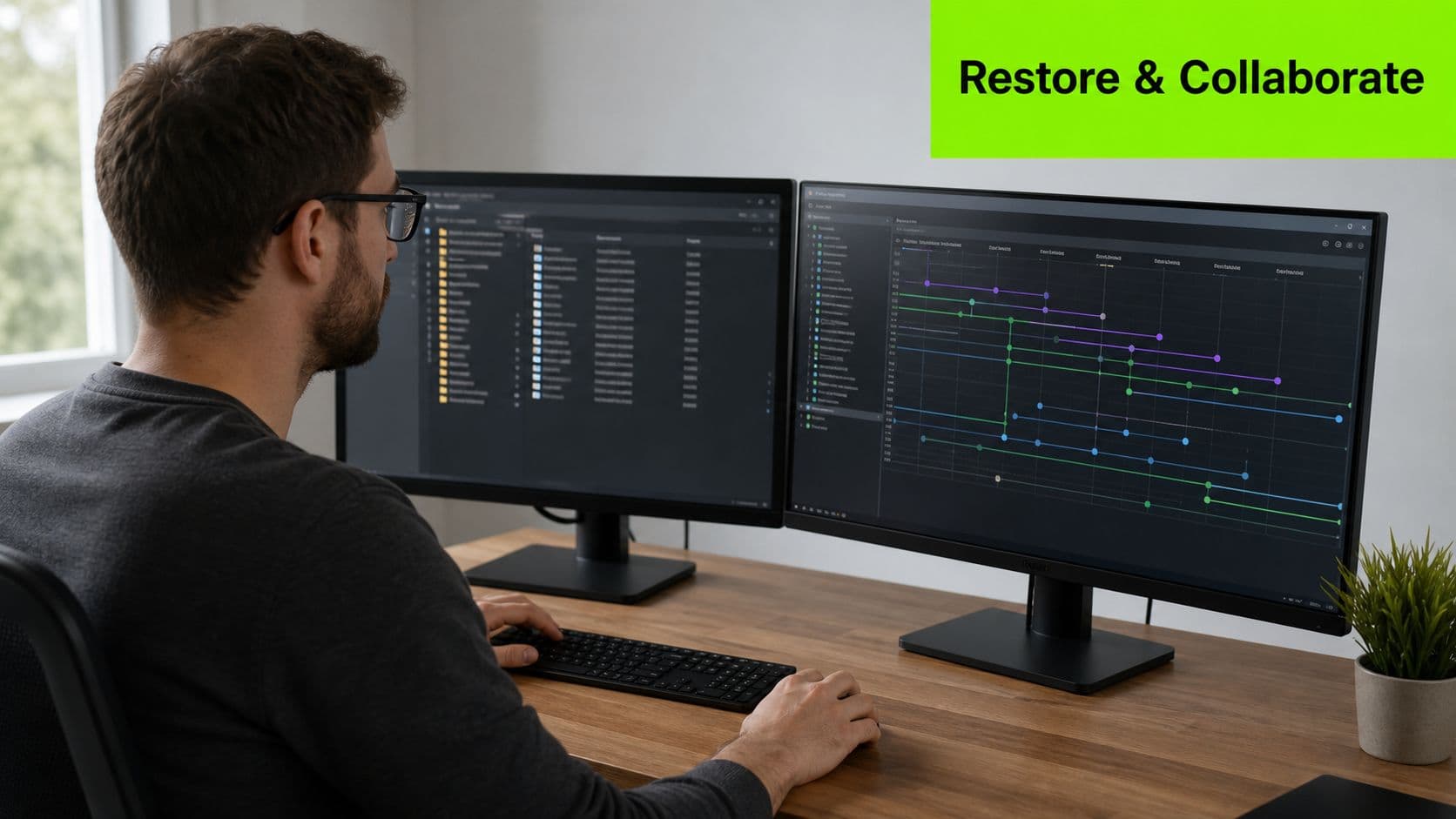
So, what's the magic here? Imagine a version control system as a blend of two friendly tools: a shared Google Docs for your whole team and a time machine for your project's entire history. Every time you save a change, the system doesn't just overwrite the old file. Instead, it creates a recorded snapshot. This means you can easily compare, rewind, or restore any earlier state of your project. It's like having an undo button for your entire workflow.
For creators, this solves some of the most common headaches:
"A version control system captures the what, who, and when of every change so you can focus on creating, not rescuing files."
- Messy filenames like
final_v3_reallyFINAL.movget replaced by meaningful snapshots that tell you who changed what and why. It's a clean, searchable history. - Multiple collaborators can work on the same project without accidentally overwriting each other’s brilliant ideas.
- You can experiment freely—try that wild new edit or risky effect—because every experiment is completely reversible.
Quick Answer: Why a Version Control System Matters
Let's cut to the chase. Here’s a quick rundown of how version control solves real problems you’ve probably run into:
| Common Problem | What Version Control Does | Real-World Benefit |
|---|---|---|
| Endless duplicates and lost edits | Records each change as a snapshot with clear notes | Save hours hunting for the right file and avoid rework |
| Two editors accidentally overwrite each other | Lets collaborators work in parallel, then merge safely | Smooth teamwork without the fear of losing progress |
| Fear of experimenting with big, bold edits | Provides an easy rollback to any previous state | Try anything without the panic of ruining earlier work |
How This Guide Will Help You
We're about to unpack three big ideas that make a VCS so practical:
For instance, a commit is just a labeled snapshot of your timeline. A branch lets you try a new edit without touching the main cut. And a merge brings your successful experiments back into the primary sequence. These ideas translate directly into how you manage folders, exports, and cloud backups, even if you never touch a single line of code.
Ready to dive in? Next, we'll unpack the mechanics so you can see how a few simple practices can turn file chaos into a calm, repeatable workflow that saves time and protects your creative freedom.
- Core concepts like commits, branches, and merges that are the heartbeat of versioning.
- Real team workflows that speed up collaboration, like feature branching and Gitflow.
- Concrete ways non-developer creators can adopt versioning habits for video, design, and other media projects.
Centralized vs Distributed Systems
Let's get visual. Picture a traditional centralized system like SVN or Perforce as a library holding the single master copy of a project. To make an edit, you "check out" a file, do your work, and then "check it in" again. This gives clear ownership and follows a dead-simple mental model—which is exactly why game studios and large corporate teams stuck with it for so long.
These systems still shine when you need tight control over massive files (hello, 4K video!) or strict locking rules. Take Perforce, for example—it lets teams "lock" files so two artists don't accidentally start editing the same game asset at the same time. It's a fantastic way to cut down on rework. But there's a catch: if that single, central server goes down, work stops dead. It's like the library suddenly closing for renovations right before your deadline.
How Distributed Systems Work
Distributed systems, with Git as the reigning champion, flip this whole idea on its head. Instead of one master archive, everyone gets a full photocopy of the project's history on their own machine. You can save changes (commit) offline, experiment with new ideas freely, and only sync up with the team when you're ready to share. This makes offline work, fast branching, and peer-to-peer collaboration feel completely natural.
The trade-off? You lose that central lock, but you gain incredible flexibility. Because every contributor has a full copy of the history, work keeps moving even if the internet goes out. Merges can happen whenever it's convenient. This flexibility is a huge reason Git took over the world as global teams and open-source projects exploded in popularity.
Centralized systems rely on a single source of truth. Distributed systems give everyone their own working copy that syncs up when the time is right.
Strengths of Centralized Systems
Strengths of Distributed Systems
| Scenario | Centralized Fit | Distributed Fit |
|---|---|---|
| Large binary assets | Excellent | Challenging without special tools |
| Offline editing | Poor | Excellent |
| Global open collaboration | Moderate | Ideal |
Picking one over the other shapes everything—from how you experiment to how you back up your work. Up next, we'll dig into the core concepts you'll actually use every day, so you can see how either model shapes the way you create.
- Clear ownership and access control prevent accidental overwrites.
- Server-side locking handles large binary files beautifully.
- The mental model is easier for folks moving off shared network drives.
- Offline commits and local history keep your workflow moving fast.
- Lightweight branching lets you experiment without breaking anything.
- Peer-to-peer sync removes the single point of failure.
- Practical Example for Creators
- In a centralized setup, a video editor "checks out" the main project file before touching it. Nobody else can edit it until they're done.
- With Git, an editor can try five different color grades locally, save the best version, and then push it up for review.
- Workflow Impact on Daily Work
- Going centralized means server-centric habits: check out, edit, submit.
- Going distributed encourages small, frequent commits, experimental branches, and lots of local tinkering.
Core Concepts You'll Use Every Day
Imagine you're writing a choose-your-own-adventure book. Every time you try a different plot twist, you drop in a little bookmark. In version control, those bookmarks are called commits—they're snapshots of your project with a short note explaining why you made the change. Thinking of it this way makes commits feel less intimidating and way more useful, whether you're writing code or editing a video.
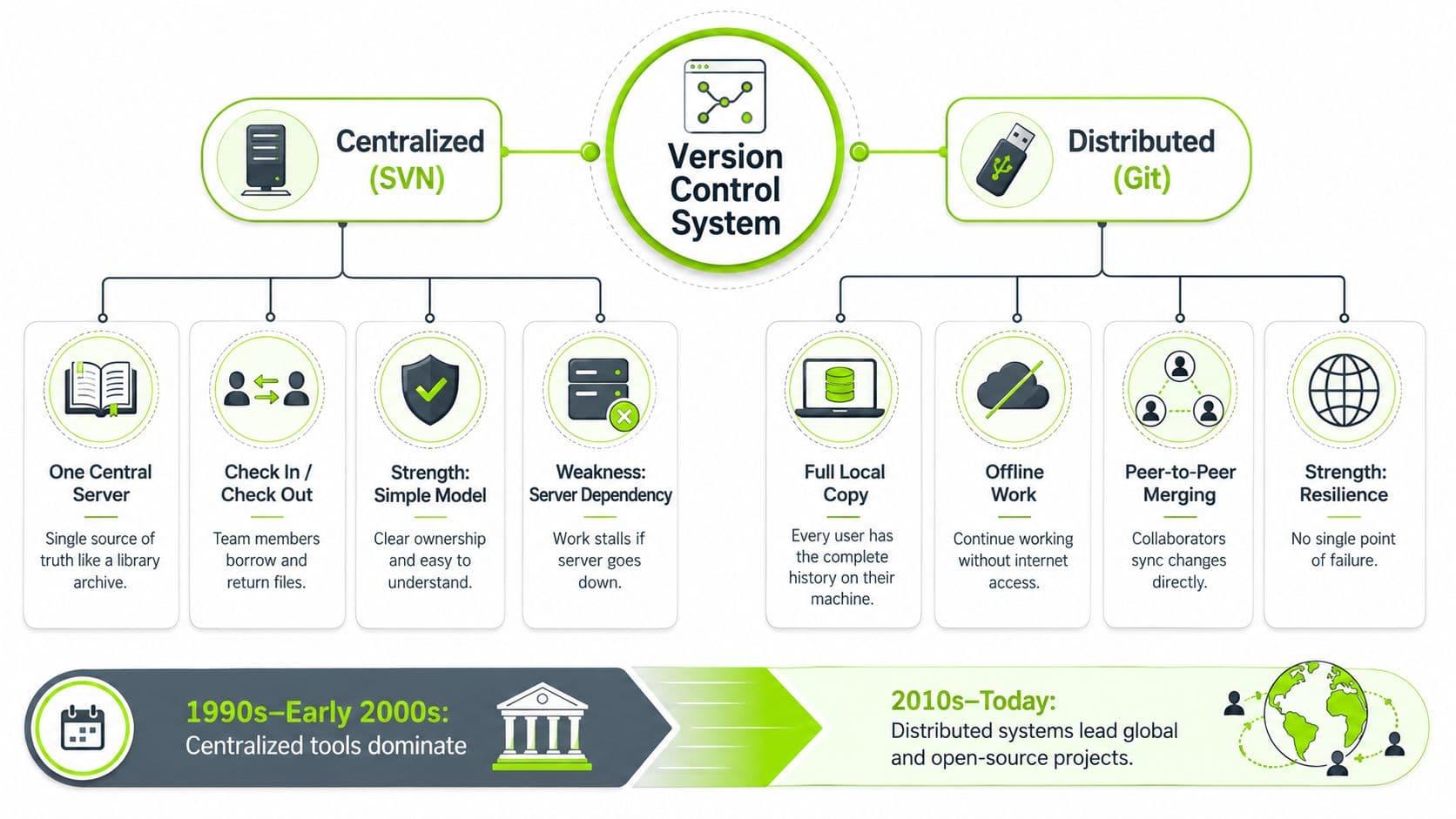
This diagram breaks down the difference between centralized systems like SVN and distributed ones like Git. A simple way to think about it: centralized is like a single library you all check books out from, while distributed gives every contributor their own complete copy—kind of like passing around USB drives full of the entire project. The trade-offs are significant, and this illustration helps show why the big shift happened from the '90s through today.
"A commit is a saved snapshot of your project with a short message that explains what changed and why."
Commits are the building blocks of your project's history. In a tool like Git, you'll typically run a short sequence of commands:
Branches are where the real magic happens. They act like parallel storylines or alternate realities for your project. You can spin one up whenever you want to try a new edit, effect, or feature without touching the "main" version. If the experiment works out, you merge it back in. If it’s a flop, you just toss the branch—and nothing on the main timeline is ever broken.
Here are the commands that bring branches to life:
That safety net is a game-changer for creators. You can try alternate cuts, test different thumbnails, or experiment with wild color grades in an isolated branch before you commit to the main release. No more saving fifty copies of a project file with names like "final_v3_REAL_THIS_ONE."
git initto start a fresh repository in your project folder.git add .to "stage" or prepare whatever changed for saving.git commit -m "Describe what you did"to lock in that snapshot.- Create a branch and switch to it:
git checkout -b my-new-idea - Merge your finished work back into the main line:
git checkout mainthengit merge my-new-idea - Look at your project's timeline:
git log - Commits: Snapshots with messages that capture your intent and the project's state.
- Branches: Safe playgrounds for experiments and new ideas.
- Merges: The process of choosing and combining the best outcome.
- History: A searchable timeline and your rollback safety net.
Git Commands Cheat Sheet for Beginners
Here's a friendly reference for the most common commands you'll actually type in a real project:
| Command | What It Does | When to Use It |
|---|---|---|
git init | Starts a new repository locally | At the very beginning of a new project |
git add | Stages changes for a commit | Right before you commit your files |
git commit -m | Records a snapshot with a message | After staging meaningful changes |
git checkout -b | Creates and switches to a new branch | When you want to start an experiment |
git merge | Combines one branch into another | When you want to integrate finished work |
git log | Views the commit history | When you need to audit or rewind changes |
For creators, these four concepts—commits, branches, merges, and history—are the heartbeat of any version control system. They translate directly to media workflows: label your versions clearly, try wild edits with confidence, merge the winning ideas, and keep a clean history so nothing ever gets lost. And if you want to go deeper on organizing your creative workflows from the ground up, check out How to Start Content Creation.
Popular Tools and How They Compare
When you start looking into version control, three big names tend to pop up everywhere: Git, SVN, and Mercurial. Let's break down where each one actually fits into the modern creative landscape.
Git is the undisputed, distributed powerhouse of the group. It’s what put fast, local commits and easy branching on the map. Because every contributor gets a full copy of the project history, working offline and experimenting quickly becomes second nature. This is exactly why it became the industry standard for open-source projects and modern software teams. It also powers the hosting platforms you already know and love, like GitHub and GitLab.
SVN (Subversion) takes the centralized route. The mental model here is simpler: there’s one central repository that everyone syncs with. This setup makes file ownership and locking incredibly straightforward. If your team handles massive binary assets (like huge video files or game textures), that matters a lot. This is why SVN and similar systems like Perforce still have a strong foothold in enterprise environments and many game development studios.
Mercurial sits somewhere in the middle. It’s a respected distributed tool known for its clean, consistent commands and a much gentler learning curve than Git. It definitely lost the popularity contest to Git, but it remains a solid and reliable alternative. If you care more about clarity and simplicity than having the biggest ecosystem, Mercurial is worth a look.
Key Differences at a Glance
"For most creators and developers starting today, learning Git is the best investment of time."
- Architecture
- Git and Mercurial are distributed, meaning the full project history lives on every collaborator's machine.
- SVN is centralized, relying on a single, authoritative server as the source of truth.
- Learning Curve
- Mercurial usually feels friendlier and more intuitive for beginners.
- Git throws more concepts at you upfront, but the community support and available tooling are massive.
- SVN is simple conceptually, but it can feel limiting when you need to do complex branching.
- Handling Large Projects
- Centralized systems like SVN or Perforce handle big binary assets and file locking better right out of the box.
- Git needs extra tools, like Git LFS (Large File Storage), to manage huge binaries efficiently.
- Where They Shine Today
- Git: The modern default for developers and creators who want flexible branching, blazing-fast local workflows, and easy integration with automated systems.
Practical Takeaways
Use the checklist below as the working summary for this section.
- If you collaborate on code, contribute to open-source projects, or work with a distributed team, pick Git.
- If your studio relies on server-side locking or deals with giant binary assets that can't be merged, look at SVN/Perforce.
- If you want a distributed model with simple commands and without Git's complexity, try Mercurial.
Examples and Commands
Want to dig deeper into the specific features of the leading Git platforms? Check out this excellent guide on GitHub and GitLab differences.
Read also: Tools Directory at Satura AI
Once version control becomes part of your daily routine, the chaos settles down into something predictable and powerful. Workflows like feature branches, Gitflow, and trunk-based development are three patterns that unlock real teamwork, each with its own distinct personality and use case.
Feature branches are like solo practice rooms for your ideas. Every teammate gets an isolated branch to test edits, create new assets, or try different color grades without touching the main project. Once the work is ready for review, they merge it back in. Picture a video producer testing three thumbnail variations in separate branches, then merging only the winner into the final release branch. This approach dramatically cuts risk and makes rollbacks effortless.
Feature branches give you the privacy to experiment and fail safely while keeping the main project stable.
Gitflow is more like an orchestra's rehearsal schedule. It uses a structured system of main, develop, feature, release, and hotfix branches so large teams can coordinate complex releases. You'd reach for Gitflow when you're running a multi-editor channel producing a scripted series where every release must pass through QA and marketing checks. The structure adds a bit of overhead, but it slashes coordination friction for teams of 8–50 people.
Trunk-based development is like a creative jam session. Small, frequent commits go straight to the main line (or "trunk"), often using feature flags or very short-lived branches to hide unfinished work. This method prioritizes speed and continuous integration. It's perfect for nimble creator teams running rapid thumbnail experiments or iterative edits where any delay is the enemy. It pairs beautifully with automated pipelines and allows for quick rollbacks.
- Start a repo locally with
git initand commit your changes often. - Use
git checkout -b new-thumbnail-testto isolate experiments, thengit merge new-thumbnail-testwhen you've picked a winner.
What are the common questions?
What is the short answer for Version Control System Guide for Modern Creators?
Learn how a version control system tracks every change, prevents lost work, and powers smoother collaboration for creators, developers, and small teams.
What should creators do first?
Start small: Pick one workflow for a single project and write down the rules for your team.
Who is this guide for?
This guide is for YouTube creators, faceless channel operators, agencies, and teams using AI tools to improve video production and growth.
Action checklist
Apply this to your channel today.
- 1Start small: Pick one workflow for a single project and write down the rules for your team.
- 2Use branches for big experiments: Think alternate cuts, A/B thumbnail tests, or major sound design changes.
- 3Protect your main line: Require reviews or approvals from a teammate before merging anything into the final project.
- 4Integrate CI/CD where it helps: Automated render checks or export validation can save you hours of manual work. To truly accelerate this, explore a complete mobile CI CD setup.