What is the quick answer?
Discover the top 10 video editing software YouTubers use in 2026. Compare features, pricing, pros/cons, and find the perfect tool for beginners to pros.
Key takeaways
- 1. Satura AI
- Why it stands out
- Best fit
- 2. Adobe Premiere Pro
- Who should use it
- 3. Final Cut Pro
Overview
A common question is, “What's the best editor for YouTube?” That's the wrong question. The better question is, “Which editor fits the way you make videos?”
Editing tools aren't one-size-fits-all. A solo creator cutting talking-head videos has different needs than a Shorts operator publishing constantly, and both work differently from a team managing long-form uploads every week. The right software can remove friction, or create a lot of it. If your current setup makes simple edits feel like admin work, your workflow is probably the problem, not your effort.
That's why an in-depth list of video editing software YouTubers use needs more than a generic ranking. It should separate desktop power tools from browser editors, mobile apps, and AI-assisted workflows that help you move faster. If you're balancing growth, speed, and quality, that's the lens that matters. For a bigger-picture look at content format strategy, this piece on AI content strategy advice is worth a read too.
1. Satura AI
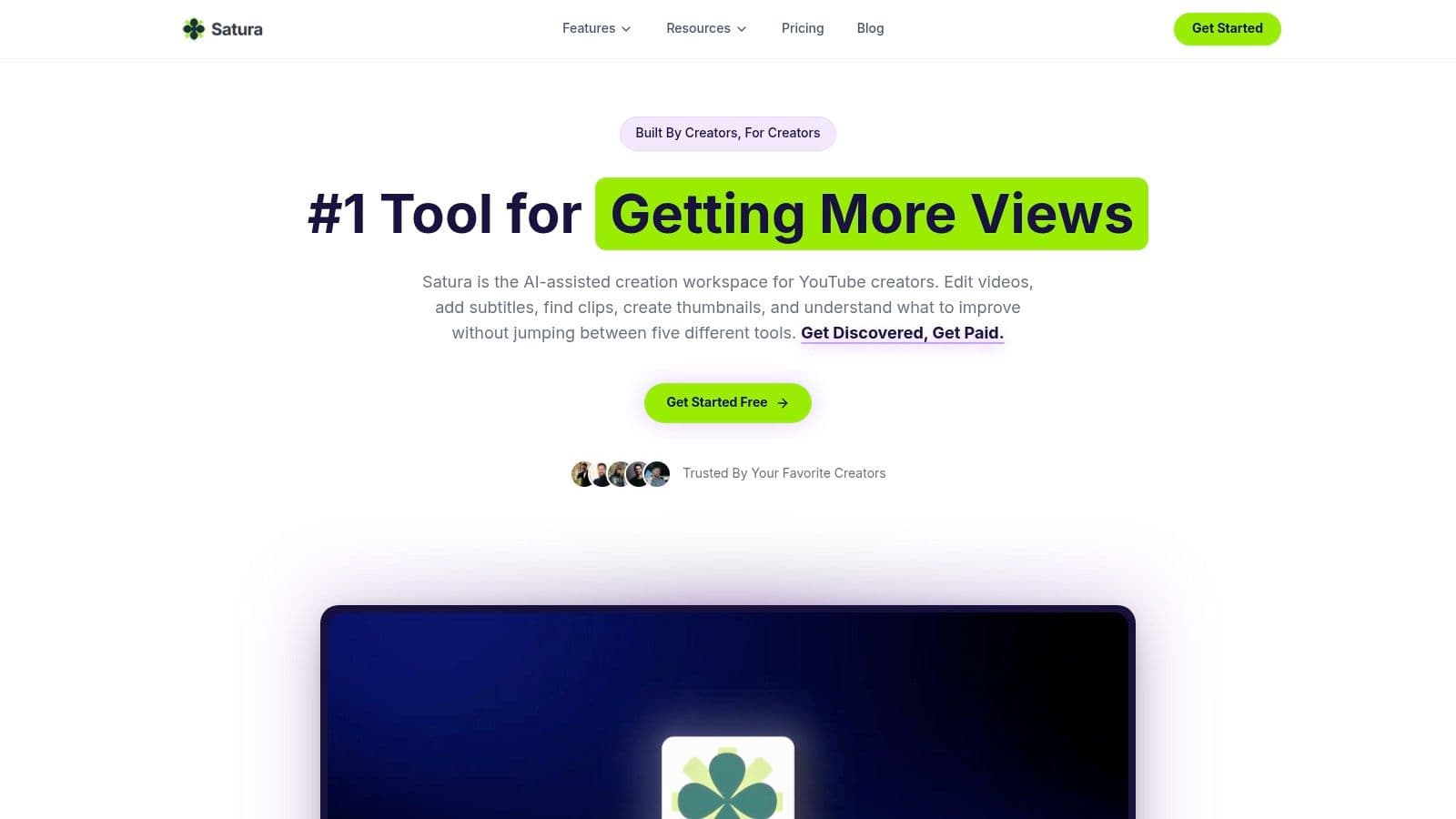
Satura AI is the tool I'd put in front of creators who are tired of stitching together five different apps just to publish one solid video. It's browser-based, which immediately removes a lot of setup friction, but the bigger story is that it combines editing, clipping, ideation, and growth feedback in one place.
At the center is a free pro editor that runs in-browser with no downloads and no watermarks. You can upload raw footage or import from YouTube and TikTok, then move into AI-assisted workflows like AutoClip, smart cutting, motion control, speech enhancement, quick subtitles, transcription, background or caption removal, AI voiceovers, and AI thumbnails. For creators working across long-form and short-form, that stack makes a real difference because it removes a lot of repetitive manual work.
Why it stands out
Most tools help you edit. Satura tries to help you decide what to make, how to package it, and what to fix next. That's where Clip Finder, the Creative Library, AI Lab, Trustscore analytics, Growth Coach, and Virality Lab feel different from a typical editor.
The interesting part is the combination of production plus diagnosis. Instead of dumping raw metrics on you, the platform turns signals like hook strength, retention, swipe ratio, share rate, and posting consistency into plain-English feedback. If you're building a repeatable channel system, that's more useful than a tool that only trims clips.
Practical rule: If your workflow breaks the moment you need editing, subtitles, repurposing, and creative testing in the same week, you don't need more features. You need fewer disconnected tools.
There's also a broader shift in the market toward lightweight, accessible workflows. Web-based editors accounted for 48% of the market, and 42% of users now use cloud-based platforms, according to video editing software market data. That trend makes sense. A lot of creators want speed and flexibility more than a giant desktop setup.
For creators exploring AI-assisted production specifically, Satura's own guide to AI tools for video editing gives a clearer sense of the workflow.
Best fit
Satura AI fits solo creators, faceless channels, short-form storytellers, podcasters, social managers, and small teams that need to move quickly. It's especially strong when your real bottleneck isn't the timeline itself, but everything around it.
What works well:
What doesn't:
- All-in-one workflow: Editing, clipping, ideation, testing, and growth analysis live in one browser workspace.
- Fast output for repurposing: It's built for turning long-form material into publishable short clips without a lot of manual cleanup.
- Flexible entry point: You can start free, then scale through credit-based usage instead of committing to a stack of subscriptions.
- Pricing isn't line-by-line transparent: Credit-based systems can take a little testing before you know your real cost.
- Heavy offline work is still a desktop advantage: Extremely large or resource-heavy projects may still feel better in a native app.
2. Adobe Premiere Pro
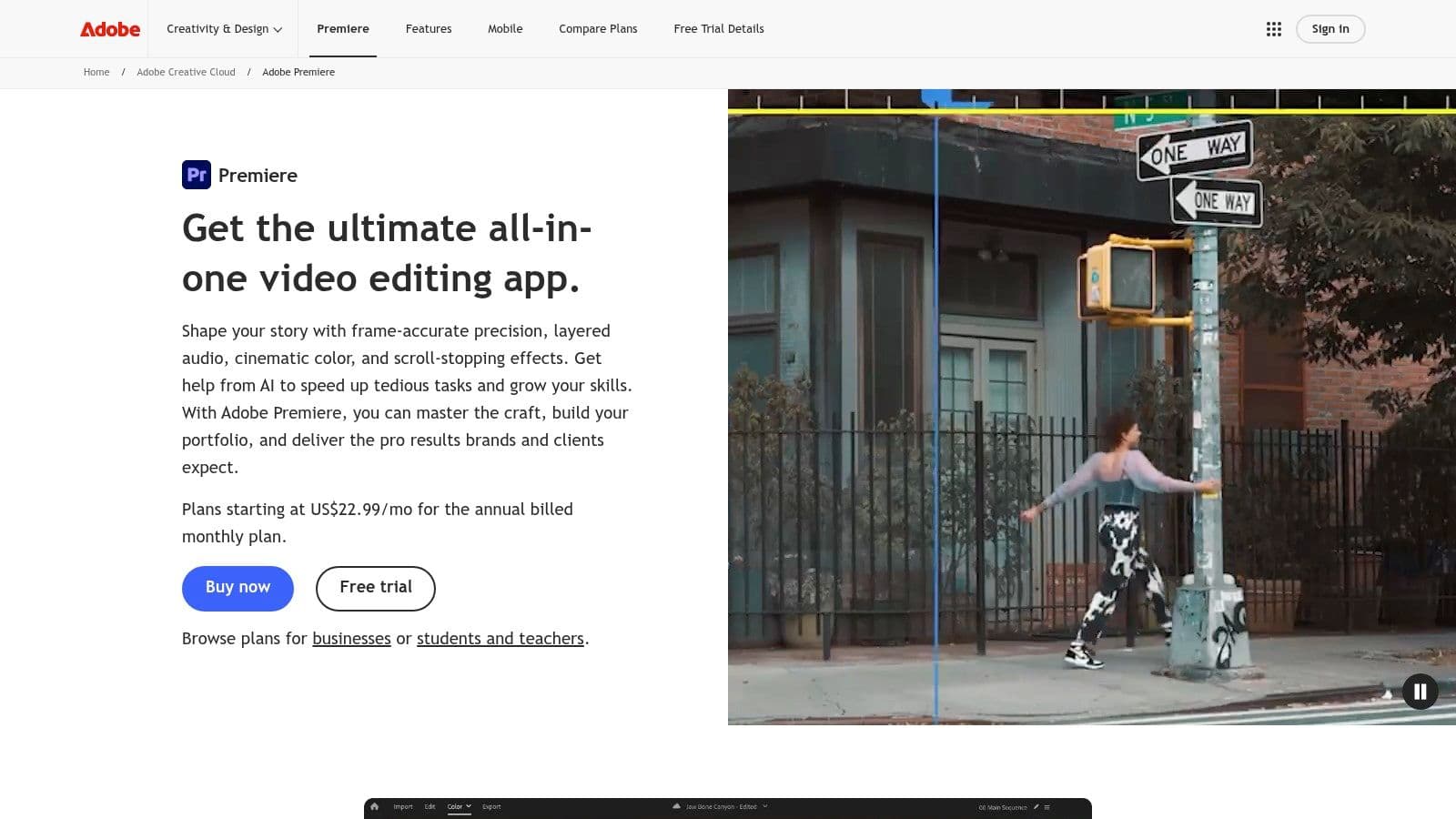
If you ask what video editing software YouTubers use at the professional end of the market, Premiere Pro stays near the top of the conversation. It's the tool many creators graduate into once their channel becomes a real operation instead of a hobby.
Adobe Premiere Pro holds a 35% market share among YouTubers globally, making it the most widely used professional editing tool by overall volume. That position is especially strong among creators already working inside Adobe's ecosystem, where Premiere connects smoothly with After Effects and Photoshop for packaging, animation, and post-production polish.
Who should use it
Premiere Pro makes the most sense for creators who need full control. That includes multicam edits, mixed footage, captions, proxies, color grading, review workflows, and collaboration across a team. It's also one of the easiest tools to hire for, because editors, agencies, and freelancers already know it.
A lot of creators choose Premiere because it scales well with complexity. A simple talking-head edit works fine in it, but so does a dense documentary-style timeline with layered audio, graphics, B-roll, and revision rounds.
Premiere is the editor you pick when you want the least resistance between your idea and a highly customized final cut.
Adobe's ecosystem is also a practical advantage. Frame.io review tools, broad plugin support, and common use across agencies all make handoffs easier. If you want a broader perspective on where pro tools fit, this breakdown of what video editing software professionals use complements Premiere's place in the market.
Trade-offs are straightforward:
- Best for: Long-form channels, teams, editors working with clients, creators already using Adobe apps.
- Less ideal for: Beginners who want a cheap or low-friction starting point.
- Main drawback: Subscription-only pricing and a steeper learning curve than more creator-friendly tools.
3. Final Cut Pro
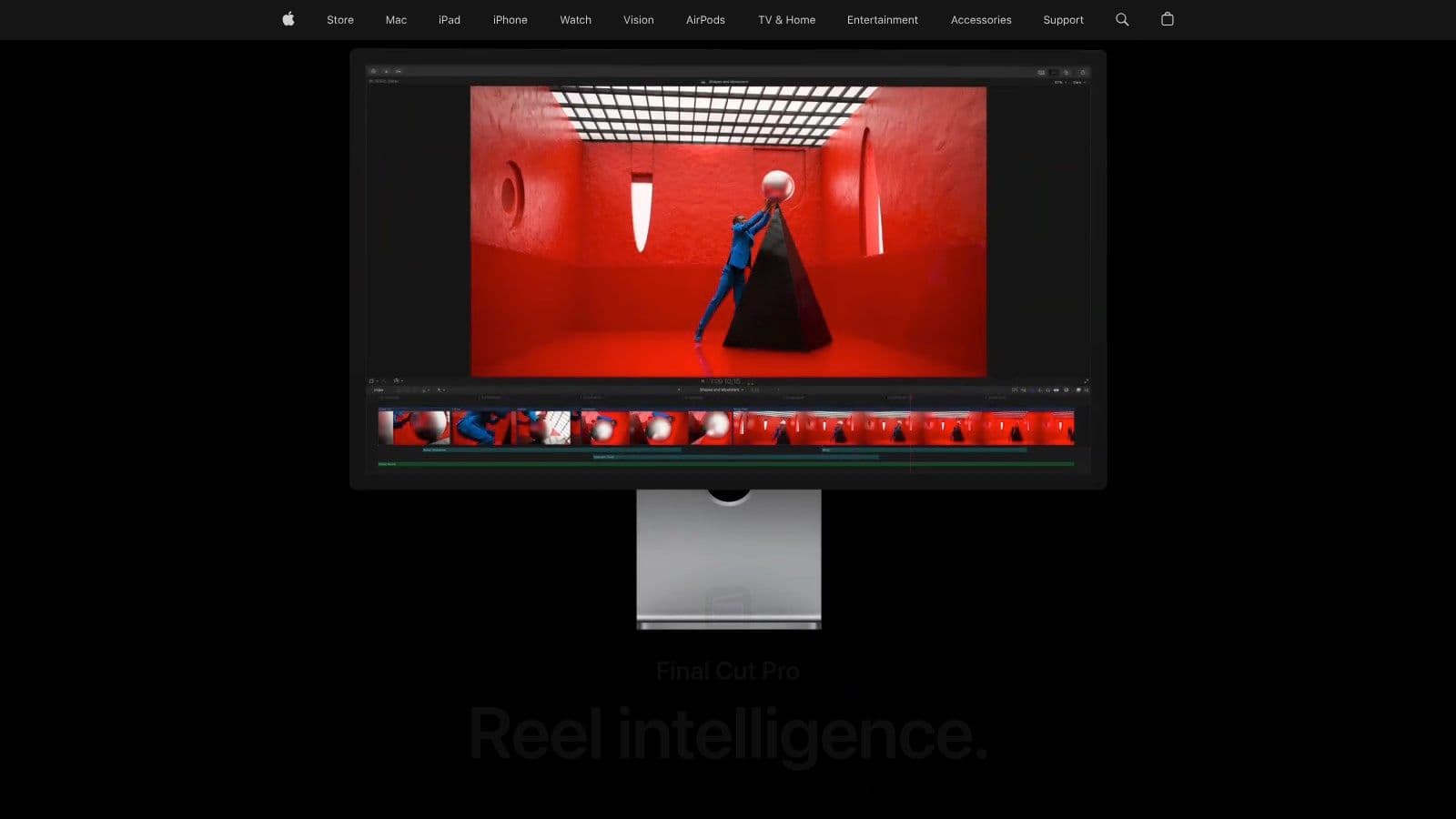
Final Cut Pro has always been the “I want pro results without wrestling the app all day” option for Mac creators. It's fast, clean, and unusually pleasant once the magnetic timeline clicks for you.
This is one of the most common picks for creators who live entirely on Apple hardware. The performance on Apple silicon is the big attraction, but the primary reason people stay is that it feels responsive even when a project gets busy.
Where it shines
Most professional YouTubers creating long-form content rely on Adobe Premiere Pro for full customization, while Mac-based creators frequently choose Final Cut Pro X for speed and strong editing performance, as noted in this overview of the best video editing software for YouTubers. That split feels accurate in practice. Premiere is broader. Final Cut is often faster.
Final Cut also works well for creators who want strong media management without a giant technical learning curve. Native ProRes support, HDR workflows, transcription search, visual search, and its ties to Motion and Compressor make it more capable than people sometimes assume.
For Mac-first YouTubers, the one-time purchase model is also appealing. It feels easier to justify than a recurring subscription, especially if your channel is growing but still lean.
If you spend a lot of time on title work and motion text, these Photo for Video text animation tips are useful even if your main editor isn't Premiere, because the creative principles still apply.
Where Final Cut loses ground is simple:
- It's Apple-only: Great if you're committed to Mac and iPad. Bad if your workflow needs Windows collaboration.
- Its timeline philosophy is divisive: Some editors love it immediately. Others never do.
- It's less universal in client and agency workflows: Easier for solo operators than mixed software teams.
4. DaVinci Resolve
Want desktop software that can carry a channel from basic cuts to serious finishing without forcing a subscription on day one? DaVinci Resolve is one of the clearest answers.
Resolve fits creators who edit on Mac or Windows and want one desktop tool for editing, color, audio, and effects. That matters if your workflow is growing beyond simple timeline work. Instead of outgrowing your editor and rebuilding your process later, you can stay in the same app and add skills as your videos get more ambitious.
Color is still the main reason many YouTubers try it. The bigger reason they stay is range. Resolve gives you a real editor, Fairlight for audio cleanup and mixing, Fusion for motion graphics and compositing, and a free version that is good enough for a lot of channels. That combination is hard to match.
It also fills a different role than the browser and mobile tools in this list. If CapCut is built for fast social output and Descript is built for script-first editing, Resolve is for creators who care about finishing quality and control. I usually point long-form YouTubers, documentary-style channels, talking-head educators, and anyone shooting with log footage toward Resolve first.
The free tier is a real reason to consider it, especially for creators comparing browser editors with full desktop software. This overview of a free video editor for creators weighing desktop options gets at the same point. Resolve often becomes the benchmark because it gives you room to improve without paying early.
There are trade-offs. The interface is dense at first, Fusion takes time to learn, and some AI-assisted features make much more sense on a stronger machine. If you edit quick YouTube Shorts on a laptop between meetings, a lighter tool may be faster. If that is your main workflow, these YouTube Shorts editing apps for faster vertical content are a better fit.
Use Resolve if you want a desktop editor you can grow into, not just get by with.
- Fusion is powerful, but harder to learn than basic template-based motion tools
- Some newer AI features and heavier timelines need solid hardware
- The page-based interface can feel crowded until you know where things live
5. CapCut
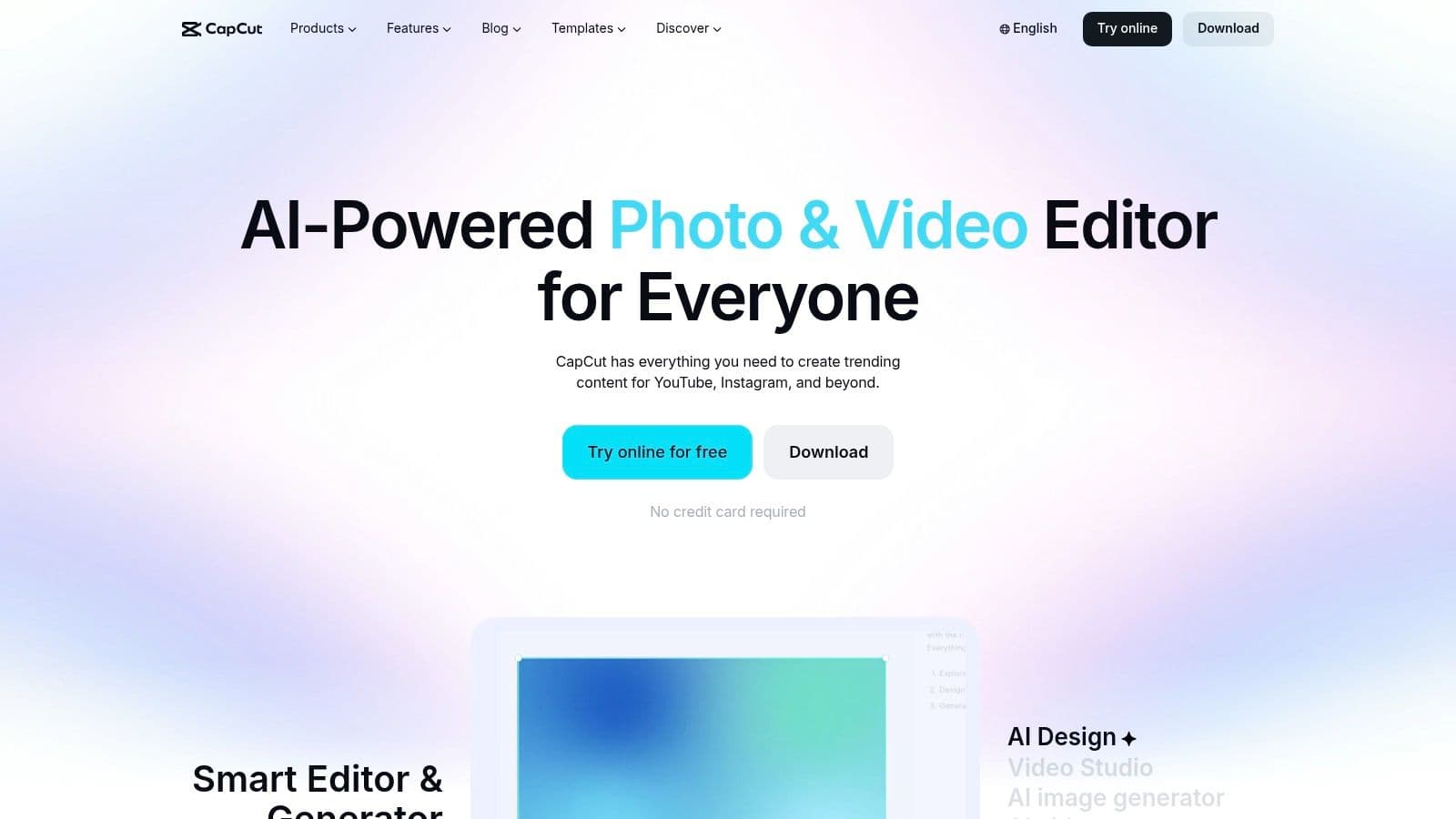
Need to publish fast without opening a full desktop edit suite first? CapCut is one of the easiest answers, especially for creators building around Shorts, Reels, and frequent social output.
What makes it different is the workflow split. CapCut works as a browser editor, a desktop app, and a mobile app, so it fits creators who start on a phone, tighten cuts on a laptop, and export wherever they happen to be working. For solo creators and social teams, that flexibility often matters more than deep timeline control.
Best use case
CapCut fits short-form creators, repurposing-heavy channels, and anyone posting vertical video several times a week. Auto-captions, templates, effects, stock media, and one-click aspect ratio changes remove a lot of repetitive editing work. That is why it shows up so often in creator workflows built around speed and volume.
I usually recommend it to three groups. First, beginner YouTubers who want to make clean videos without learning a traditional NLE right away. Second, mobile-first creators who film and edit in the same day. Third, teams cutting one core video into multiple social versions.
If that is your workflow, this list of YouTube Shorts editing apps for faster vertical publishing is a useful next read.
CapCut is less convincing for long-form YouTube projects with layered storytelling, detailed audio work, or heavy revision rounds. The timeline can feel cramped once a project grows, and fine control is still behind tools like Premiere Pro, Final Cut Pro, or Resolve. Some features also vary by device, plan, or region, which can be frustrating if you expect the same setup everywhere.
What CapCut does well:
What it does less well:
- Gets beginners editing quickly
- Handles vertical repurposing with very little setup
- Works well across browser, desktop, and mobile workflows
- Long-form project management gets messy faster
- Precision control is limited compared with pro desktop editors
- Feature availability can change by platform or account level
6. Descript
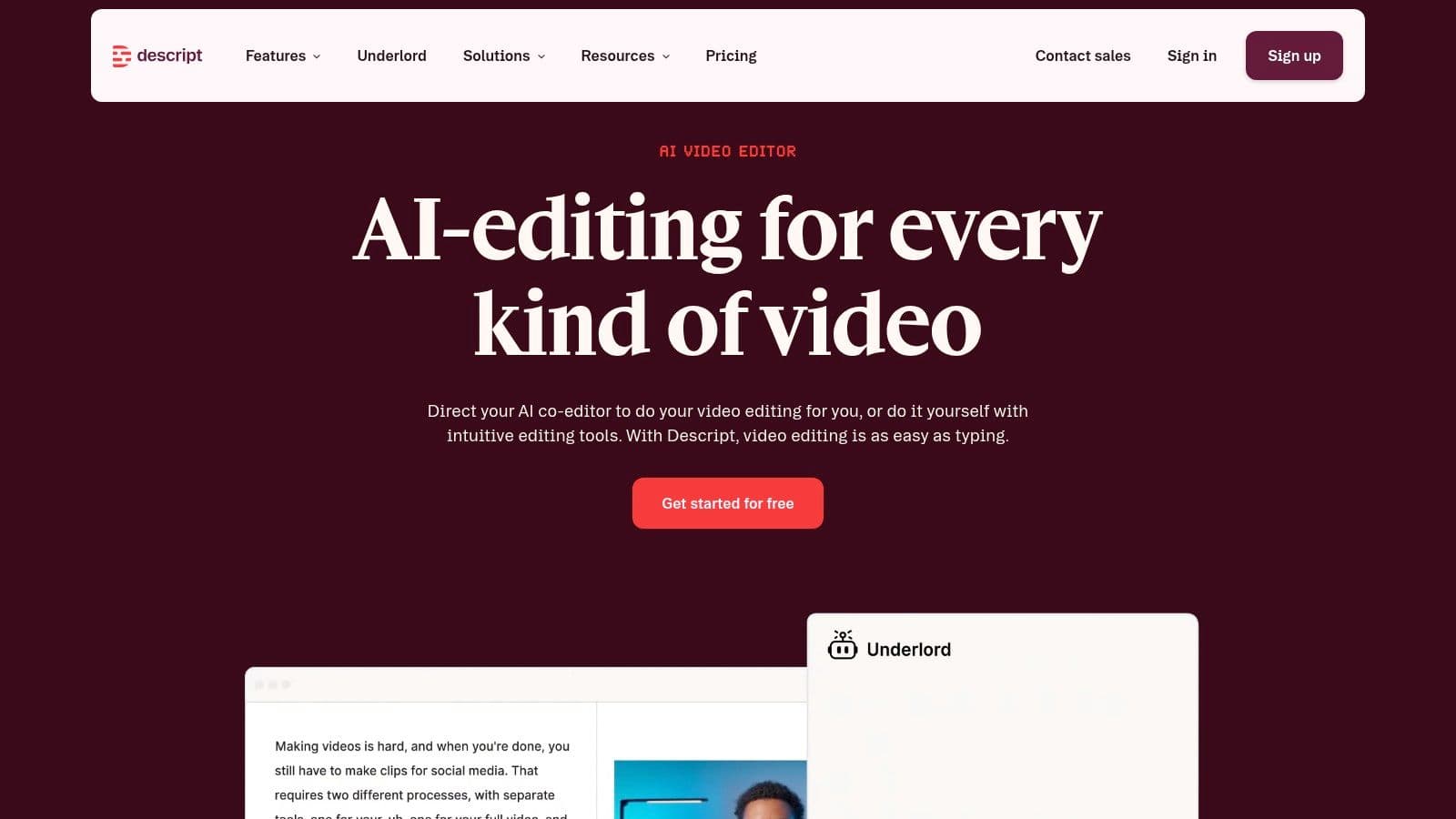
Descript is for people who think in sentences before they think in timelines. If your videos start with spoken ideas, interviews, podcasts, tutorials, or commentary, editing by transcript can feel much more natural than dragging clips around a traditional NLE.
That workflow is the reason so many talking-head creators adopt it. You cut words first, then tighten visuals around the cleaned-up script.
What are the common questions?
What is the short answer for 10 Video Editing Software YouTubers Use: Top Tools for 2026?
Discover the top 10 video editing software YouTubers use in 2026. Compare features, pricing, pros/cons, and find the perfect tool for beginners to pros.
What should creators do first?
Not the strongest choice for cinematic grading
Who is this guide for?
This guide is for YouTube creators, faceless channel operators, agencies, and teams using AI tools to improve video production and growth.
Action checklist
Apply this to your channel today.
- 1Not the strongest choice for cinematic grading
- 2Some advanced tools sit in higher tiers
- 3Good for: Budget-conscious creators who want a real editor
- 4Less good for: Template-heavy social workflows
- 5Best mindset: Treat it as a skill-building tool, not a trend tool
Sources & methodology
- Satura editorial guide based on the source video, topic cluster, and article sections.
- Source video reviewed for this article: https://www.outrank.so/