What is the quick answer?
Discover what a video effects editor is and how to use key features like AI, color grading, and transitions to create better videos faster.
Key takeaways
- Beyond the Basic Cut Why Your Videos Feel Flat
- What Exactly Is a Video Effects Editor
- More than trimming
- Why digital editing changed everything
- The Creator's Toolkit Key Video Effects Explained
- Effects That Guide Attention
Overview
You hit record. The lighting looked good, your mic sounded clean, and you said what you wanted to say without rambling. Then you exported the video, watched it back, and felt that annoying little disappointment.
It wasn't bad. It just felt flat.
That's where a video effects editor starts to matter. Not because you need explosions, flashy transitions, or a timeline that looks like a spaceship control panel. You need a way to shape attention. Good effects editing helps viewers follow what matters, feel the pace, and stay oriented from one moment to the next.
That's also why editing isn't some side skill creators can ignore. In the United States, film and video editors had a median annual wage of $70,980 in May 2024, with about 6,400 openings per year on average, according to the Bureau of Labor Statistics occupational outlook for film and video editors. That tells you something simple. Editing is a real, professional craft at the center of modern content.
Beyond the Basic Cut Why Your Videos Feel Flat
A lot of beginners think the problem is their camera. It usually isn't. The footage is often fine. The underlying issue is that raw clips don't naturally create momentum.
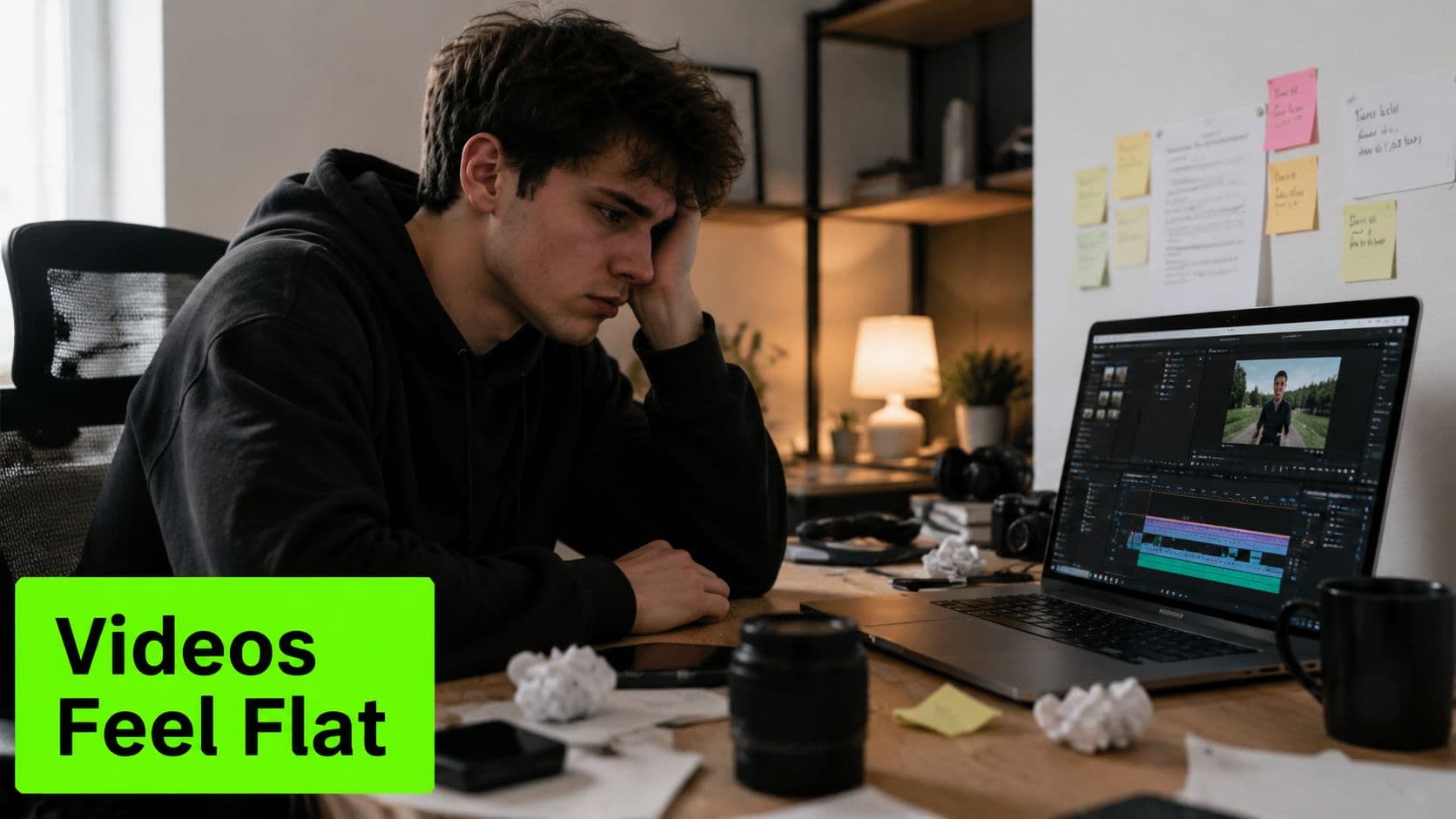
Say you filmed a tutorial. You explain things clearly, but every shot is framed the same way, every pause stays in, and every point lands with the same visual energy. A viewer starts strong, then their attention drifts. Not because your advice is weak, but because nothing in the edit keeps pulling the eye forward.
That “spark” people talk about is usually a mix of small choices.
Practical rule: Effects should behave like stage lighting. They help the audience look in the right direction. They shouldn't become the show unless the show is the effect itself.
This matters whether you make YouTube tutorials, talking-head videos, or product clips. If you're trying to grow your Instagram Reels, the same principle applies. The videos that hold attention usually feel intentional, not overloaded.
A good edit also saves weak moments that would otherwise get skipped. A slight zoom can make a key sentence feel more important. A clean text callout can rescue a point that might be missed. A better cut can make a rambling answer feel sharp without changing what was said.
If you make short-form content, this idea becomes even more obvious. A lot of creators don't need more footage. They need better packaging of the footage they already have. That's why guides around video editing for YouTube Shorts often focus on rhythm, hooks, and visual emphasis instead of camera specs.
- Pacing choices keep dead air from piling up.
- Visual emphasis tells the viewer what to notice.
- Motion and transitions smooth over awkward jumps.
- Text and graphic support make the message easier to follow.
What Exactly Is a Video Effects Editor
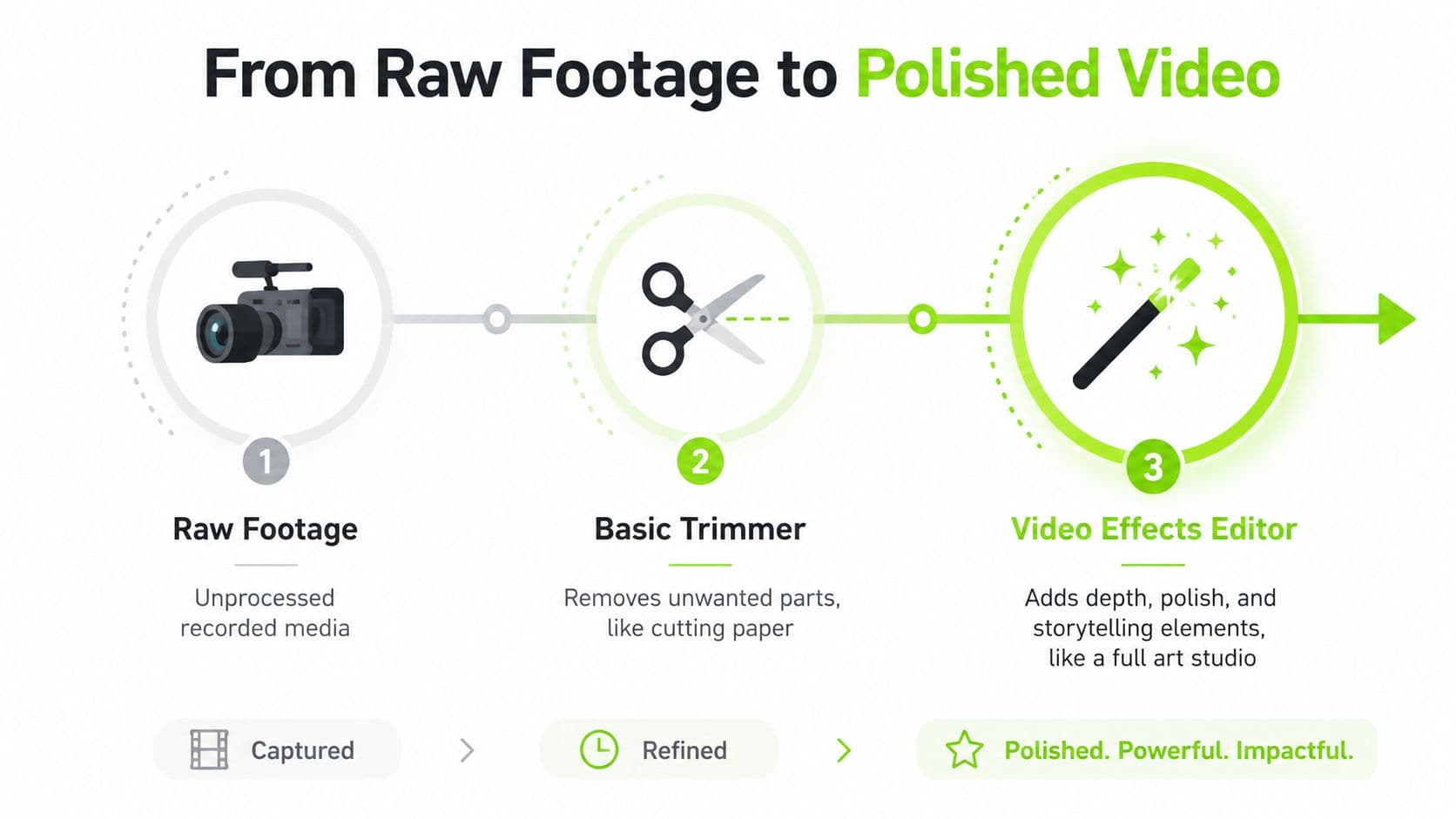
A basic trimmer is like scissors. It cuts out the bad take, trims the awkward pause, and shortens the clip.
A video effects editor is more like an art studio. It still cuts, but it also lets you shape color, add motion, layer graphics, combine clips, place text, adjust timing, and guide attention in a deliberate way.
More than trimming
When people hear “effects,” they often imagine cheesy transitions or over-the-top visual tricks. In practice, most effects editing is much more practical than that.
A video effects editor helps you do things like:
That's why the tool matters. You're not just cleaning up footage. You're deciding how the story is experienced.
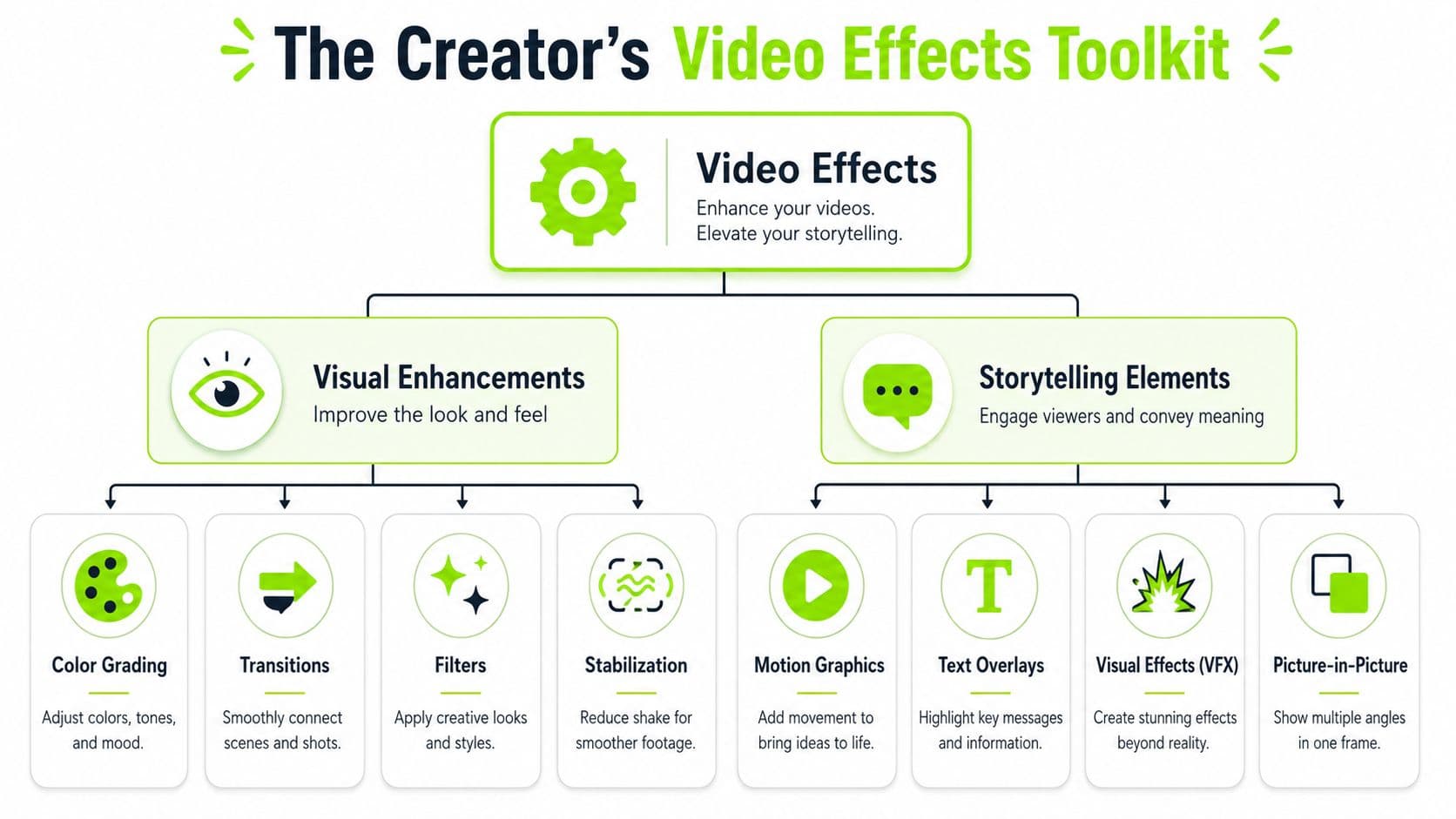
- Direct the eye with zooms, highlights, blur, or arrows
- Set the mood with color grading and filters
- Smooth the experience with transitions, motion, and stabilization
- Clarify the message with captions, lower thirds, and picture-in-picture
- Combine elements with compositing, overlays, and layered media
Why digital editing changed everything
For a long time, editing meant working with physical film. Then software changed the process. The digital editing era began in earnest around 1989 with the introduction of Avid Media Composer, a shift highlighted in this video editing history summary from Flocksy. Once editing moved into software, creators could rearrange, layer, and enhance footage much more freely.
That same source says the AI-in-video-editing market is forecast to grow from about US$0.9 billion in 2023 to US$4.4 billion by 2033. That's a projection, but it points to something you can already feel in creator tools. Editing is moving toward faster, smarter workflows with more automation built in.
A modern video effects editor doesn't just help you polish a video. It helps you make editing decisions faster.
That's especially useful if you create paid social clips. If you want practical examples of video effects for TikTok and Meta ads, it helps to look at how effects support the message instead of treating them like decoration.
The Creator's Toolkit Key Video Effects Explained
The easiest way to understand effects is to stop grouping them by software menu and start grouping them by job. Ask one question every time you add something to the timeline.
What is this effect doing for the viewer?
Effects That Guide Attention
Some effects exist to point the viewer's eyes at the right thing at the right moment.
A subtle push-in is a classic example. If you're delivering an important line, a small zoom can add intensity without shouting. The same goes for blur around the edges, a spotlight effect, or a text callout that appears exactly when the key phrase lands.
Transitions also belong here, but only when they help orientation. Hard cuts are often strongest. A transition should solve a visual problem, not announce itself.
Many tutorials teach how to add effects, but they rarely explain which ones improve retention. A creator-focused editing lesson on shot changes and visual continuity makes a practical point: use effects to support story flow and avoid visual noise, including shot changes of at least 30 degrees to avoid jarring jump cuts.
A simple way to look at it is:
A useful companion to this is motion control for creators, especially if you want movement that feels intentional instead of random.
- Zooms work when emphasis changes.
- Highlights work when the viewer might miss detail.
- Transitions work when time, place, or topic changes.
- Overlays work when a visual example explains faster than words.
Effects That Control Pace
Pace is where a lot of flat videos gradually lose people.
Speed ramps, cutaways, and audio-led edits can keep a sequence moving without making it chaotic. If someone opens a laptop, points to a chart, or reacts to a surprise, you can slightly compress the empty movement and preserve the meaningful beat. The scene feels cleaner, and the viewer doesn't have to sit through dead motion.
J-cuts and L-cuts help too. If those terms sound technical, don't worry. A J-cut means you hear the next moment before you see it. An L-cut means the current audio continues after the picture changes. Both create flow. They make a video feel like one thought leading into another, instead of a stack of separate clips.
Quick test: If an effect makes the viewer more aware of editing than of the idea, it's probably too much.
This is a good spot to watch someone break down visual editing decisions in action:
Effects That Improve Clarity
Some of the highest-value effects aren't flashy at all. They make content easier to understand.
Think captions, lower thirds, chapter cards, audio cleanup, and picture-in-picture. If you're teaching something on screen, a cropped callout or on-screen label can save the viewer from replaying the clip. If you're telling a story, a title card can reset context after a jump in time.
Beginners often misunderstand this. They think “cinematic” means darker colors, dramatic transitions, and lots of effects. But clarity usually wins. A clean subtitle and a well-timed visual insert can do more for performance than a complicated preset pack.
Three common clarity upgrades:
Great when a point needs to stick. Don't animate every word. Animate the words that carry the meaning.
Useful when your face and your screen both matter. The viewer gets reaction and instruction at the same time.
These help people follow the video without strain, especially on mobile.
AI-assisted tools are changing this part of the job fast. Automatic subtitles, transcript-based edits, and smart cut suggestions reduce repetitive work so you can spend more energy on the parts that need taste and judgment.
- Animated text for key phrases
- Picture-in-picture for demonstrations
- Speech cleanup and subtitle timing
Creator Workflows How Pros Use Effects Editors
The same tool can feel completely different depending on what kind of creator you are. A commentary YouTuber, a Shorts creator, and a podcaster all use effects. They just use them for different reasons.
The Long Form YouTuber
A long-form creator usually needs effects that reset attention without exhausting the audience.
Think of a ten-minute explainer. The edit might include occasional punch-ins, a few on-screen labels, some b-roll overlays, and cutaways whenever the topic shifts. The trick is restraint. You want enough motion and variation that the video never stalls, but not so much that the viewer feels pushed around.
In more traditional post-production, editors often focus heavily on the cut itself and pass effects, color, and audio finishing to specialists. One professional workflow discussion notes that, in feature and long-form drama, the editor may spend about 95% of the time cutting shots while other departments handle effects, color, and mixing, as described in this editor interview on post-production roles. Even if you work solo, that idea helps. Your first job is still the story.
The Shorts Creator
A short-form creator uses effects much more aggressively, but not necessarily more randomly.
The opening seconds need a hook. Captions need to land fast. Reframes, zooms, and graphic emphasis need to support the main beat of the clip. This is less about polishing a single timeline and more about extracting the strongest moment, framing it well, and getting to the point immediately.
A creator workflow lesson on repurposing content notes that modern creators increasingly face a different problem: turning long-form material into short-form clips at scale, with AI-assisted clipping and transcript-based editing becoming more central to the process, as discussed in this guide to content atomization for creators.
What are the common questions?
What is the short answer for What Is a Video Effects Editor? a Creator's Guide?
Discover what a video effects editor is and how to use key features like AI, color grading, and transitions to create better videos faster.
What should creators do first?
Add only the effects that help such as captions, reframes, or emphasis text
Who is this guide for?
This guide is for YouTube creators, faceless channel operators, agencies, and teams using AI tools to improve video production and growth.
Action checklist
Apply this to your channel today.
- 1Add only the effects that help such as captions, reframes, or emphasis text
- 2Export for platform context so the clip feels native instead of recycled
- 3If you make YouTube essays or tutorials
- 4If you post daily short-form clips
- 5If you run a content business
Sources & methodology
- Satura editorial guide based on the source video, topic cluster, and article sections.
- Source video reviewed for this article: https://www.outrank.so/