Captions vs CapCut
Captions vs CapCut for AI video editing
Choose Captions when talking-head automation, AI presenters, gaze correction, and localization drive the workflow. Choose CapCut when broad visual editing, templates, effects, and cross-device control drive it. Use both when presenter creation and visual finishing are separate jobs.
Fact-checked against official Captions and CapCut product, pricing, and help pages on August 3, 2026.
Captions
Best for AI-assisted talking-head video
Start here when AI Edit, eye-contact correction, AI Twin, generated actors, captions, dubbing, and Lipdub define the repeatable job.
CapCut
Best for broad visual editing
Start here when a timeline, direct clip control, templates, effects, music, text, and editing across phone, desktop, and web matter most.
Satura
Best for the YouTube operating loop
Start here when editing must connect to research, clips, subtitles, thumbnails, metadata, CTR, retention, RPM, TrustScore, and channel health.
Feature and workflow comparison
Captions vs CapCut at a glance
Both products can caption, automate, clip, edit, and export video. The useful differences are how each product starts the edit, the depth of presenter automation, visual breadth, device workflow, and cost.
| Decision | Captions | CapCut | Verdict |
|---|---|---|---|
| Best first use | Automating short talking-head video with captions, AI Edit styles, eye-contact correction, dubbing, AI presenters, and generated media. | Editing a broad mix of social and YouTube video with a visual timeline, templates, effects, music, text, transitions, and direct clip control. | Choose Captions when the presenter workflow is the product. Choose CapCut when general visual editing breadth is the product. |
| Editing model | AI-first and chat-assisted workflows can turn short raw footage into a styled edit, with manual fine-tuning available after generation. | A visual timeline organizes clips, tracks, text, audio, transitions, filters, effects, templates, and hands-on timing controls. | Captions starts from automation and a talking-video outcome. CapCut starts from visual assembly and direct timeline control. |
| Talking-head workflow | Camera and teleprompter capture, AI Edit, denoise, eye-contact correction, AI Twin, generated actors, B-roll, music, and motion graphics are connected. | Captions, cleanup, effects, backgrounds, templates, reframing, text, music, and timeline tools can produce polished presenter video. | Captions is the clearer first test for repeatable single-presenter production. CapCut offers more general-purpose finishing control. |
| Captions and localization | Automatic captions, more than 100 languages, translated subtitles, dubbing, and Lipdub are central parts of the talking-video workflow. | Auto captions work across web, desktop, and mobile with editable text, timing, placement, styles, animations, and export options. | Test Captions first for localized presenter output. Test CapCut first when subtitles are one layer inside a broader visual edit. |
| AI presenters and generation | AI Twin can create a digital presenter from a recording, existing footage, or selfie, while generated actors and media support script-led output. | AI tools, templates, media, text, effects, and plan-dependent generative capabilities support many creation and editing workflows. | Captions has the more specialized personal-presenter proposition. Verify CapCut's live plan and platform for the AI features you need. |
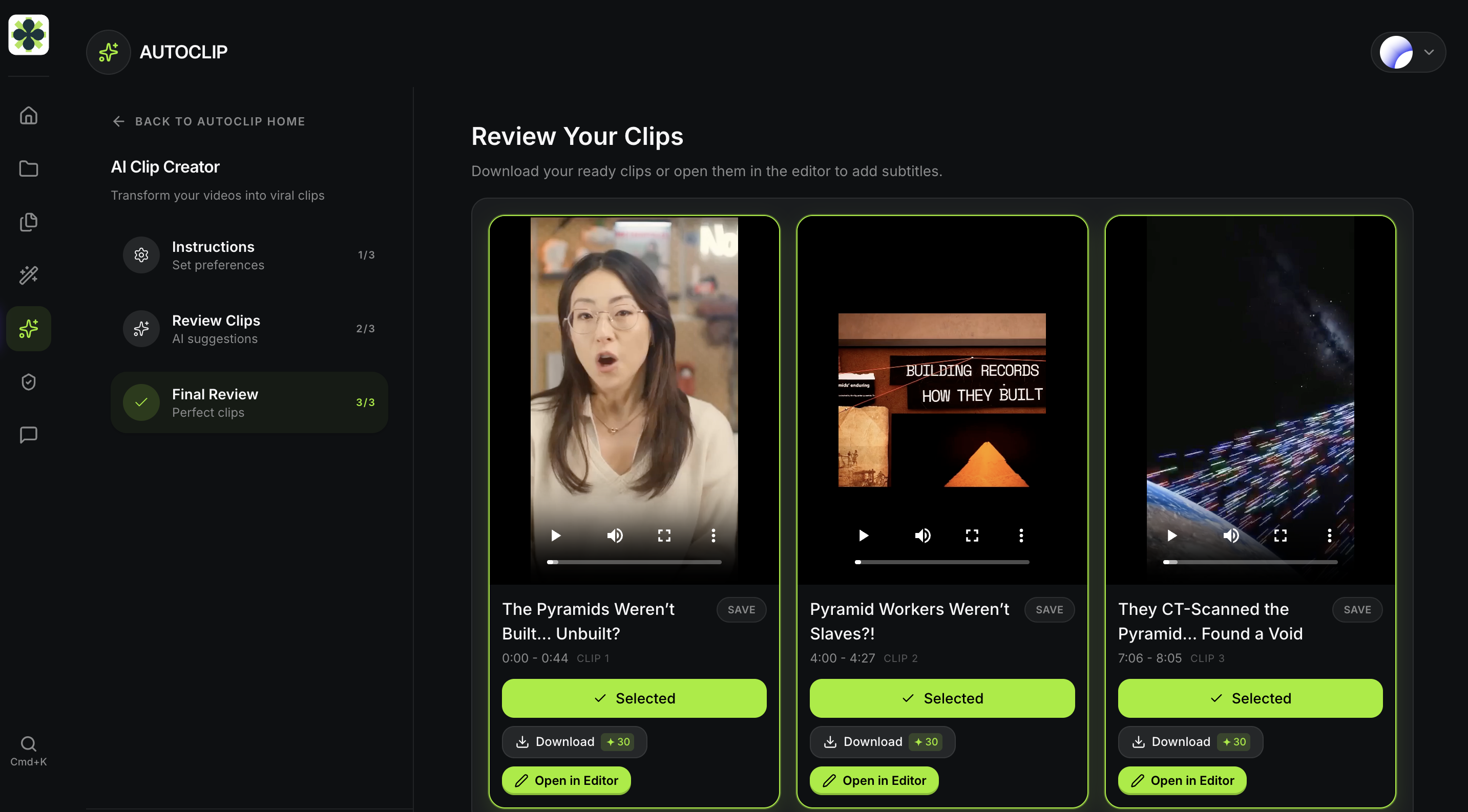
| Long video to Shorts | AI Shorts can turn an uploaded long video or YouTube URL into clips on eligible plans and devices, separate from short-footage AI Edit. | AI Clip Maker identifies highlights, reframes subjects, creates vertical clips, adds captions, and opens results for further editing. | Both can repurpose long video. Compare approved clips and correction time on the same source instead of counting generated drafts. |
| Platforms and devices | Web, iOS, Android, and desktop access are available, but features, plans, credits, and pricing can differ by platform and country. | Editing spans web, Windows, macOS, iOS, and Android, with plan, feature, asset, storage, and export availability varying by platform and region. | Both are cross-platform. Test the exact device workflow because neither product promises identical features everywhere. |
| Teams and repeatability | Scale and enterprise plans add higher credit pools, workspaces, brand kits, templates, analytics, collaboration, and service options. | Cloud projects, storage, collaboration, team templates, brand libraries, review, and paid-plan controls support shared visual production. | Model seats, reviewers, shared assets, storage, credits, devices, and brand controls around the normal monthly workload. |
| Pricing and usage limits | The official iOS list ranges from Free through Pro, Max, and Scale credit tiers, while billing and available plans vary by platform and country. | Free editing is available, with Standard and Pro subscriptions for plan-dependent assets, AI features, storage, collaboration, and access. | Captions exposes credit tiers; CapCut says checkout price varies by region, device, and promotion. Verify both in the live purchase flow. |
Decision paths
Choose around the job repeated every week
Choose Captions
Best starting point for automated talking-head production.
- Most videos feature one presenter speaking directly to camera in a short vertical format.
- AI Edit, eye-contact correction, AI Twin, dubbing, Lipdub, and generated presenter footage matter every week.
- The goal is to reduce the steps between recording a take and exporting a polished talking video.
Choose CapCut
Best starting point for broad cross-platform visual editing.
- The workload mixes talking heads, B-roll, screen recordings, music, graphics, templates, effects, and multiple aspect ratios.
- Detailed clip timing, direct timeline control, large creative libraries, and mobile-to-desktop flexibility matter most.
- Captions and AI assistance should sit inside a general-purpose social and YouTube editor.
Use both
Best when presenter automation and visual finishing are separate jobs.
- Create or automate the presenter sequence in Captions, then finish complex visual timing and platform variants in CapCut.
- Choose one product to own subtitles so timing, translation, and style corrections are not duplicated.
- Measure whether the handoff saves more time than exports, versions, storage, and two subscriptions add.
Consider Satura
Best when the actual job is operating a YouTube channel.
- Research, AI assets, editing, clips, subtitles, thumbnails, metadata, and upload planning should connect.
- CTR, retention, TrustScore, RPM, and channel diagnostics need to shape the next video.
- A YouTube production and learning loop matters more than specialist presenter automation or general editing breadth.
Two-editor workflow
Can Captions and CapCut work together?
Yes. Use both only when the handoff between presenter automation and detailed visual finishing lowers total correction time enough to justify two products.
Build the presenter sequence
Record or generate the speaker in Captions, approve the script, voice, gaze, dubbing, pacing, background, and essential B-roll.
Choose one caption owner
Finish captions and translations in one product. Avoid correcting two subtitle tracks after every timing or wording change.
Finish the visual edit
Use CapCut when the sequence needs denser clip assembly, effects, transitions, music, graphics, templates, or multiple platform variants.
Pricing context
Compare cost on the device you will use
Captions publishes iOS prices and credit tiers. CapCut says checkout pricing varies by region, device, and promotion. Verify both live before comparing monthly workflow cost.
| Product | Free access | Paid access | Cost check |
|---|---|---|---|
| Captions | $0. The credit guide says some Free accounts may receive 60 to 200 one-time, non-refreshing credits. | Pro is $9.99/month with 200 credits in the official credit guide; Max is $24.99/month with 500 credits; Scale starts at $69.99/month with 1,400 credits. | The public pricing table reflects iOS. Billing term, payment method, platform, country, currency, and live account eligibility can change price and features. |
| CapCut | Free editing tools and templates are available, with some assets and capabilities reserved for paid plans. | CapCut offers Standard and Pro subscriptions; available plans and benefits can differ by platform. | CapCut states that current checkout pricing varies by region, device, and promotion, so a fixed global price would be misleading. |
| Satura | Free account with browser editing and limited exports; no credit card is required to start. | Starter is $29/month, with an annual equivalent from $17/month. | Paid plans bundle AI credits, export minutes, connected YouTube channels, and the wider production and growth toolset. |
The YouTube third option
Connect the edit to the next content decision
Captions and CapCut are capable editors with different strengths. Satura is the alternative when the team needs one YouTube workflow for creation, clipping, packaging, publishing decisions, and performance diagnosis. It is not a replacement for every Captions AI Twin or CapCut timeline feature.
Fair product test
Test finished output, not the feature list
Test one clean talking-head clip
Use a normal presenter take and compare caption correction, gaze repair, audio cleanup, B-roll, styling, and time to an approved export.
Test one mixed-media edit
Combine presenter footage, B-roll, screen capture, music, graphics, transitions, and precise timing to expose visual-control differences.
Test one long-video source
Create three Shorts from the same long upload and count usable selections, caption fixes, reframing changes, and finishing minutes.
Price the publishable workflow
Include AI credits, premium assets, storage, seats, platforms, exports, localization, manual corrections, and any second editor.
Official sources
Verify both products before choosing
Captions vs CapCut FAQ
Questions creators ask before choosing
Which is better, Captions or CapCut?
Captions is usually the better first test for automated talking-head videos, AI presenter workflows, eye-contact correction, dubbing, Lipdub, and style-led AI editing. CapCut is usually the better first test for broad timeline editing, templates, effects, music, mixed media, and cross-device visual control. There is no universal winner.
Is Captions or CapCut better for talking-head videos?
Captions is more specialized for talking-head production because AI Edit, camera and teleprompter capture, eye-contact correction, AI Twin, generated actors, captions, dubbing, and Lipdub are connected. CapCut can still produce polished presenter video and may fit better when complex visual finishing matters more than presenter automation.
Is Captions or CapCut better for general video editing?
CapCut is usually stronger as a broad general-purpose visual editor because its timeline, templates, effects, transitions, music, text, filters, and cross-platform workflows support a wider mix of footage. Captions emphasizes AI-assisted short-form talking-video production and manual fine-tuning after generation.
Is Captions or CapCut better for captions and translation?
Captions is the clearer first test when translated talking videos, dubbing, Lipdub, and presenter localization are central. CapCut is a strong first test when automatic subtitles need to be edited and styled as one layer in a broader web, desktop, or mobile timeline. Test language accuracy and correction time with your own audio.
Does Captions or CapCut have better AI avatars?
Captions has the more specialized personal-presenter proposition through AI Twin, which can create a digital presenter from a recording, existing footage, or selfie, plus generated actors. CapCut offers plan-dependent AI creation features, but availability can vary by platform and region, so verify the exact live plan before comparing.
Can Captions and CapCut turn long videos into Shorts?
Yes. Captions offers AI Shorts on eligible plans and devices for uploaded video or YouTube URLs. CapCut's AI Clip Maker identifies highlights, reframes subjects, adds captions, and opens clips for further editing. Compare approved clip yield and manual correction time on the same long source.
Are Captions and CapCut free?
Both provide free access with limits. Captions lists a Free plan, while its credit guide says some Free accounts may receive 60 to 200 one-time credits that do not refresh. CapCut provides free editing tools and templates, while selected assets and capabilities require paid access. Verify the live account and export flow.
How does Captions vs CapCut pricing compare?
Captions publishes iOS prices from Free through Pro, Max, and Scale credit tiers, but says price varies by platform, billing, country, currency, and payment method. CapCut offers Standard and Pro and says checkout pricing varies by region, device, and promotion. Compare the exact live plan against monthly credits, assets, storage, seats, and exports.
Can I use Captions and CapCut together, or should I use Satura?
You can automate or generate the presenter sequence in Captions and finish a denser visual edit in CapCut. Keep subtitles in one product and measure the handoff cost. Consider Satura instead when the larger requirement is a connected YouTube workflow spanning research, AI assets, editing, Shorts, thumbnails, metadata, CTR, retention, RPM, TrustScore, and channel diagnostics.
Related comparisons
Continue comparing the creator workflow
Captions vs Submagic
Compare presenter-led AI creation with caption-led finishing across actors, eye contact, localization, publishing, APIs, and pricing.
Read comparisonCaptions AI alternative
Compare Captions directly with Satura across talking-head automation, avatars, localization, credits, packaging, and analytics.
Read comparisonCapCut alternative
Compare CapCut directly with Satura across editing, devices, captions, templates, pricing, packaging, and YouTube analytics.
Read comparisonSubmagic vs CapCut
Compare caption-led short-form automation with broad visual editing across captions, B-roll, clips, devices, publishing, APIs, and pricing.
Read comparisonSubmagic alternative
Compare caption-led short-form finishing with Satura's wider YouTube creation and performance workflow.
Read comparisonAll alternatives
Browse head-to-head editor comparisons and specialist alternatives organized around the workflow each product serves best.
Read comparisonRun one real test
Finish the whole workflow before choosing
Compare talking-head automation, visual finishing, captions, localization, clips, devices, export, packaging, performance diagnosis, and the next content decision.