What is the quick answer?
Find the best AI video editor free tools of 2026! Discover powerful, easy-to-use platforms for creators to edit stunning videos without cost. Start creating
Key takeaways
- 1. Satura AI
- Why Satura AI is the hub
- Who should use it
- 2. CapCut
- 3. Microsoft Clipchamp
- Best use case for Clipchamp
Overview
Most free AI video editors aren't really free. They're trial funnels with export caps, watermarks, or credit systems that run out fast. That's not cynicism. It's the pattern, and one data point makes it obvious: 78% of creators abandon free AI tools after 3 edits because they hit credit exhaustion, according to the creator-focused data cited by MindVideo AI's overview of free AI editor limits.
That doesn't mean free tools are useless. It means you need to know which ones are good for clipping, which ones are good for captions, which ones are fine for testing, and which ones end up being three separate subscriptions. The upside is huge when you pick well. Traditional video production can cost between $1,000 and $50,000 per finished minute, while AI video tools on subscription plans cut that to $2 to $30 per minute, based on the figures summarized by Ngram's AI video statistics roundup. That's why the market keeps moving toward browser-based editing, lower-cost access, and automation.
If you're trying to find the top AI video editor tools without wasting a week in fake-free product tours, start here. These are the 10 tools that matter right now, plus the workflow I'd use if I wanted one system that handled editing and channel growth.
1. Satura AI
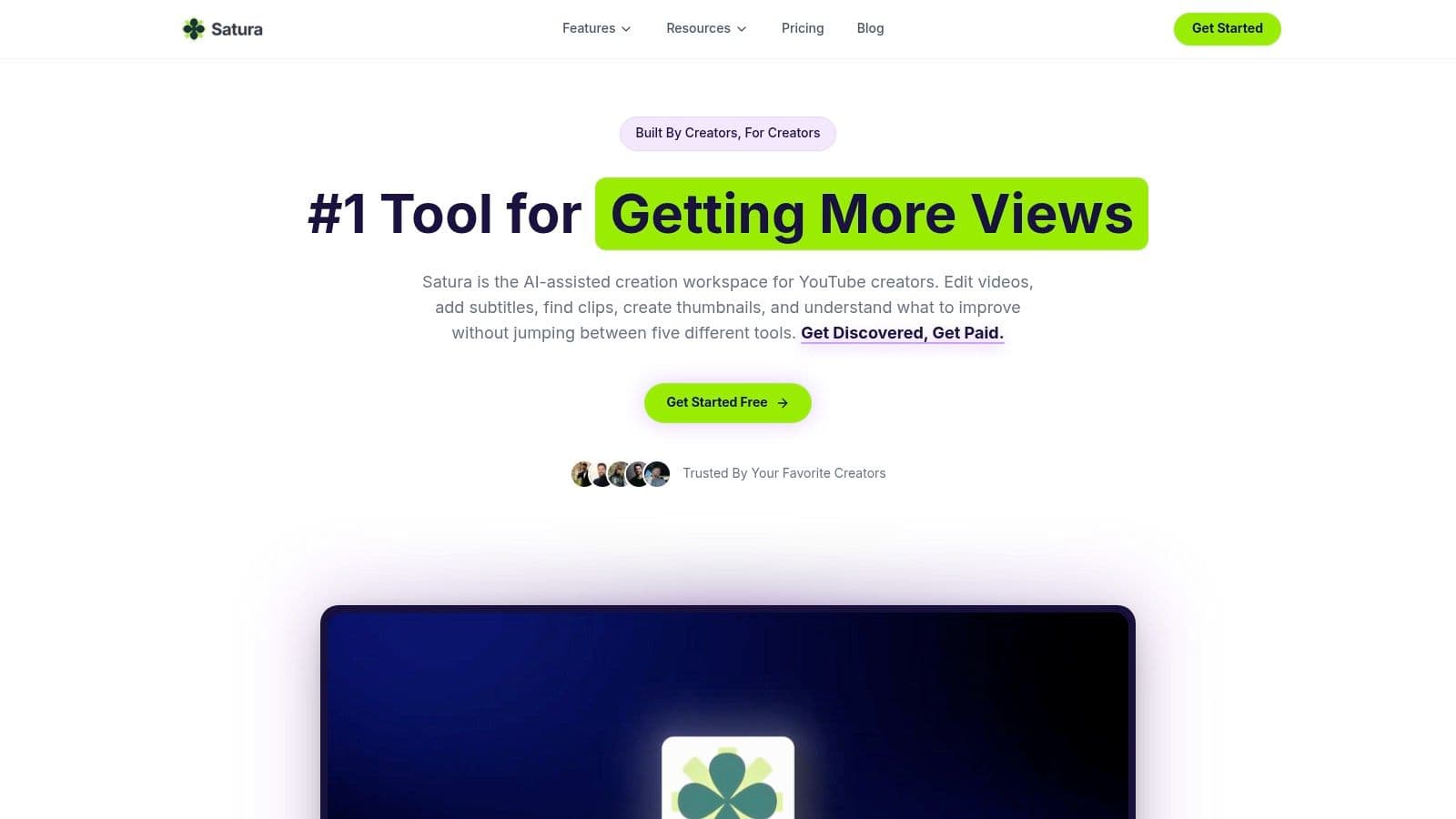
Satura AI earns the top spot for a simple reason. It covers the full job. You can turn one long video into clips, clean them up, add subtitles, package them for publishing, and then check why a post underperformed without bouncing across five tabs and three subscriptions.
That matters more than another flashy editor feature. A lot of creators searching for an ai video editor free option do not have an editing problem. They have a workflow problem. Footage lives in one tool, captions in another, thumbnails somewhere else, and analytics in a dashboard that never leads to a clear next move. Satura works better as the central workspace for that whole loop.
Why Satura AI is the hub
Here's the workflow I'd actually use.
Start with a podcast, livestream, interview, or YouTube upload. Import the file directly, or pull in the published video by link. Run AutoClip or Clip Finder to generate several short-form options from the same source. Pick the strongest cut, open it in the browser editor, tighten pacing, add subtitles, clean speech, and create a voiceover if the clip needs a new framing.
Then finish the packaging inside the same system. Generate thumbnail options, pull a transcript, and prepare variants for different channels. If you publish Shorts regularly, Satura's guide to video editing software for YouTube Shorts is a useful companion to that workflow.
The part most editors miss comes after export. Satura includes growth tools such as Trustscore, Growth Coach, Virality Lab, and the Creative Library, so you can review what happened after a video goes live. If a clip stalls, you are not stuck guessing whether the problem was the hook, retention, pacing, posting consistency, or packaging. You get a clearer diagnosis and a list of changes to test next.
That is why it feels closer to an operating system than a standard editor.
Who should use it
Satura fits creators who repurpose content at volume. YouTube channels, podcasters, streamers, faceless channels, agencies, and lean media teams get the most value because they usually lose time to handoffs between clipping, editing, subtitling, thumbnail design, and performance review.
There are trade-offs. The credit model gives you flexibility, but it takes a minute to understand if you are used to flat monthly pricing. And if your work involves heavy multi-cam timelines, dense color work, or advanced motion graphics, a desktop editor will still give you more control.
For everyone else, the upside is obvious. One browser workspace can replace a stack of narrow tools and make the edit-to-publish-to-diagnose cycle much faster.
- Best for: Creators who want one place for clipping, editing, subtitles, packaging, and growth feedback
- Watch for: Credit usage if you publish at high volume
- Why it ranks first: It helps you produce videos and improve the next batch, not just export a cleaner file
2. CapCut
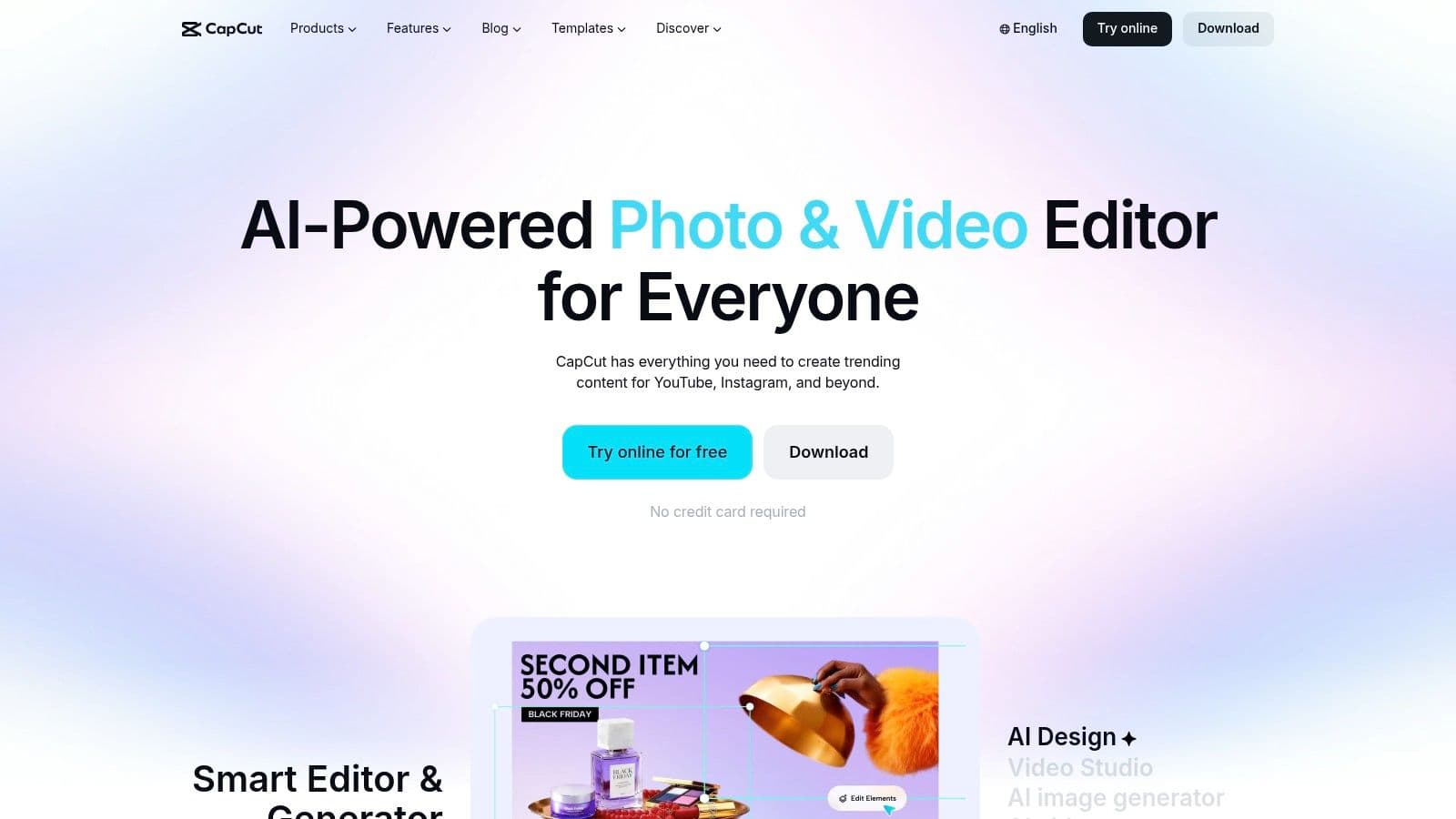
CapCut wins on raw speed. If the job is turning source footage into a Short, Reel, or TikTok fast, few free tools get from import to export with less friction.
That matters because short-form publishing is usually a volume game. You are trimming dead space, adding captions, matching cuts to audio, and getting the file out before the topic cools off. CapCut is built for that rhythm. Templates, auto captions, silence removal, beat sync, background cleanup, and cross-device editing cut down the boring parts enough that a solo creator can ship more in less time.
Its best use case is straightforward. CapCut works well for short-form social clips, lightweight YouTube edits, talking-head repurposing, meme-style edits, and fast client drafts where polish matters less than turnaround. The mobile app is still one of its biggest strengths because it lowers the barrier for creators who do most of their work on a phone, then want the option to continue in a browser or on desktop.
The free plan is useful, but it is not predictable. Some effects, exports, AI tools, and stock elements look available until you hit the paywall. That does not make CapCut bad. It just means you should treat it as a fast editing layer, not the foundation of your whole workflow if you need repeatable access to the same tools every week.
Voice and narration are another example. CapCut gives you usable voice features for basic projects, but if voiceovers are a major part of your process, a dedicated AI voiceover workflow usually gives you more control over tone, consistency, and output quality.
CapCut also starts to feel narrow once the work expands beyond editing. It can help you make the video. It does not do much to help you decide what to make next, package it better, or diagnose why one post died and another kept getting views. That marks a key distinction in this list. CapCut is a strong editor for fast execution. It is not the operating system.
CapCut is the tool I use when speed is the whole brief. If the goal is editing plus repeatable channel growth, I want something built for more than cuts and captions.
- Best for: Fast short-form editing, mobile-first creators, and template-driven workflows
- What doesn't work as well: Consistent access to every AI feature on the free tier, plus limited support for broader growth workflows
- Direct access: Visit CapCut
3. Microsoft Clipchamp
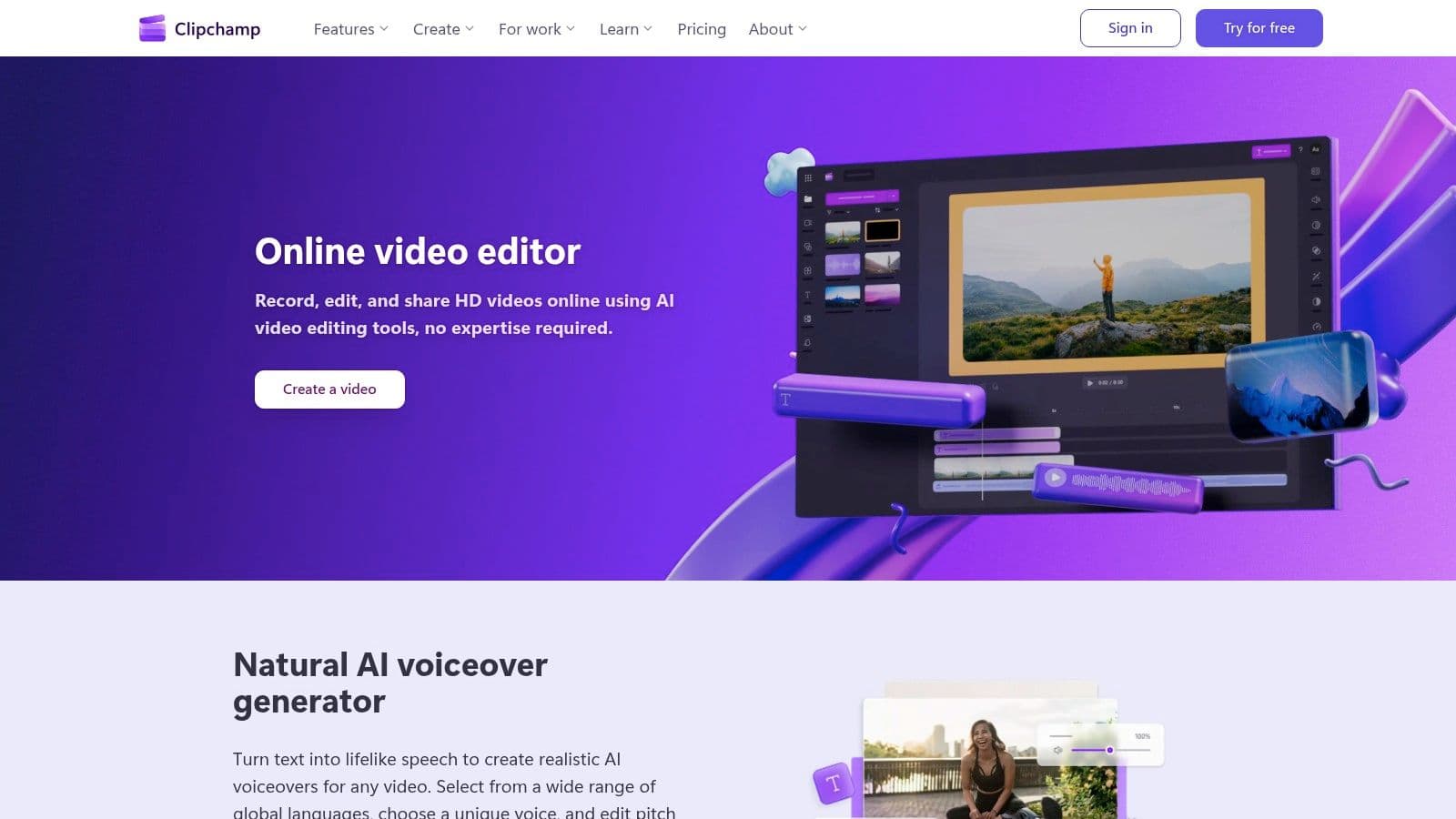
Clipchamp is the tool I point people to when they want something simple and don't want to “learn editing” first. It feels like a normal timeline editor, not an AI experiment pretending to be software. That sounds basic, but basic is good when your bottleneck is publishing consistently.
Because Microsoft owns it, the OneDrive and Windows fit is a real advantage for a lot of teams. If your footage already lives in that ecosystem, Clipchamp removes a bunch of annoying handoffs.
Best use case for Clipchamp
Clipchamp is a good fit for YouTube uploads, internal communications, lightweight social content, and creator workflows where you need an easy browser editor with captions and templates. Auto-captions, transcripts, text-to-speech, and composition helpers cover the common tasks without making the interface feel crowded.
The trade-off is familiar. Some premium effects, stock assets, and AI-heavy features sit behind paid plans or Microsoft 365 entitlements. And while the web-first setup is convenient, it won't feel ideal for large, layered, multi-cam work.
For YouTube Shorts creators especially, Clipchamp works best as the clean “get it cut and out the door” option. If you're building a repeatable Shorts workflow, Satura's guide to video editing software for YouTube Shorts is a useful comparison point because it frames the editor around short-form production instead of general use.
- Best for: Windows and Microsoft-heavy creators who want easy timeline editing
- Main downside: Limited ceiling for heavier edits
- Direct access: Visit Microsoft Clipchamp
4. Descript
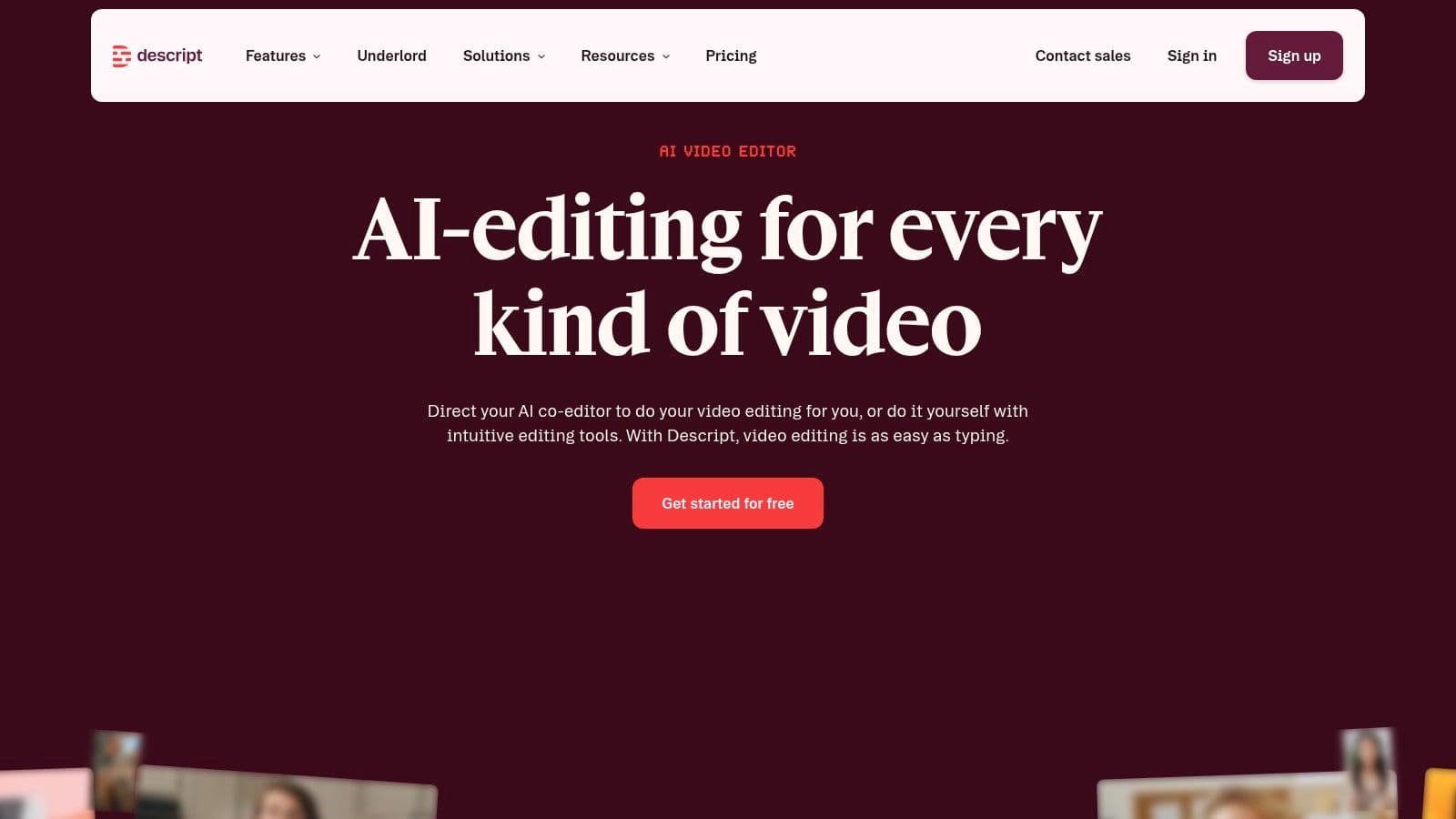
Descript still owns a very specific lane. If your content is mostly speech, it makes editing feel less like post-production and more like document cleanup. Delete text from the transcript, and the spoken part disappears. For talking-head videos, courses, podcasts, and webcam explainers, that workflow is hard to beat.
The product also leans into cleanup. Filler-word removal, Studio Sound, Eye Contact, AI Green Screen, multitrack support, and stock media solve the ugly little problems that make dialogue-heavy editing drag.
Why transcript editing still matters
A lot of AI editors promise magic, but transcript-based editing is one of the few things that changes how people work. Descript's implementation also goes beyond cutting. Its AI sidekick Underlord can detect filler words, remove them, and adjust pacing, while Descript also demonstrates voice translation into other languages with near-zero latency and re-synced audio, shown in this Descript demo of translated video workflows.
That's useful if you repurpose long-form content for multiple audiences. A podcaster can clean the original, localize the spoken track, and spin out shorts without rebuilding everything manually.
The free plan is enough to test whether this style of editing clicks for you. Just know that AI-heavy tools and longer projects can burn through credits quickly. If you need synthetic narration inside a broader creator workflow, compare it with Satura's AI voiceover tools, which are built alongside clipping and packaging instead of as a separate post step.
No-BS takeaway: Descript is brilliant for dialogue. It's not where I'd go first for flashy visual editing.
- Best for: Podcasters, educators, interview channels, and talking-head creators
- Main downside: Not built for heavy VFX or advanced motion work
- Direct access: Visit Descript
5. Runway

Runway is where you go when normal editing isn't enough and you need generated footage, stylized inserts, masking, motion tracking, or upscaling. I don't treat it as a full replacement for a classic NLE. I treat it as the creative lab that makes the rest of the edit look more expensive.
The free plan gives you 125 one-time credits and 3 video-editor projects, which is enough to test whether the workflow fits before paying. That's a better trial structure than tools that promise “free” and hide the wall until export.
Where Runway fits in a real workflow
Use Runway for B-roll generation, visual transitions, stylized scenes, cleanup, and experimental assets. Then bring those outputs back into your main editing workflow. That's the practical use case. It's less about cutting a whole YouTube video in Runway and more about giving your edit moments that don't look stock or generic.
Runway also has meaningful adoption. Alongside CapCut's scale, Runway reached 15 million users within the AI video tool ecosystem covered by the same Skillademia market roundup. That tracks with what creators already know. It's become part of the modern AI stack.
If you want help thinking about where Runway belongs in a broader stack, this breakdown of Runway for AI stack assembly is useful. And if your focus is less generative footage and more post-production polish, Satura's take on a video effects editor is the better comparison.
- Best for: Generated B-roll, stylization, masking, and experimental visuals
- What doesn't work as well: Long-form editing as your only editor
- Direct access: Visit Runway
6. VEED
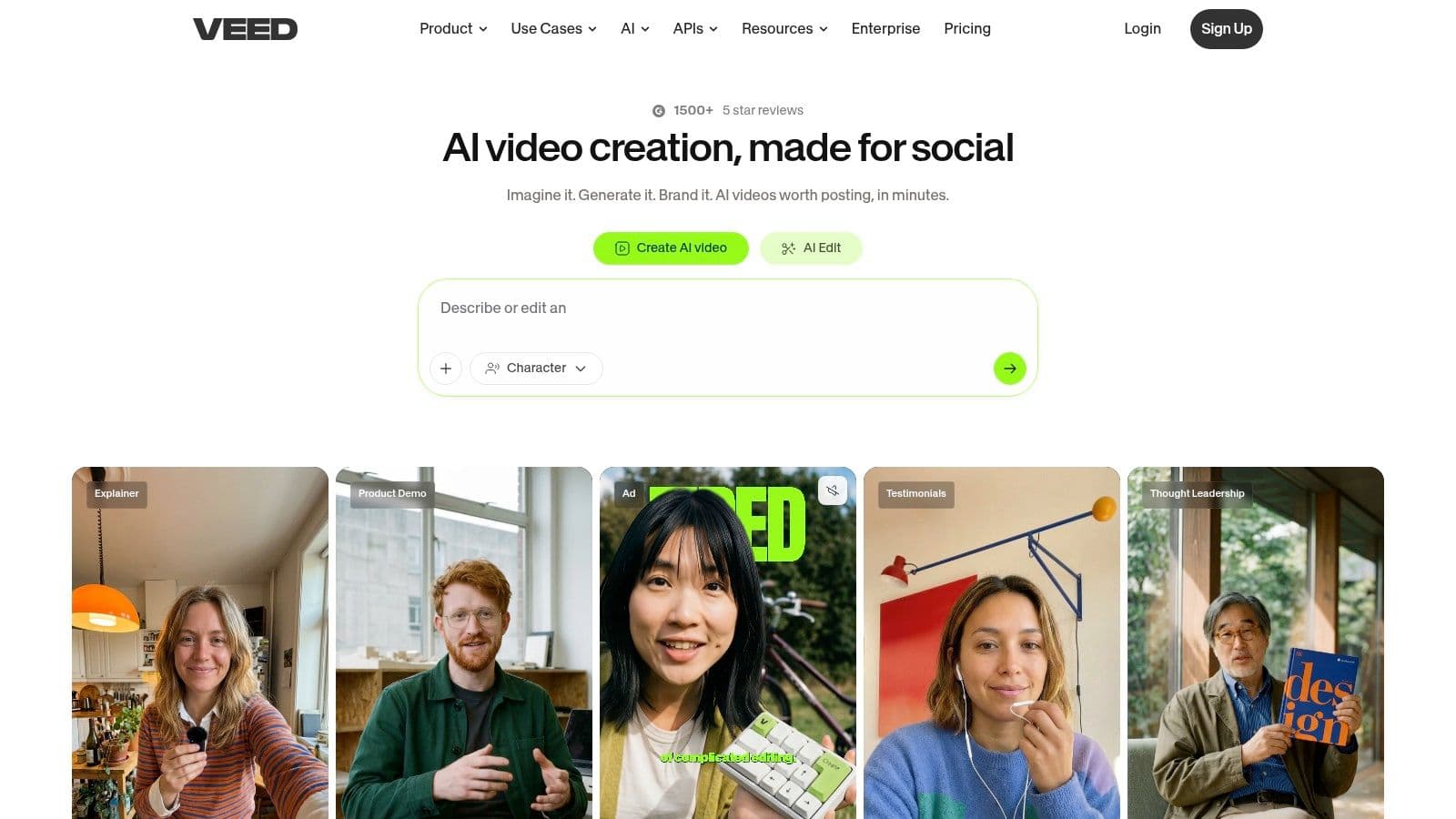
VEED is the tool for people who care about subtitles more than timelines. If your videos live or die on readability, social pacing, and quick localization, VEED makes sense fast. The browser editor is built around the stuff short-form creators use every day.
Auto subtitles, animated word-level styles, audio cleanup, background removal, dubbing, text-to-speech, and translation make it strong for social teams pushing a lot of speaking content.
What are the common questions?
What is the short answer for Best Ai Video Editor Free Tools for Creators 2026?
Find the best AI video editor free tools of 2026! Discover powerful, easy-to-use platforms for creators to edit stunning videos without cost. Start creating
What should creators do first?
Main downside: Often needs cleanup to avoid generic-looking output
Who is this guide for?
This guide is for YouTube creators, faceless channel operators, agencies, and teams using AI tools to improve video production and growth.
Action checklist
Apply this to your channel today.
- 1Main downside: Often needs cleanup to avoid generic-looking output
- 2Direct access: Visit InVideo
- 3Best for: Lectures, podcasts, webinars, and dialogue-heavy repurposing
- 4Main downside: Simpler effects and less visual depth than larger editors
- 5Direct access: Visit Vrew
Sources & methodology
- Satura editorial guide based on the source video, topic cluster, and article sections.
- Source video reviewed for this article: https://www.outrank.so/