Import the original video
Open common MP4, WebM, MOV, AVI, or MKV files in the browser editor without separating the audio first.
Online video audio remover
Mute unwanted source sound without deleting the picture. Silence a complete clip or one isolated section, add replacement audio if needed, and export a clean H.264 MP4.
Mute the output, preserve the source
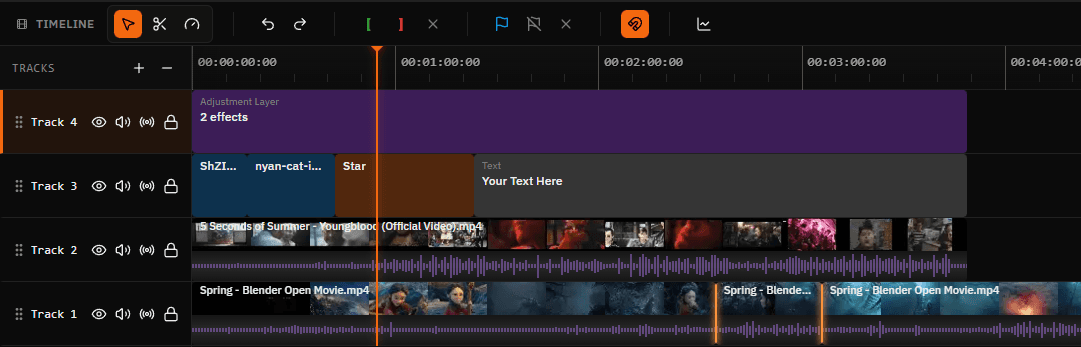
Removing audio can mean two different technical operations. Some utilities delete an audio stream from a media container. Satura instead gives you timeline mute and volume controls, then renders a new video with those choices applied.
Your original upload is not overwritten. The selected clip stays editable, so you can restore its sound, lower it beneath a new track, or split the footage and silence only the section that contains unwanted audio before export.
Practical source-audio controls
Work on the same timeline used for trimming, captions, music, voiceover, and final MP4 export.
Open common MP4, WebM, MOV, AVI, or MKV files in the browser editor without separating the audio first.
Turn off the selected clip's source audio while leaving its picture, timing, position, and visual edits intact.
Reduce clip volume when background sound should remain present beneath narration, music, or another audio layer.
Split around an unwanted sound, mute the isolated clip, and preserve source audio before and after that section.
Keep the source clip muted while placing licensed music, recorded narration, or sound effects on separate tracks.
Preview the full timeline and render a new H.264 MP4 with the selected source audio muted in the output.
Four-step workflow
Select the exact timeline clip you want to change, choose silence or a lower level, then listen before rendering.
Open Satura's browser editor, add the video you are allowed to edit, and place it on the timeline.
Choose the clip whose embedded sound you want to silence. Split the clip first if only one section should be muted.
Use the clip's audio controls to mute it completely or reduce its volume beneath a replacement track.
Play the relevant sections, confirm the unwanted sound is gone, then export the timeline as an H.264 MP4.
Choose the right audio treatment
Complete silence is only one option. Decide what the viewer should hear before changing the clip.
| Audio choice | Useful for | Result |
|---|---|---|
| Mute the whole clip | Silent social video, demos, visual-only footage | The selected clip's source sound is silent in the rendered result while its picture remains. |
| Mute one section | Background chatter, coughs, interruptions | Split around the unwanted moment and mute only that isolated timeline clip. |
| Lower the source volume | Voiceover, music beds, interviews | Original sound remains audible at a reduced level beneath another audio source. |
| Replace the soundtrack | New music, dubbing, corrected narration | Mute the original clip, add a separate audio track, align it, and export the new mix. |
When only one section needs silence, split just before and just after the unwanted sound. Muting the middle clip preserves the audio on both sides without changing the picture sequence.
Preview both boundaries with headphones. A split placed too late can leave part of the sound audible, while one placed too early can remove the beginning of a useful word or ambience.
A completely silent section can sound like a playback error in an interview or location recording. Lower the clip instead of muting it when natural ambience helps the edit feel continuous.
For a full replacement, keep the source muted and place the new audio on another timeline track. Check the start, the loudest moment, and the ending before export.
Common creator workflows
Silence the camera track before adding recorded or AI-generated narration that needs to carry the explanation.
Mute traffic, room noise, private conversation, or an interruption when the picture is still worth keeping.
Keep the visual edit, mute the old sound, and add music or effects you currently own or are licensed to publish.
Export picture without source sound, then add captions so the main message remains understandable with audio off.
Import and export behavior
Import MP4, WebM, MOV, AVI, or MKV video. Container support does not guarantee every unusual codec will decode in every browser, so a standard H.264 MP4 is the safest fallback.
Satura renders the timeline as a new H.264 MP4. It does not overwrite the upload or promise lossless stream removal, which means you can reverse a mute choice while the project remains editable.
Replacement audio workflow
Muting an old track does not grant rights to a replacement song. Use music, narration, and effects you own or are licensed to distribute on the platforms and territories you target.
For spoken replacement audio, generate narration from a script in Satura's AI Voiceover Studio and place it on the muted video's timeline.
Add replacement audioQuestions answered
Open Satura's browser editor, import the video, select its timeline clip, mute the clip's source audio, preview the result, and export a new MP4. The exported video keeps the picture while the selected source sound is silent.
Yes. Muting changes the audio behavior of the selected clip, not its visual content. The clip's picture, timing, position, captions, and visual edits remain available on the timeline.
No. Satura does not overwrite your original upload or perform a lossless stream deletion. It applies the mute setting in the editor and renders a new output in which the selected source audio is silent.
Yes. Split the video at the beginning and end of the unwanted sound, select the isolated middle clip, and mute that clip. Preview both edit points before exporting so the surrounding audio starts and ends where expected.
Yes. Keep the video clip muted, import licensed music or recorded narration on a separate track, then trim, position, fade, and balance the replacement before export. You can also create narration with Satura's AI voiceover tool.
Satura's media picker accepts MP4, WebM, MOV, AVI, and MKV video. Browser playback still depends on the codec inside the container, so a standard H.264 MP4 is the most predictable fallback for an unusual source file.
Satura does not add a Satura watermark to standard editor exports. A watermark already baked into the imported picture remains part of that visual source.
Mute the clip when none of its source sound should be heard. Lower its volume when useful speech, ambience, or room tone should remain beneath music or narration. Preview the mix on headphones before export when quiet source sound matters.
Related workflows
Place music, narration, or effects on separate tracks after muting the original sound.
Generate spoken narration from a script for a newly muted video.
Add timed captions so a silent video remains understandable without sound.
Shorten footage or isolate the exact section whose sound should be muted.
Continue with captions, text, effects, transitions, resizing, and MP4 export.
Open the complete multi-track browser editing workspace.
Ready to silence the source?