Import video and audio together
Bring in your footage plus MP3, WAV, AAC, M4A, or OGG audio without converting every source first.
Online audio and video editor
Import music, narration, or sound effects, place each file on a multi-track timeline, and balance it against the original video audio. Preview the complete mix, then export one clean MP4.
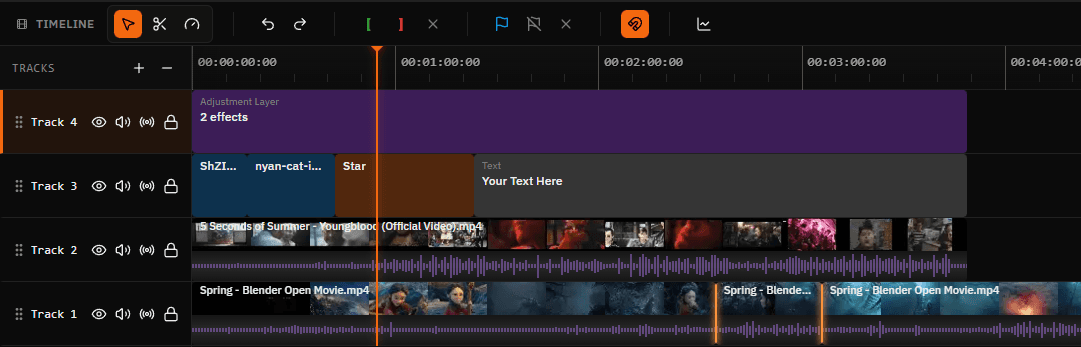
Bring your own soundtrack
Adding audio is not only a file-combining step. Music may need to start after an opening line, narration must match the action, and the camera track may need to remain audible beneath both. A timeline lets you make those decisions before rendering them into one file.
Satura keeps imported audio on separate tracks. You can move, trim, split, fade, mute, and rebalance each source while the video stays visible above it. That is useful whether you are adding one MP3 to a silent clip or building a voiceover, music, and effects mix for a finished edit.
Audio controls that remain visible
Import common video and audio formats, make timing decisions on the timeline, and review the combined result before export.
Bring in your footage plus MP3, WAV, AAC, M4A, or OGG audio without converting every source first.
Keep original sound, music, narration, and effects on independent tracks so each element remains editable.
Move an audio clip to the exact starting point, trim either edge, or split it around a scene change.
Adjust clip gain, lower the camera audio beneath music, or mute a track when the replacement should play alone.
Apply audio fade-ins and fade-outs so music and narration do not begin or end with an abrupt cut.
Review picture and sound together, then render the finished timeline as a compatible H.264 MP4.
Four-step workflow
The useful part happens between import and download: aligning the start, choosing what original sound to keep, and checking the ending before export.
Open Satura's browser editor and add the footage plus the music, narration, or sound effects you already have permission to use.
Drag each sound onto its own timeline track and move it until the first beat, spoken word, or effect starts at the intended moment.
Shorten audio to the edit, split around unwanted sections, add fades, and balance imported sound against the video's original track.
Play through the important transitions and ending, confirm the mix, then export one H.264 MP4 with the audio included.
Choose the arrangement first
“Add audio” can mean preserving the source sound, replacing it, or building several layers. Decide which result you need before balancing track levels.
| Audio arrangement | Useful for | Timeline setup |
|---|---|---|
| Music under original sound | Vlogs, interviews, product demos | Keep both tracks, lower the music gain, and fade the music around the opening and ending. |
| Replace the original soundtrack | Silent edits, licensed replacements | Mute or lower the video's embedded audio, then place the replacement track at the intended start time. |
| Voiceover plus background music | Tutorials, explainers, faceless videos | Use separate narration and music tracks. Keep speech prominent and reduce the music beneath it. |
| Timed sound effects | Shorts, ads, UI demos | Use short audio clips and align each one with the visual action rather than stretching one effect across the scene. |
When speech and music compete, raising both usually makes the result harder to understand. Keep narration or important source sound at the center of the mix, then lower the supporting track until every word remains clear.
Use gain to set the level of each clip and fades to smooth its entrance or exit. Muting is useful when you want to test a replacement without deleting the original audio from the project.
A soundtrack can appear correct at the beginning and still end too early, continue after the picture, or drift away from an important visual cue. Preview the first entry, the busiest cut, and the final seconds before rendering.
If audio is longer than the intended video, trim it deliberately and add a fade. If it is shorter, choose whether the remaining picture should be silent or use another licensed source instead of letting an automatic rule decide for you.
Common creator workflows
Add music to screen recordings, product shots, travel footage, or exported animation that arrived without useful sound.
Place a microphone recording beneath a tutorial or demo, then trim pauses and align each explanation with the picture.
Combine camera audio, a music bed, and short effects while keeping each source adjustable for Shorts, Reels, or TikTok.
Mute unwanted room sound or an outdated soundtrack and use a new licensed audio file without deleting the video itself.
Formats and export behavior
Import MP4, WebM, MOV, AVI, or MKV video plus MP3, WAV, AAC, M4A, or OGG audio. Container support does not guarantee that every unusual codec will decode in every browser, so standard MP3, WAV, and H.264 sources are the safest fallback.
The finished timeline is rendered as a new file. That means audio trims, fades, gain changes, and layered tracks can be included in the output rather than simply copying the original streams.
Music rights still matter
Satura lets you bring your own audio; it does not turn an unlicensed song into royalty-free material. Confirm the license, platform rules, attribution requirements, and territory before publishing a commercial or monetized video.
If you need new spoken narration rather than an imported file, use the AI Voiceover Studio to generate speech from a script and place the result on the same timeline.
Generate an AI voiceoverQuestions answered
Open Satura's browser editor, import your video and audio files, place the audio on a timeline track beneath the video, move and trim it into sync, preview the result, and export the finished timeline as an MP4.
Satura's media picker accepts MP3, WAV, AAC, M4A, and OGG or Opus audio. Browser playback can still depend on the codec inside a file, so a standard MP3 or WAV is the most predictable choice when an unusual source does not decode.
Yes. Keep the embedded video audio and imported music on separate tracks, then adjust their gain independently. Lower the music when speech or important location sound needs to remain clear.
Yes. Mute or lower the video's original audio, add the replacement file on another track, align it with the picture, and preview the full sequence before export. The original video pixels remain available while you change the mix.
Yes. Move audio clips along the timeline, trim either edge, split longer recordings, and use the visible waveform and preview to line up a beat, spoken phrase, or sound effect with the scene.
Yes. Music, voiceover, effects, and original video sound can remain on separate tracks. This makes it easier to trim, mute, fade, or rebalance one source without changing the others.
Satura does not need to guess which source should be cut. Trim or split the audio to the intended ending, move it to the correct start time, and preview the export range. If the sound is shorter, you can leave silence, add another clip, or repeat only material you are licensed to reuse.
Satura does not add a Satura watermark to standard editor exports. Any watermark already baked into imported footage remains part of that source file unless you replace or reframe the affected visual content.
Related workflows
Mute a complete source clip or silence one isolated section before adding replacement sound.
Generate narration from a script when you do not already have a recorded audio file.
Record dialogue, music, effects, source notes, and the next timeline action before the final export review.
Use the broader workflow for trimming, captions, text, effects, transitions, and MP4 editing.
Arrange multiple video clips in sequence before adding the final soundtrack.
Shorten the picture or cut unwanted scenes before syncing audio.
Open the complete multi-track browser editing workspace.
Ready to mix the sound?