Import several video files
Choose multiple source clips for one project instead of processing each file as a separate finished video.
Online video merger
Import multiple clips, arrange them in the order you want, trim the joins, and preview the complete sequence. Export the timeline as one clean MP4 from your browser.
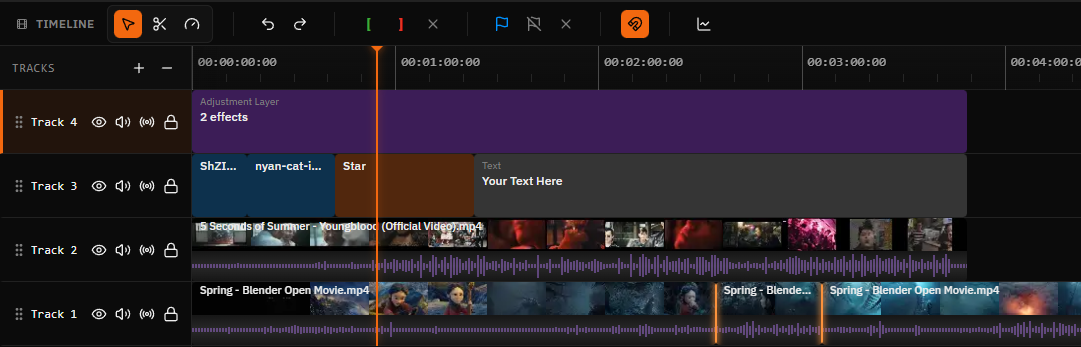
One sequence, not one compromise
A useful merge is more than appending filenames. Review the opening and ending of every clip, choose the strongest order, and check how each cut sounds and looks. Satura keeps those decisions on a visible timeline before one finished file is rendered.
Choose multiple source clips for one project instead of processing each file as a separate finished video.
Place clips end to end on the timeline and move them until the opening, middle, and ending play in the right order.
Shorten clip edges or split out unwanted sections before the sources become one continuous export.
Use a direct cut for speed, or apply an available transition when the change between neighboring clips needs a softer handoff.
Review source audio, add music or narration on separate tracks, and adjust timing before rendering the combined video.
Render the complete timeline as one downloadable video. MP4 with H.264 video is the default output combination.
Four-step merge
Keep the source files intact while one project controls order, timing, frame size, audio, and export.
Open the browser editor and choose the canvas dimensions for the finished video.
Choose multiple MP4, MOV, WebM, AVI, or MKV files and add them to the media library.
Place clips end to end, reorder them, trim unwanted footage, and preview every cut.
Choose MP4 and H.264 in the export dialog, render the timeline, and download the combined file.
Choose the right join
Most video-merger searches mean clips should play one after another. Overlapping tracks create a composition instead. Pick the arrangement that matches the result rather than treating every multi-clip project as the same operation.
| Arrangement | What happens | Useful for |
|---|---|---|
| Direct cut | The next clip starts as soon as the previous clip ends. | Tutorial steps, interviews, highlights, and fast social edits. |
| Trimmed cut | Unwanted starts and endings are removed before the clips meet. | Phone recordings, event footage, takes, and screen captures. |
| Transition | An available transition is placed across a valid cut between clips. | Scene changes that need a visible or softer handoff. |
| Layered overlap | Clips occupy overlapping time on separate tracks instead of one sequence. | Picture-in-picture, reaction layouts, B-roll, and composites. |
Know what the render changes
Satura renders the timeline rather than promising a bit-for-bit file concatenation. That makes mixed source formats and edits possible, but quality and frame decisions still matter.
Mixed source files
The media library accepts MP4, MOV, WebM, AVI, and MKV video files, subject to the codecs your browser and device can decode. After import, the project canvas and export settings create one consistent result.
If one clip is vertical and another is horizontal, choose the destination canvas first. Scale, crop, or reposition each clip instead of stretching footage simply to fill the frame.
Learn how to reframe mixed clipsThe output has one width, height, and aspect ratio even when the source files do not.
A high-resolution export cannot recreate detail missing from a small or heavily compressed source clip.
Listen across each cut and adjust timing or add a separate music or narration track when needed.
Check the order, pacing, frame, and audio before committing to the final render.
Common merge projects
Put several takes or camera-roll clips in order, remove setup time, and export one shareable video.
Select the strongest moments from separate files, tighten each segment, and connect them on one timeline.
Arrange screen recordings, demonstrations, and talking-head explanations into a clear sequence.
Join short AI-generated scenes, add narration or music, and turn separate outputs into one edit.
Video merger FAQ
Practical answers about formats, dimensions, quality, pricing, watermarks, and the difference between merging and layering.
Open Satura's browser editor, create a project, and import the video files. Place the clips end to end on the timeline, move them into the correct order, trim any unwanted footage, and preview the cuts. Export the complete timeline as one MP4 when the sequence is ready.
Yes. Import the MP4 files together, arrange them sequentially on the same timeline track, and export one MP4. You can also trim clips, add transitions, include captions or audio, and reframe the project before rendering.
The media library accepts MP4, WebM, MOV, AVI, and MKV video files. Actual decoding and playback can depend on the codec inside each file and the browser or device. MP4 with H.264 video is the default export combination.
Yes, but the finished project uses one canvas size. Scale, crop, or reposition each source clip so it fits that canvas deliberately. This avoids stretching a vertical, square, or horizontal clip merely to match another source.
The combined timeline is rendered into a new file, so output quality depends on the sources and export settings. Merging cannot restore detail missing from a low-resolution clip. Keep appropriate project dimensions, choose a suitable quality preset, and inspect the downloaded result.
You can start combining clips in Satura's free browser editor without a credit card or desktop download. Optional AI generation and processing features can use credits.
No. Standard video editor exports do not add a Satura watermark to the finished video.
Merging usually means arranging clips one after another so they play as one sequence. Layering places clips at overlapping times on separate tracks, which is useful for picture-in-picture, reaction layouts, overlays, and B-roll. Satura's timeline supports both arrangements.
Related tools
Place music, narration, or effects beneath the combined sequence.
Use the broader workflow for text, captions, effects, audio, and MP4 editing.
Shorten each source clip before or after arranging the merge.
Fit mixed source dimensions into one consistent output frame.
Open the complete multi-track browser editing workspace.
Combine clips on ChromeOS without installing an editor.
Import the sources, decide the sequence, trim each join, and export the finished timeline as one MP4.