Trim the start and end
Drag either edge of a timeline clip to remove setup time, empty frames, long outros, or footage after the useful moment.
Online video trimmer
Shorten a video from either edge, split out unwanted middle sections, preview every cut, and export a clean H.264 MP4 from the same browser timeline.
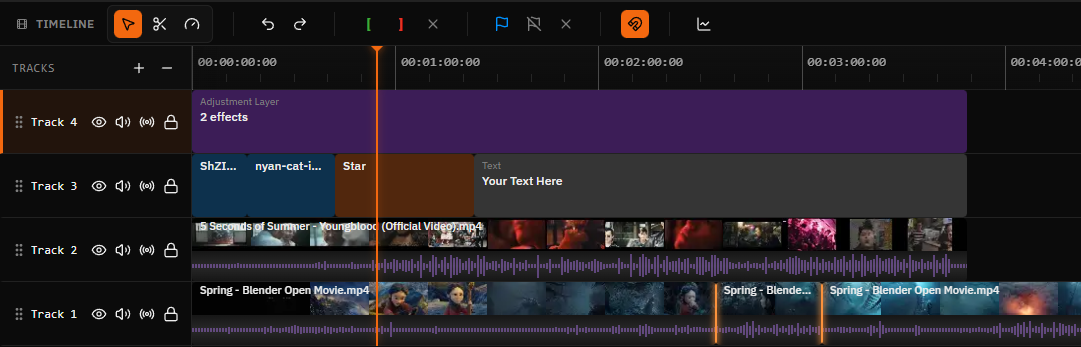
Precise timeline workflow
Use clip edges for a quick start or end trim. When the unwanted footage sits in the middle, split around it and delete only that section. The rest of the editor stays available when a simple cut becomes a complete video.
Drag either edge of a timeline clip to remove setup time, empty frames, long outros, or footage after the useful moment.
Split at the beginning and end of an unwanted section, delete that segment, and close the remaining clips together.
Move the playhead around each edit point and review timing in the preview before rendering the shortened video.
Set a horizontal, vertical, square, or custom canvas and reposition the footage for the destination platform.
Add music, voiceover, sound effects, text, captions, images, transitions, and more clips on the same timeline.
Render the finished cut as an H.264 MP4 and download it without a Satura watermark on the standard editor export.
Step by step
Create a browser project with a horizontal, vertical, square, or custom canvas.
Choose an MP4, MOV, WebM, AVI, or MKV file and place it on the timeline.
Drag the clip edges to shorten it, or split around a middle section and delete that piece.
Review the edit points, choose MP4 and H.264 in the export dialog, then download the result.
Editing terms
Search results often use these words interchangeably. On a timeline, each action solves a different problem. Pick the operation that matches what you need to remove or reframe.
| Action | What it changes | Best for |
|---|---|---|
| Trim | Shorten the beginning or end of one clip. | Remove setup time, silence, or an unnecessary outro. |
| Cut | Remove footage or divide a recording into useful pieces. | Delete a mistake, tangent, pause, or unusable take. |
| Split | Create separate timeline clips at the playhead. | Isolate a middle section before deleting, moving, or styling it. |
| Crop | Change which part of the image remains visible in the frame. | Reframe horizontal footage for vertical or square publishing. |
Honest export guidance
A timeline trim is not always a lossless file copy. Source codecs, cut points, effects, canvas changes, and browser support can require re-encoding. Review resolution, frame rate, quality, video codec, and audio settings before export.
Container
MP4 is the default output container.
Video codec
H.264 is the default MP4 video codec.
Review
Preview edit points before rendering.
Publish check
Inspect the downloaded file before upload.
Common cuts
Remove camera setup, dead air, or a slow lead-in so the first useful frame arrives sooner.
Split before and after a misspoken line, pause, interruption, or unusable scene and delete the isolated segment.
Keep the strongest section, switch to a vertical or square canvas, and add captions before exporting.
Cut a focused demonstration from a longer recording and add text, music, or a callout on the same timeline.
Video trimming FAQ
Practical answers about trimming, middle-section cuts, formats, quality, watermarks, and browser compatibility.
Open Satura's browser editor, create a project, and import the video. Place the clip on the timeline, then drag its left or right edge to remove footage from the beginning or end. Preview the edit and export the finished video as an MP4.
Place the playhead at the start of the section and split the clip. Move to the end of the unwanted section and split again. Delete the isolated middle clip, move the remaining clips together, and preview the edit point before exporting.
You can start trimming videos in Satura's free browser editor without a credit card or desktop download. Optional AI generation and processing features can use credits.
No. Standard video editor exports do not add a Satura watermark to the finished video.
The media library accepts MP4, WebM, MOV, AVI, and MKV video files. Actual playback support can depend on the codec inside the file and the browser or device. MP4 with H.264 video is the default export combination.
A trimmed project can require rendering rather than a lossless stream copy. Choose an export resolution, frame rate, codec, and quality appropriate for the source and destination, then review the downloaded result before publishing.
Trimming shortens the beginning or end of a clip. Cutting removes footage or separates a recording into pieces. Cropping changes which part of each frame is visible and does not, by itself, shorten the duration.
Yes. Satura runs in a supported web browser, so you can trim videos on a Chromebook without installing a desktop editor. Performance depends on the device, source footage, project length, and effects.
Related tools
Change the pace of a complete clip or isolated section.
Arrange trimmed clips in sequence and export one video.
Trim, split, combine, caption, and export MP4 files.
Change video dimensions, aspect ratio, scale, and framing.
Use the complete multi-track browser editing workspace.
Edit long-form videos and Shorts for publishing.
Trim and edit video on ChromeOS with no installer.
Generate timed captions and continue editing in Satura.
Start with a quick trim, then add captions, audio, text, effects, or more clips when the project needs a complete edit.