Set speed from 0.1x to 10x
Use the clip Speed control for anything from an extended slowdown to a compact fast-forward sequence, with 0.01x input steps.
Online video speed changer
Slow down a moment, speed up a process, or give every timeline clip its own pace. Set speed from 0.1x to 10x, preview the changed duration with linked audio, then export one clean MP4.
Exported timing, not a viewing shortcut
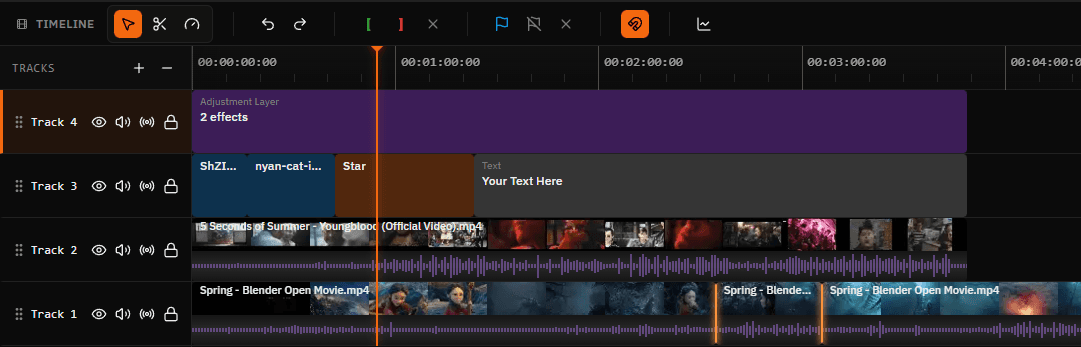
A browser playback menu only changes how quickly you watch a video. Satura's timeline Speed control changes the clip duration in the project and applies that timing during export. You can combine slow, normal, and fast sections in one finished file.
Use the clip Speed control for anything from an extended slowdown to a compact fast-forward sequence, with 0.01x input steps.
Faster playback shortens the timeline clip. Slower playback lengthens it so the selected source content still has room to play.
When a speed change alters duration, adjacent clips on affected tracks move to preserve sequence timing and avoid accidental overlap.
Linked video and audio use the same rate stretch, while the export path applies clip speed to both visual frames and audio timing.
Split around a moment first, then apply a different speed to that isolated clip without changing the rest of the recording.
Preview the edited timeline, choose the output settings, and export a clean H.264 MP4 with the new speed baked into the file.
Step by step
Apply one rate to a complete clip, or split first when the pace should change only around a specific moment.
Open the browser editor and add an MP4, MOV, WebM, AVI, or MKV file to the timeline.
Click the video section you want to change. Split first when only one moment needs a new pace.
Open Playback in the properties panel and enter a value from 0.1x to 10x, then review the new duration.
Watch the result with audio, inspect every edit point, and export the finished timeline as an MP4.
Choose a useful rate
Speed and duration move in opposite directions. Start with a moderate value, preview the complete edit, and adjust only as far as the action and audio remain understandable.
| Speed | New duration | Typical use | Check before export |
|---|---|---|---|
| 0.1x | 10x longer | Extreme frame study or a deliberate stylized hold | Expect repeated source frames unless the footage was recorded at a high frame rate. |
| 0.25x | 4x longer | Slow-motion action, reactions, or detail review | Best supported by high-frame-rate source footage. |
| 0.5x | 2x longer | A moderate slowdown for demonstrations or emphasis | Preview motion and speech before publishing. |
| 1x | Original length | Normal source timing | Use Reset to return a selected clip to this rate. |
| 1.25x-1.5x | 20%-33% shorter | Tighten tutorials, screen recordings, or spoken pacing | Review voice clarity and caption timing after the change. |
| 2x | Half as long | Fast demonstrations, setup sequences, and condensed B-roll | A useful starting point before moving to more aggressive rates. |
| 4x-10x | 75%-90% shorter | Time-lapse style progress or rapid process summaries | Short source clips and clear visual action are easiest to follow. |
Slow-motion quality
The standard Speed control re-times frames already present in the source. It does not invent optical-flow or AI intermediate frames. A 120 fps recording has more unique frames available for a clean slowdown than a 24 or 30 fps recording.
At aggressive slow speeds, repeated frames can be the honest representation of the source. Preview motion at full size before deciding whether the result is suitable.
Audio behavior
Linked picture and sound share the same rate stretch, so the action and its recorded audio remain aligned in time. The sound itself can change character when played much faster or slower. Review speech, music, and effects before export.
Editing patterns
The best rate is the one that makes the intended action easier to follow. Combine speed with trimming and splitting so each section earns its place in the finished timeline.
Turn setup, drawing, building, cooking, travel, or screen-recording footage into a fast visual summary.
Split around an action, reaction, reveal, or product detail and slow only that section for closer attention.
Speed up a demonstration that is useful but repetitive, then return to normal timing for the important explanation.
Give different clips different rates, trim their boundaries, and align the finished sequence with music or voiceover.
Vertical export workflow
Change the source timing in the editor first, then resize the finished edit for a vertical canvas. Review the framing, captions, sound, and source rights before publishing the exported file to any platform.
Prepare a vertical exportImports
MP4, MOV, WebM, AVI, and MKV
Clip speed
0.1x through 10x
Timing
Rate stretch with timeline ripple
Standard export
H.264 video in an MP4 container
Questions
Open Satura's browser editor, import the video, and select the timeline clip. In the Playback section of the properties panel, change Speed to a value below 1x for slower playback or above 1x for faster playback. Preview the new timing and export the timeline as an MP4.
The video properties panel accepts clip speeds from 0.1x to 10x in 0.01x steps. Practical results depend on the source frame rate, clip duration, audio, browser, and device performance.
Yes. A 2x clip becomes about half as long, while a 0.5x clip becomes about twice as long. Satura rate-stretches the clip and ripples affected neighboring clips so the changed duration does not silently overlap the next edit.
Yes. Split the clip at the beginning and end of the moment you want to isolate. Select that middle section, apply the slower speed, then preview the two surrounding edit points before exporting.
Linked video and audio are rate-stretched together, and the export path applies the same clip speed to visual and audio timing. Speed changes can alter how speech or music sounds, so preview the result and mute, trim, or replace audio when needed.
No. The standard Speed control changes when existing source frames are shown; it does not generate optical-flow or AI intermediate frames. High-frame-rate source footage usually produces smoother slow motion, while low-frame-rate footage can show repeated frames at aggressive slowdowns.
Yes. Import the MP4, select its timeline clip, set the speed, preview the changed duration, and export the result. MP4 with H.264 video is the standard export combination. Codec support inside an imported file can vary by browser and device.
No. Standard video editor exports do not add a Satura watermark to the finished video. You can start in the browser editor without installing desktop software.
Related tools
Split and isolate the exact section that needs a new speed.
Edit timing, framing, captions, audio, and MP4 exports.
Replace or remix sound after changing the clip pace.
Arrange clips with different speeds into one sequence.
Use the full multi-track browser editing workspace.
Import a clip, choose the speed that fits the moment, and keep editing the complete video in the same browser timeline.