Set a new aspect ratio
Enter the width and height for a landscape, portrait, square, or custom canvas without stretching the source footage.
Online video resizer
Change canvas dimensions and aspect ratio, then scale, position, or crop the footage to fit. Preview the new composition and export a clean MP4 from the browser timeline.
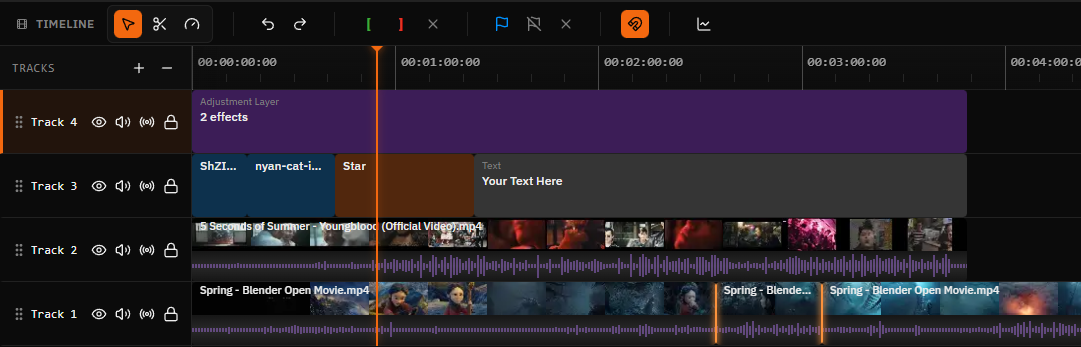
Frame the result deliberately
A useful video resize is more than typing a new width and height. Set the destination canvas first, then compose the source inside it so people, products, captions, and important action remain in frame.
Enter the width and height for a landscape, portrait, square, or custom canvas without stretching the source footage.
Move the clip within the new frame so the important action, face, product, or on-screen text stays visible.
Increase or reduce clip scale for the new canvas, then preview the composition instead of accepting a distorted resize.
Adjust the left, right, top, or bottom edge when part of the original frame should be removed from view.
Choose a canvas background color when the source does not fill the new aspect ratio and you want to preserve the full image.
Review output resolution, quality, codec, and frame rate, then render an MP4 without a Satura watermark.
Step by step
Open the browser editor, create a project, and add an MP4, MOV, WebM, AVI, or MKV file to the timeline.
Click the canvas with no clip selected, then enter an even-numbered width and height or swap the current dimensions.
Select the clip and adjust its scale, position, and crop until the important content fits the new frame.
Check the full timeline in the resized canvas, choose the output settings, and download the rendered video.
Aspect-ratio examples
These are practical example dimensions, not fixed publishing requirements. Check the destination's current specifications, then enter that width and height in the Canvas panel.
| Shape | Ratio | Example | Typical use |
|---|---|---|---|
| Landscape | 16:9 | 1920 × 1080 | Wide players, presentations, and horizontal video |
| Portrait | 9:16 | 1080 × 1920 | Full-screen vertical video and short-form edits |
| Square | 1:1 | 1080 × 1080 | Square feeds, profile grids, and flexible embeds |
| Tall portrait | 4:5 | 1080 × 1350 | Portrait feed posts with more vertical frame area |
| Custom | Your ratio | Even values | A specific player, ad slot, screen, or delivery brief |
Preserve the composition
When the source and canvas have different aspect ratios, you must decide what matters most. Fill the canvas and crop some edges, fit the entire source and allow background space, or manually scale and position the clip for a custom composition.
Fill the frame
Scale up and crop overflow around the edges.
Keep the full image
Scale down and use canvas space around the source.
Protect the subject
Reposition the clip before accepting a crop.
Swap orientation
Exchange width and height, then recompose the clip.
Know what changes
Changes: The width, height, and aspect ratio of the finished frame.
Does not change: Timeline duration and source media stay unchanged.
Changes: How large the footage appears inside the canvas.
Does not change: The canvas dimensions themselves stay unchanged.
Changes: Which source pixels remain visible around each edge.
Does not change: The clip duration stays unchanged.
Changes: Where the clip starts or ends in time.
Does not change: The frame dimensions stay unchanged.
Resolution and quality
Resizing changes the output raster and requires rendering. Match the canvas to the real delivery need, avoid unnecessary upscaling, and review the result at full size before publishing.
More output pixels do not restore detail missing from a small or compressed source.
Review resolution, frame rate, quality, video codec, and audio settings before rendering.
Inspect text, edges, subject framing, motion, and audio in the downloaded file.
Video resizing FAQ
Practical answers about dimensions, aspect ratios, cropping, formats, quality, pricing, and watermarks.
Open Satura's browser editor and import your video. With no clip selected, use the Canvas panel to enter a new width and height. Then select the clip and adjust scale, position, or crop so it fits the new frame. Preview the result and export the finished video.
Yes. Set a portrait canvas such as 1080 by 1920, then scale and reposition the horizontal footage to keep the subject visible. You can crop the sides for a full-frame result or leave space around the source and use a canvas background color.
Resizing changes the dimensions or aspect ratio of the finished canvas. Cropping removes visible areas from the edges of the source clip. A portrait conversion often uses both: resize the canvas first, then crop or reposition the footage inside it.
Resizing requires a new render and can change perceived quality. Enlarging a low-resolution source cannot recreate detail that was never recorded. Choose output dimensions appropriate for the source, use a suitable quality setting, and inspect the downloaded file before publishing.
The Canvas panel accepts even-numbered widths from 320 to 7680 pixels and heights from 240 to 4320 pixels. Practical limits also depend on your browser, device memory, source media, effects, duration, and codec support.
Yes. Import an MP4, change the canvas dimensions, fit the clip, and export the project. MP4 with H.264 video is the default output combination. The editor also accepts WebM, MOV, AVI, and MKV video files, subject to browser codec support.
You can start resizing videos in Satura's free browser editor without a credit card or desktop download. Optional AI generation and processing features can use credits.
No. Standard video editor exports do not add a Satura watermark to the finished video.
Related tools
Correct a sideways clip or flip its picture before resizing the canvas.
Slow down or speed up a clip before final export.
Shorten a clip or remove an unwanted middle section.
Edit, combine, caption, and export MP4 footage.
Use the complete multi-track browser editing workspace.
Resize and edit video on ChromeOS with no installer.
Generate timed captions and continue the resized edit.
Set exact canvas dimensions, compose the source without distortion, and continue with captions, audio, cuts, and effects in the same editor.