Set an exact angle
Rotate the selected video anywhere from -180 to 180 degrees for a precise correction or a deliberate tilted composition.
Online video rotator
Fix sideways or upside-down footage with an exact angle. Rotate a full clip or one section, flip it horizontally or vertically, reframe the result, and export a clean H.264 MP4.
Non-destructive timeline edit
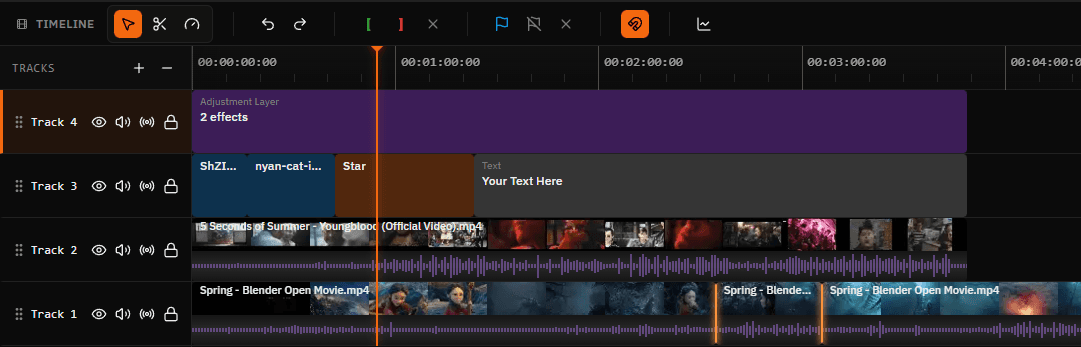
Satura applies rotation to the selected timeline clip and renders a new output with that transformation visible. Your original upload remains unchanged, so you can reset the angle or compare another direction while the project stays editable.
This is a visual transform, not a promise to rewrite orientation metadata without encoding. The finished H.264 MP4 is rendered with the selected angle, scale, position, and flip settings applied.
Rotation and mirroring controls
Keep rotation in the same project as trimming, captions, audio, resizing, and the final video export.
Rotate the selected video anywhere from -180 to 180 degrees for a precise correction or a deliberate tilted composition.
Return the clip to its original zero-degree orientation when you want to compare the edit or start the adjustment again.
Mirror the picture from left to right without changing the clip's duration, timeline position, or source file.
Turn the frame over from top to bottom when the source is inverted or the edit calls for a reflected view.
Split before and after the section that needs correction, then apply rotation to the isolated timeline clip.
Preview the full sequence and render a new H.264 MP4 with the selected angle and flip settings applied.
Four-step workflow
Select the clip that needs correction, apply the angle, inspect the frame edges, and render the result.
Open Satura's browser editor, add the video you are allowed to edit, and place it on the timeline.
Choose the timeline clip that is sideways, upside down, or needs a mirrored view. Split it first if only one section should change.
Enter or slide to an angle between -180 and 180 degrees, or use the horizontal and vertical flip controls.
Check the corners, adjust scale or position if needed, preview the edit, and export a new H.264 MP4.
Angle reference
Start with a right-angle correction for sideways footage. Use a custom angle only when the horizon or composition needs a smaller adjustment.
| Setting | Direction | Useful for |
|---|---|---|
| 90 degrees | Clockwise | Turn a left-facing sideways recording upright. |
| -90 degrees | Counterclockwise | Turn a right-facing sideways recording upright. |
| 180 degrees | Half turn | Correct footage that was recorded completely upside down. |
| Custom angle | -180 to 180 | Straighten a tilted horizon or create an intentional diagonal frame. |
| Horizontal flip | Left to right | Mirror the image without changing its angle. |
| Vertical flip | Top to bottom | Invert the image vertically without changing its angle. |
Turn the clip around its center. Use this for sideways, upside-down, or slightly tilted video.
Mirror the clip horizontally or vertically. Use this when the viewing direction should reverse without changing the angle.
Change the finished canvas dimensions or aspect ratio. A rotated clip may also need resizing when the final frame shape must change.
Resize a videoA clip turned 90 or 180 degrees remains rectangular, but a smaller diagonal turn can expose the canvas behind its corners. That is expected geometry, not missing video data.
Increase the clip's scale and adjust its position to fill the frame, or keep the full picture and choose an intentional canvas background. Filling the frame can crop some edge content.
Horizontal flipping reverses readable text, brand marks, handed actions, and travel direction. Use it only when that mirrored result is acceptable for the viewer.
Preview the beginning, the transformed section, and every split boundary. This catches an accidental flip or framing jump before the final render.
Common creator workflows
Turn a smartphone recording upright after the device orientation was read incorrectly or changed during filming.
Apply a 180-degree turn to footage captured with an action camera, webcam, or mounted device in an inverted position.
Flip the frame horizontally when a movement, product view, or tutorial is easier to follow from the opposite side.
Use a small custom angle, then enlarge and reposition the clip to keep empty corners outside the final canvas.
Import and export behavior
Import MP4, WebM, MOV, AVI, or MKV video. Browser playback still depends on the codec inside the container, so a standard H.264 MP4 is the most predictable fallback for an unusual source file.
Rotation is applied during export rather than overwriting the uploaded file. Satura renders the finished timeline as an H.264 MP4, so inspect the downloaded result at full size before publishing.
Questions answered
Open Satura's browser editor, import the video, select its timeline clip, and set the rotation between -180 and 180 degrees. Reframe the clip if the turn exposes empty corners, preview the result, and export a new H.264 MP4.
Yes. Set the selected MP4 clip to 90 degrees for a clockwise turn or -90 degrees for a counterclockwise turn. Confirm that the picture is upright in the preview before export.
Import the phone video and test a 90-degree or -90-degree rotation. Use the direction that makes people, text, and the horizon upright, then check the canvas framing and export the corrected version.
Rotation turns the entire picture around its center by an angle. A horizontal flip mirrors left and right, while a vertical flip mirrors top and bottom. Flipping does not change the angle of the frame.
Yes. Split the video at the beginning and end of the section that needs a different orientation. Select the isolated middle clip, apply its rotation, and preview both split points before exporting.
A rectangular clip turned to a non-right angle no longer covers the same rectangular canvas. Increase the clip's scale, reposition it, crop the exposed edges, or choose a canvas background, understanding that filling the frame can remove some edge content.
Satura renders a new output with the transformation applied, so the video is encoded again. A 90-degree turn does not invent or remove source detail by itself, but scaling, cropping, output dimensions, codec settings, and source quality can affect the final appearance.
Satura's media picker accepts MP4, WebM, MOV, AVI, and MKV video, subject to browser codec support. Standard editor exports produce an H.264 MP4 and do not add a Satura watermark.
Related workflows
Change canvas dimensions, scale, position, or crop the rotated footage.
Trim, combine, caption, rotate, and export MP4 footage online.
Isolate the exact section that needs a different orientation.
Change a clip's playback speed before the final export.
Open the complete multi-track browser editing workspace.
Add timed captions after the picture is upright.
Ready to correct the orientation?