Create multiple text layers
Add separate titles, labels, lower thirds, calls to action, or end cards and edit each text layer independently.
Online video text editor
Create timed titles, lower thirds, labels, key points, and calls to action. Style and animate each text layer, place it precisely, and export the finished video as a clean H.264 MP4.
Authored text overlays
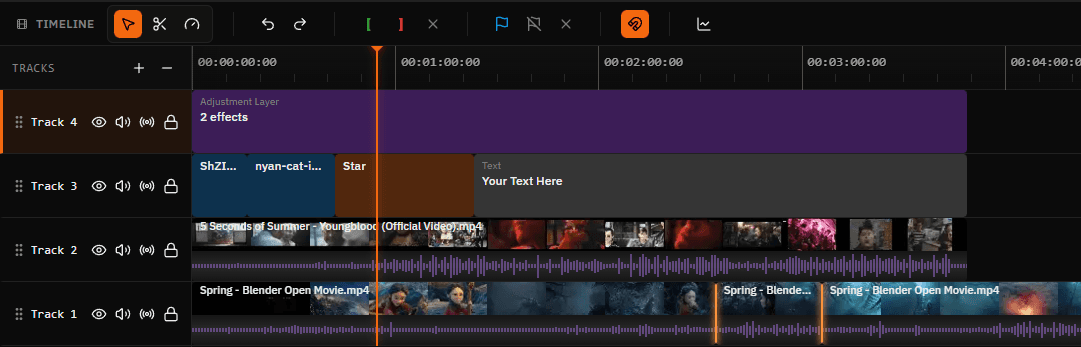
Text layers in Satura remain editable on the timeline. Change the wording, appearance, position, animation, start time, or duration without changing the uploaded source video.
This workflow is for messages you author intentionally: titles, speaker names, labels, context, key points, and calls to action. For dialogue that should follow the spoken track, use the transcript-backed Quick Subtitles tool.
Text overlay controls
Keep text in the same multi-track project as the footage, audio, trimming, resizing, and final export.
Add separate titles, labels, lower thirds, calls to action, or end cards and edit each text layer independently.
Move and resize each text item on the timeline to set its exact start time and on-screen duration.
Choose the font, size, weight, color, alignment, spacing, background, outline, shadow, padding, and corner radius.
Apply independent in, loop, and out motion presets, then adjust their duration, stagger, order, and intensity.
Move, scale, and rotate the selected text so it supports the subject instead of covering important visual details.
Preview the complete sequence and render a new H.264 MP4 with every timed text layer included in the picture.
Four-step workflow
Add the message, shape its appearance, set its timing, and inspect the final sequence before export.
Open Satura's browser editor, add a video you are allowed to edit, and place the footage on the timeline.
Choose a text item or style preset, enter the words you want viewers to see, and add more layers for separate messages.
Set the typography and background, position the text on the canvas, and trim its timeline item to the right moment.
Check every text transition and safe area, then render the finished timeline as an H.264 MP4.
Text overlay planning
Short, purposeful overlays are easier to read and time than one text block trying to explain everything at once.
| Text type | When it appears | What it should do |
|---|---|---|
| Opening title | Beginning of the video or chapter | Introduce the topic, episode, product, location, or speaker. |
| Lower third | First appearance of a person or place | Show a name, role, location, or concise supporting detail. |
| Label or callout | While the referenced detail is visible | Identify a product feature, step, ingredient, control, or visual example. |
| Key-point overlay | At the exact supporting statement | Reinforce one statistic, takeaway, warning, or memorable phrase. |
| Call to action | After the viewer has enough context | Prompt a next step such as subscribe, visit, compare, or continue watching. |
| End card | Final seconds | Close with credits, contact information, a source note, or the next video. |
Manually written titles, labels, names, context, and calls to action with independent styles and timing.
Transcript-backed captions that follow spoken dialogue, using word timing and caption styles across the video.
Generate quick subtitlesA prompt-driven workflow that creates new video footage from a written scene description rather than placing words over an existing clip.
Generate video from textChoose a clear font and enough size for the smallest screen where viewers will watch. Add a background, outline, or shadow when the footage changes from light to dark behind the words.
Keep the message concise and leave important faces, controls, products, and platform interface areas unobstructed. Review the full text duration, not only its first frame.
A title, speaker name, statistic, and call to action rarely need the same position or timing. Separate layers keep each message editable and make timeline changes easier to review.
Preview the beginning and end of every layer, especially when text motion is active. This catches abrupt exits, accidental overlaps, or a message that remains on screen after its subject has changed.
Common creator workflows
Name features, show short instructions, and place benefit statements beside the product while it is being demonstrated.
Mark steps, keyboard commands, measurements, and key takeaways at the moment each detail becomes relevant.
Use concise hooks, context labels, and calls to action that remain readable in a vertical frame without covering the subject.
Introduce speakers with lower thirds, identify locations, and highlight selected claims without captioning every spoken word.
Import and export behavior
Import MP4, WebM, MOV, AVI, or MKV video. Browser playback still depends on the codec inside the container, so a standard H.264 MP4 is the most predictable fallback for an unusual source file.
Text remains editable inside the project and is rendered into the finished picture during export. Satura creates a new H.264 MP4 instead of overwriting the uploaded source.
Questions answered
Open Satura's browser editor, import your video, add a text item, type your message, and customize its font, color, background, outline, shadow, alignment, and position. Set the text item's start and duration on the timeline, preview the result, and export a new H.264 MP4.
Yes. Import the MP4, place it on the timeline, add one or more text layers, and export the finished edit as an H.264 MP4. The same workflow can accept WebM, MOV, AVI, and MKV video when the browser supports the codecs inside those files.
Yes. Every text layer has its own timeline position and duration. Move the layer to the desired start time and resize its timeline item so the text disappears at the correct moment.
Yes. Create separate text layers for titles, names, labels, key points, calls to action, and end cards. Each layer can have its own wording, style, position, timing, and motion settings.
Yes. Satura provides independent in, loop, and out motion slots for text. Choose a preset and adjust settings such as duration, stagger, order, and intensity, then preview the motion with the video before export.
Authored text overlays are best for titles, labels, lower thirds, key points, and calls to action that you write and place manually. Subtitles represent spoken dialogue across the video and are faster to create with Satura's transcript-backed Quick Subtitles workflow.
Use strong contrast, a clear font, enough size for the target screen, and a background, outline, or shadow when footage changes behind the words. Keep each message concise, avoid important visual areas, and preview on the smallest screen where the video will be watched.
No. Standard editor exports do not add a Satura watermark. Your text is rendered into a new H.264 MP4 while the original uploaded file remains unchanged.
Related workflows
Generate transcript-backed, word-timed captions for spoken dialogue.
Trim, combine, resize, caption, and add text to MP4 footage online.
Remove unwanted footage before timing the text overlays.
Change the canvas shape and reposition text for a target platform.
Mix music, narration, or effects with the text-led edit.
Open the complete multi-track browser editing workspace.
Ready to put your message on screen?