What is the quick answer?
Learn the internet speed requirements creators actually need for editing, 4K uploads, live streaming, and collaboration, plus how to test and optimize.
Key takeaways
- The Moment Every Creator Hits a Bandwidth Wall
- Download Upload Latency and Jitter Explained Like a Creator
- Match the metric to the task
- Speed Requirements by Creator Workflow
- In-browser editing
- Uploading finished 1080p cuts
Overview
You press Export, switch to the browser to upload the finished video, and watch the progress bar stop moving. The speed test you ran that morning looked excellent, but your editing session still feels broken. Downloads arrive quickly, the preview loads, and yet the upload crawls while a video call starts stuttering in the next room.
That mismatch explains why generic internet speed requirements often miss the needs of creators. A creator's day depends on more than download Mbps. Upload capacity, latency, jitter, and the way several tasks compete for the same connection decide whether your workflow feels smooth or fragile. For a broader look at connection performance in less densely served areas, see this guide to SwiftNet Wifi rural internet speeds.
The Moment Every Creator Hits a Bandwidth Wall
A download test measures how quickly data reaches your device. That's useful when you're pulling raw footage from cloud storage or loading reference videos, but it doesn't tell you whether your finished project can leave your computer without delay.
Consider a typical editing afternoon. You're downloading stock footage, uploading a finished cut, syncing project files, and joining a call with a client. Each task uses the connection differently. A plan can feel fast during a quiet test and still struggle once your network has to send a large video while maintaining a live conversation.
The problem often appears at the least convenient moment. Your upload pauses at the same time you need to send a review link. The call drops to a blurry feed. A livestream begins dropping frames because another device has started backing up media. None of these failures necessarily means your camera, editor, or computer is defective.
Creator rule: Judge your connection during the busiest realistic part of your workday, not during an idle speed test.
Most household advice starts with the download number because browsing and video playback are common consumer activities. Creator workflows reverse that priority. You regularly send large files, transmit live video, share your screen, and keep cloud services synchronized.
That's why a modest download plan with healthy upload performance can feel better for an editor than a plan with a dramatic download headline and a weak upstream channel. The right question isn't “How fast is my internet?” Ask instead, “What must my connection send and receive at the same time, and how consistently can it do that?”
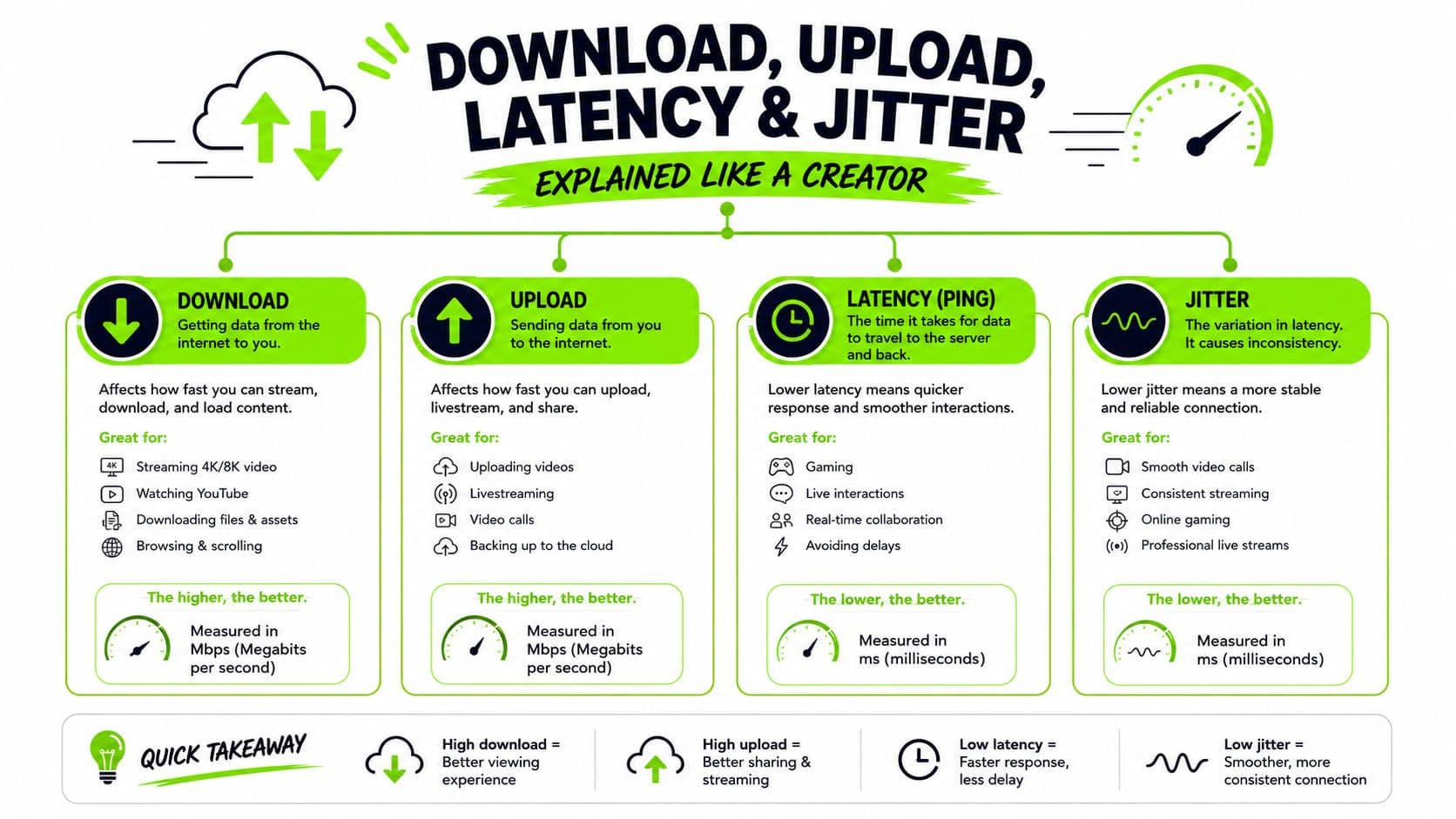
Download Upload Latency and Jitter Explained Like a Creator
Think of your connection as a production pipeline with four separate qualities.
Download speed measures how quickly information arrives. When you pull a high-resolution clip into a browser editor, download capacity determines how quickly the source material reaches your timeline. It resembles water flowing into a tank. More flow helps fill the tank sooner, but it doesn't guarantee that water can leave at the same rate.
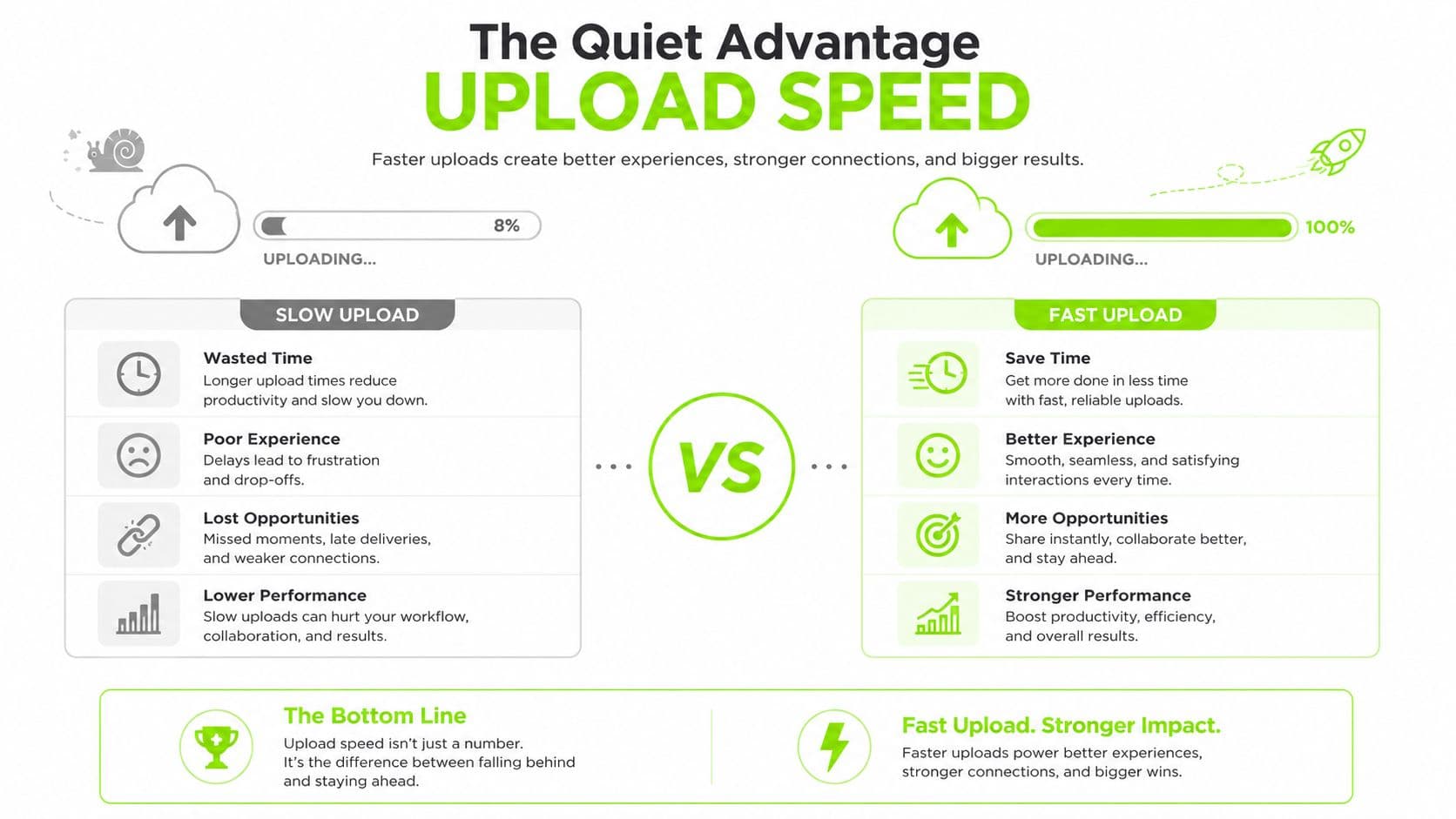
Upload speed measures how quickly information leaves your network. Exporting a finished video, sending a project to cloud storage, sharing a camera feed, or livestreaming all depend on this direction. A plan with strong download and limited upload can make research feel effortless while making delivery painfully slow.
Latency is the delay between sending data and receiving a response. During a client call, high latency makes conversations feel like people are stepping on one another's sentences. In a remote editing workflow, it can make buttons, previews, and shared changes feel delayed even when a speed test reports ample bandwidth.
Jitter is variation in latency. Stable delay is easier for realtime applications to handle than delay that keeps changing. A stream may have enough average bandwidth, yet jitter can make packets arrive unevenly, which contributes to buffering, frozen video, or visible quality shifts.
Match the metric to the task
Use this mental shortcut:
A speed test gives you a snapshot. It doesn't always reveal how the connection behaves under load, when several applications transmit data together. For creators, consistency often matters more than the biggest isolated Mbps reading.
- Editing from cloud storage: Watch download speed, then check latency if the interface feels slow.
- Sending finished videos: Prioritize upload speed and consistency.
- Live streaming: Prioritize upload headroom, latency, and jitter.
- Video conferencing: Check upload first because your camera, microphone, and screen share travel outward.
- Background syncing: Treat it as a competing upload task, not an invisible process.
Speed Requirements by Creator Workflow
A browser edit can feel sluggish while a speed test shows a large download number. A finished export may upload slowly even though research videos load quickly. Each workflow stresses a different part of the connection, so one generic Mbps recommendation misses the actual bottleneck.
In-browser editing
In-browser editing needs download capacity and quick responses. Your device retrieves footage, thumbnails, audio, and project data, while the editor saves changes and loads previews. A lightweight project may work on a modest connection. Multiple source files, proxy media, background saves, and research tabs need more room.
Use the point where footage loads without constant pauses as a practical floor. A comfortable target leaves capacity for messaging, reference material, and cloud activity, so the editor does not compete for every available bit.
Latency becomes noticeable during trimming, scrubbing, and panel changes. If those controls respond late, adding download speed alone may not improve the session. Browser-based workflows also benefit from the setup guidance in this AI editing setup guide.
Uploading finished 1080p cuts
A finished 1080p file is generally easier to deliver than a 4K master, but transfer time still depends on the file's encoded bitrate and your upstream capacity. Treat upload bandwidth as part of the production schedule. A video call or cloud sync running at the same time reduces the capacity available to the export.
For live video platforms, a 1080p60 stream commonly needs about 5.6 to 11 Mbps upstream, with a practical safety margin of roughly 35% to 40% for network variation and fewer dropped frames or quality changes, according to Speedify's live-streaming bandwidth guidance. The figures describe live encoding, yet they provide a useful reference when planning regular video uploads because both tasks send data outward.
Uploading 4K masters
A 4K master puts more pressure on the upstream path. Large files take longer to transfer when upload capacity is limited, and an active upload can make calls, shared previews, or other realtime work less responsive.
The exact requirement depends on codec, frame rate, and platform limits. As resolution and frame rate rise, encoded bitrate also rises, so a connection with little spare capacity can create encoder backpressure and visible quality loss. Plan around the file's actual bitrate and leave room for other work rather than judging the connection by download speed.
Live gaming or podcast streaming
Live streaming sends a continuous video and audio feed while chat, monitoring tools, browser tabs, and household activity compete for capacity. Gaming broadcasts expose unstable latency or jitter through delayed controls and chat. Podcast streams may reveal the same problems through frozen guests, broken screen shares, or pauses in conversation.
For a 1080p60 stream, use the cited 5.6 to 11 Mbps upstream range as a planning reference, then preserve the stated safety margin instead of treating the lower figure as a guarantee.
For calls that accompany a stream or recording session, Optimum's streaming and conferencing overview places effective quality around 5 Mbps down and 3 Mbps up for a single user. Typical HD one-on-one calls can work around 1.5 to 3 Mbps in each direction, while small-group HD calls often use around 2 to 4 Mbps per user. A business-grade room using 1080p video and content sharing may need about 5 Mbps in each direction, before network margin. These figures make the planning lesson clear: preserve upstream capacity for the camera, microphone, screen share, and stream, not only for the final video feed.
Why Upload Speed Runs the Show
A creator's connection changes with the task. Research footage and reference streams mainly use download capacity. A livestream reverses the direction because the encoder sends the program feed outward. A client call with camera video, screen sharing, and cloud synchronization can load both directions at once.
That imbalance creates a common trap. A plan with a large download figure may still offer too little upload capacity for streaming and publishing video. The headline number looks impressive, but the smaller upstream channel controls how smoothly work leaves the home.
Creator Tasks Ranked by Bandwidth Bottleneck
| Task | Bottleneck Direction | Typical Mbps Needed |
|---|---|---|
| Research video playback | Download | HD playback needs 5 Mbps or higher, according to Netflix guidance summarized by BroadbandNow |
| Single 4K playback | Download | Around 25 Mbps is a practical minimum for reliable playback, according to streaming bandwidth guidance |
| One HD video call | Upload and download | Around 3 Mbps up and 5 Mbps down for effective single-user quality |
| 1080p60 livestream | Upload | About 5.6 to 11 Mbps upstream, with extra headroom, based on earlier streaming guidance |
| 4K60 livestream | Upload | Roughly 24.2 to 61.5 Mbps upstream, depending on encoding and platform limits |
The table shows why creators should inspect upload capacity on an ISP comparison page instead of stopping at the download headline. Streaming, publishing, and cloud collaboration all send data outward, so upload speed becomes the limiting lane when several tasks share a connection.
File-format choices affect that load too. Compression and bitrate determine how much data the workflow must send. This guide to the best video format for YouTube offers a practical reference for choosing a format that fits the publishing workflow.
Latency and jitter matter alongside Mbps. A connection can have sufficient capacity yet still produce delayed controls, uneven calls, or unstable monitoring when traffic competes for the upstream lane.
For a visual explanation of how a stream moves through the network, review the video below.
How to Test Your Real Creator Speed
Run a normal browser speed test first, but don't treat the result as a verdict. Record both download and upload, then note whether the result matches the plan you pay for. A single reading can't show how the connection behaves when your editor, backup service, and call are active together.
What are the common questions?
What is the short answer for Internet Speed Requirements for Creators (2026 Guide)?
Learn the internet speed requirements creators actually need for editing, 4K uploads, live streaming, and collaboration, plus how to test and optimize.
What should creators do first?
Concurrent behavior: Open the workflow you use, such as a browser editor, cloud storage, and a video call.
Who is this guide for?
This guide is for YouTube creators, faceless channel operators, agencies, and teams using AI tools to improve video production and growth.
Action checklist
Apply this to your channel today.
- 1Concurrent behavior: Open the workflow you use, such as a browser editor, cloud storage, and a video call.
- 2List simultaneous realtime tasks. Include your stream, calls, and remote collaboration.
- 3Add active transfers. Include exports, cloud backups, and media uploads.
- 4Protect headroom. Don't plan to operate at the connection's measured limit.
- 5Test at home. Shared devices can turn a comfortable solo workflow into a congested studio.
Sources & methodology
- Satura editorial guide based on the source video, topic cluster, and article sections.
- Source video reviewed for this article: https://www.outrank.so/