What is the quick answer?
Learn how to make a voice memo a ringtone on iPhone and Android. Step-by-step workflows, trimming tips, format fixes, and troubleshooting for every device.
Key takeaways
- iPhone with GarageBand: The best computer-free option. GarageBand imports the memo, trims it, and exports it through Apple's ringtone workflow.
- iPhone with a computer: Useful if the recording is already on a Mac or PC, or if you prefer desktop editing and file management.
- Android with a file manager: Usually the shortest path. Android can select local audio files directly from its sound settings once the file is stored correctly.
- Creating an iPhone Ringtone with GarageBand
- Prepare the recording
- Export and assign it
Overview
You've got the perfect recording: your child's laugh, a friend's ridiculous catchphrase, or a song snippet captured at exactly the right moment. It's sitting in your phone, ready to go, yet every incoming call still plays the default ringtone. The fix depends almost entirely on which phone you have and where the audio file lives.
Choose your route before touching the recording:
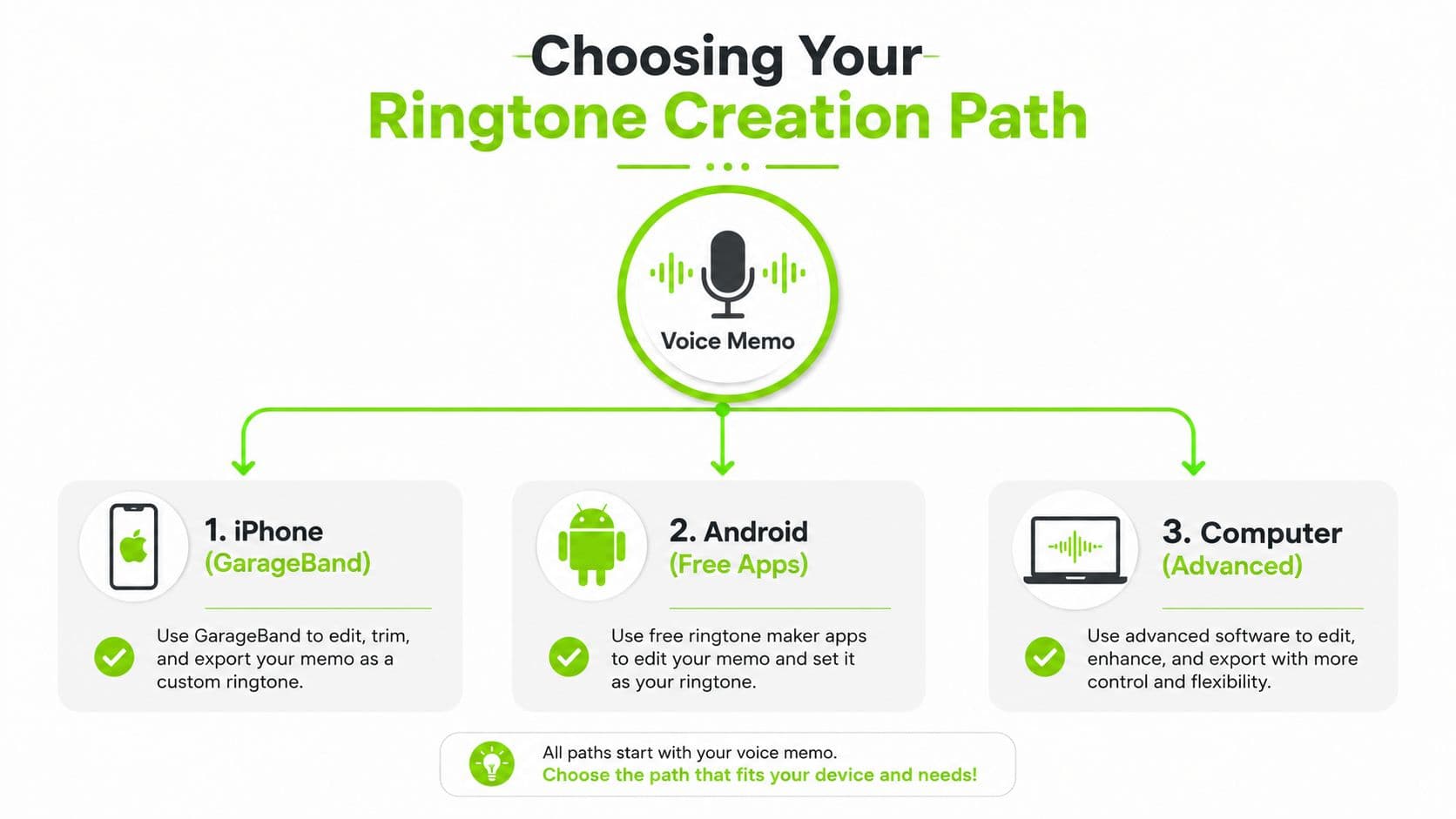
The confusing part is that “voice memo” describes where the recording came from, not the format your phone needs. An iPhone commonly expects an M4R ringtone package, while Android generally works with a standard local audio file selected through its sound settings. If your recording needs more preparation, you may also want to turn audio into MIDI data, although MIDI is for musical notes and instrument data, not a normal spoken ringtone.
Older search results often send people toward iTunes syncing. That reflects an earlier desktop-centered workflow. Modern iPhone guidance centers on GarageBand and the Settings app, while Apple's current support documentation also describes a simpler “Use as Ringtone” sharing option in the Voice Memos workflow. Availability can depend on the iOS version and the file, so GarageBand remains the dependable fallback when the direct option isn't visible.
If the audio came from a video, clean it up or prepare it first with a tool such as adding audio to video, but keep the final ringtone as an audio file rather than a video export.
- iPhone with GarageBand: The best computer-free option. GarageBand imports the memo, trims it, and exports it through Apple's ringtone workflow.
- iPhone with a computer: Useful if the recording is already on a Mac or PC, or if you prefer desktop editing and file management.
- Android with a file manager: Usually the shortest path. Android can select local audio files directly from its sound settings once the file is stored correctly.
Creating an iPhone Ringtone with GarageBand
GarageBand is the practical answer for most iPhone owners who want to know how to make a voice memo a ringtone without a computer. It's free, works directly on the phone, and handles the platform-specific export that a casually renamed audio file often can't.
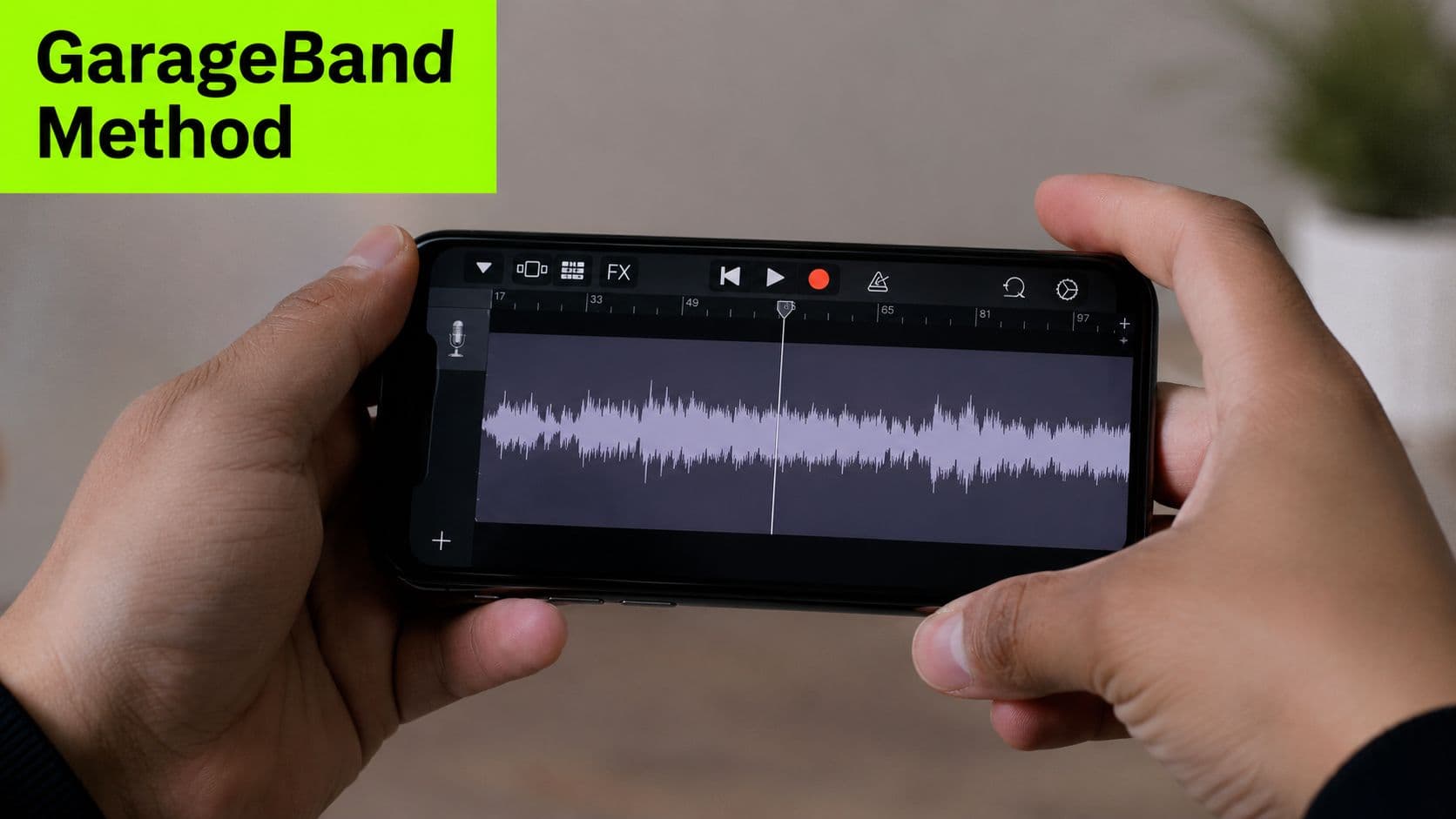
Prepare the recording
First, get the recording into the Files app. In Voice Memos, tap the recording, open the share menu, and save it to Files. If the recording already exists as an M4A or another supported audio file, save or move it there instead.
Open GarageBand and create an Audio Recorder project. You don't need to build a song. GarageBand is acting as a small editor and ringtone exporter here, not as a full music-production studio.
Open the track view, then use the loop or file browser to locate the memo in Files. Drag the audio into the timeline. If GarageBand asks about the project length or track settings, accept the basic audio project and focus on getting the clip into the workspace.
Trim the recording to 30 seconds or less, a conservative target described in independent GarageBand ringtone instructions (AppGeeker's step-by-step guide). Apple's iPhone ringtone limit is 40 seconds, so trimming below that ceiling gives the export room to succeed without relying on the absolute maximum (iPhoneFAQ's ringtone guidance).
Practical rule: Put the part people should hear first at the beginning of the project. A ringtone that starts with silence may technically work but still feel broken.
Move the trimmed clip so it begins at the project's start. Save the project by tapping My Songs, then return to the project browser. From there, press and hold the project and choose Share, followed by Ringtone.
Export and assign it
Give the tone a short, recognizable name. Tap Export. GarageBand may offer to set the result as your standard ringtone immediately, or you can choose Done and assign it afterward through Settings > Sounds & Haptics > Ringtone.
If you're editing the recording before export, techniques covered in speeding up music in GarageBand can help with timing, though a spoken memo usually needs only trimming. The important detail is the export destination. Saving an audio project or sending an M4A to Files isn't the same as choosing Share > Ringtone.
Here's a visual walkthrough of the mobile editing experience:
Once the export finishes, test the sound from the ringtone settings. If it doesn't appear, don't start editing the memo again immediately. Check the length, export path, and file packaging first.
Setting a Voice Memo as Your Android Ringtone
Android treats ringtone customization more like ordinary file management. The phone doesn't require the same GarageBand handoff, so the job is mainly to create a compatible audio file, place it where Android can find it, and select it in the sound settings.
Get the file into a usable form
Export the memo as a standard audio file, commonly MP3 or OGG, if your recording app gives you format choices. Some Android recorder apps save in a format that the ringtone picker doesn't recognize cleanly, so conversion may be necessary before you try to assign it.
Open your file manager and locate the exported recording, usually in Downloads, Audio, or the recorder app's own folder. Create or open the device's Ringtones folder, then copy or move the file there. The exact file-manager labels vary by manufacturer, but the principle is consistent: place the audio in a location the system sound picker scans.
If the recording is too long, trim it before moving it. Android is more flexible than iPhone about how it handles local audio, but a ringtone still works better when the recognizable part starts promptly and the file isn't padded with empty audio.
Select it in system settings
Open Settings > Sound or Sound & vibration, then tap Phone ringtone. Choose the option to add a local file, browse device audio, or open the file picker. Select the recording from the Ringtones folder and confirm.
Some recorder apps include a direct Set as ringtone or Use as ringtone action in their share menu. If it appears, it can save a trip through the file manager, but the system still has to accept the underlying file and add it to the ringtone list.
Android's open local-audio approach is why the process often feels shorter than the iPhone route. It also creates a different failure pattern. A file may play perfectly in a music app but remain absent from the ringtone picker because it's in an unsupported container, stored in a folder the picker doesn't scan, or hasn't been refreshed by the system.
For a recording extracted from a longer clip, use a dedicated video trimmer before exporting the audio. Keep the final file simple, clearly named, and easy to find.
Why Your Ringtone Is Not Showing Up in Settings
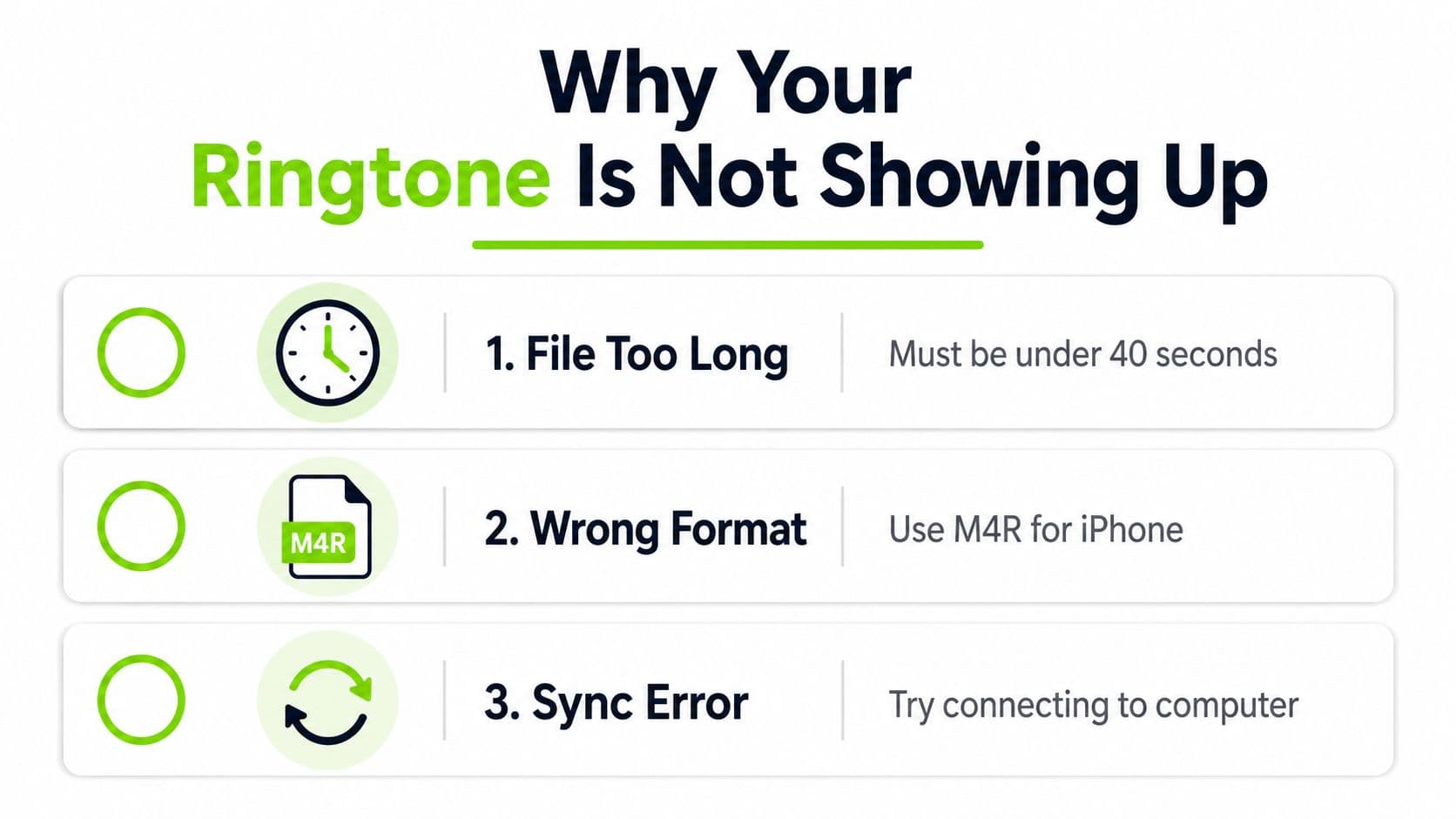
You trimmed the memo, exported it, and still cannot find it in the ringtone list. The usual cause is a mismatch between the phone's length, format, or installation rules, not poor recording quality.
The clip is too long
On iPhone, a ringtone longer than 40 seconds will not sync correctly, according to iPhoneFAQ's explanation of the length limit. A normal voice memo often needs trimming before export. GarageBand may import the recording without complaint, then reject it during ringtone export or synchronization.
Cut the beginning and end, remove dead air, and place the strongest phrase at the start of the GarageBand project. A target of 30 seconds or less gives extra room below the 40-second maximum that Apple documents for iPhone ringtones.
The format is wrong
An iPhone ringtone generally uses the M4R extension. M4R typically contains AAC audio in a ringtone-specific wrapper, so renaming an MP3 or M4A file to “.m4r” does not necessarily create a usable ringtone (this explanation of ringtone audio formats). The phone checks both the extension and the import path. Playback in another app does not prove that iPhone will accept the file.
This causes a common cross-platform mismatch. Android can often select a local MP3 directly, while iPhone expects the audio to enter its ringtone library through a compatible package and system workflow. If the source is a video file, converting MKV to MP3 handles the audio extraction stage, but you still need the correct iPhone ringtone packaging afterward.
The export isn't the assignment
Exporting the sound does not automatically make it active. On iPhone, open Settings > Sounds & Haptics > Ringtone and select the new tone unless GarageBand has already assigned it. On Android, return to the phone ringtone picker and confirm the file there.
If it remains missing, check these points in order:
The fastest diagnosis is to identify which platform's rule failed, then redo that step rather than exporting the same file repeatedly.
- Length: Keep the iPhone clip within the supported limit.
- Container: Use GarageBand's Ringtone export instead of manually renaming a generic audio file.
- Location: On Android, place the file in the Ringtones folder and reopen the picker.
- Assignment: Select the tone in system settings after exporting.
- Connection: If a computer is involved, approve the device connection before transferring.
Comparing the Three Ringtone Workflows
The best method isn't the one with the fewest taps in a generic tutorial. It's the one that matches your device, the location of the memo, and your willingness to manage file formats.
| Criteria | iPhone + GarageBand | iPhone + Computer | Android + File Manager |
|---|---|---|---|
| Computer required | No | Yes, when using desktop transfer or editing | No |
| Main workflow | Import into GarageBand, trim, Share > Ringtone | Edit or convert on the computer, then transfer and assign | Export a local audio file, move it to Ringtones, select it |
| Format handling | GarageBand creates the iPhone ringtone package | You may need an M4R-compatible export and a supported transfer path | Standard local audio formats are usually the practical choice |
| Best for | Audio already on the iPhone | Audio already on a Mac or PC, or users who prefer desktop tools | Quick customization with local files |
| Common failure | Skipping Share > Ringtone or exceeding the supported length | Transfer succeeds as a file but not as an installed ringtone | Unsupported format, wrong folder, or stale ringtone picker |
The GarageBand route is the strongest default for an iPhone without a computer. It avoids the older iTunes-centered instructions that still clutter search results and uses Apple's current device-level workflow.
The computer route can feel cleaner if the memo is already on a desktop, especially when you want to make precise edits. Its trade-off is that you must manage the transfer and confirm the sound was installed as a ringtone, not merely copied to the phone.
Android's file-manager path is usually the most direct. It has fewer platform-specific packaging hurdles, but the responsibility shifts to you: choose a compatible format, use a visible folder, and complete the system assignment.
Third-party ringtone apps can be convenient, but native methods are easier to audit. Apps that promise one-tap conversion may add advertising, watermarks to related media workflows, or subscription steps. For a short personal recording, GarageBand or the Android file picker usually gives you more control and fewer unknowns.
What are the common questions?
What is the short answer for How to Make a Voice Memo a Ringtone on iPhone and Android?
Learn how to make a voice memo a ringtone on iPhone and Android. Step-by-step workflows, trimming tips, format fixes, and troubleshooting for every device.
What should creators do first?
Choose the platform first: iPhone users without a computer should start with GarageBand. If the audio is already on a desktop, use the computer workflow. Android users should begin with the file manager.
Who is this guide for?
This guide is for YouTube creators, faceless channel operators, agencies, and teams using AI tools to improve video production and growth.
Action checklist
Apply this to your channel today.
- 1Choose the platform first: iPhone users without a computer should start with GarageBand. If the audio is already on a desktop, use the computer workflow. Android users should begin with the file manager.
- 2Confirm the source file: Make sure the memo is saved locally and easy to locate before opening the import screen. Cloud-only files can make the handoff confusing.
- 3Use the correct iPhone handoff: In GarageBand, finish through Share Ringtone. Renaming an MP3 or M4A does not install it as an iPhone ringtone.
- 4Use the correct Android destination: Place the audio in the Ringtones folder, then open the phone's ringtone picker and look for the file there.
- 5Check the final assignment: System sound settings should show the new tone as selected. A successful export or file transfer does not complete this last step.
- 6Test before relying on it: Play the tone from ringtone settings, then make a test call. Listen for low volume, an awkward silent opening, or a voice that blends into other alerts.
Sources & methodology
- Satura editorial guide based on the source video, topic cluster, and article sections.
- Source video reviewed for this article: https://www.outrank.so/